Advanced Comparison Table for Elementor
100% Original fileUnmodified copy of the developer's release
DeveloperCode Canyon
Up to dateOriginal released Dec 27, 2024 · File last updated Oct 23, 2026
About this product
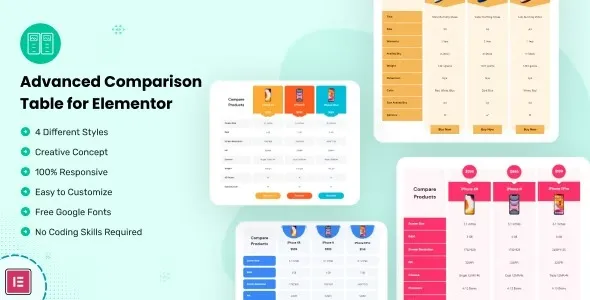
Advanced Comparison Table for Elementor 1.1 is an Elementor widget that puts several products side by side in one table, with a column of features next to one column for each product. It suits affiliate blogs, review sites and small shops that compare phones, hosting plans or software tiers and want readers to see the price, the yes and no answers and a buy button in one place. You build and style the table inside the Elementor editor, so you don't write any code.
What's in the Advanced Comparison Table for Elementor download
Our download is the original Advanced Comparison Table for Elementor ZIP for version 1.1, with the license key already activated. It holds the plugin, which adds the Advanced Comparison Table widget to Elementor. Elementor itself is not in the file. The developer lists only Elementor as a requirement, so the free Elementor plugin from the WordPress plugin screen is enough and you don't need Elementor Pro for this widget.
Good to know
The free Elementor plugin must be installed and active first. Without it, the plugin asks you to install Elementor and stays idle until you do. The developer lists WordPress 6.0 or newer. The widget works only in Elementor, not in the block editor or other page builders. The download is a package: unzip it on your computer first and upload advanced-comparison-table-for-elememtor.zip, not the whole package. The odd spelling in that file name is the developer's own.
How to install Advanced Comparison Table for Elementor
- Install and activate the free Elementor plugin under Plugins, Add New Plugin, because the comparison table only runs inside Elementor.
- Log in to GPLGuide, open this product and click Download under Your downloads.
- Unzip the download on your computer and keep advanced-comparison-table-for-elememtor.zip, since you upload that file and not the whole package.
- In WordPress go to Plugins, Add New Plugin, Upload Plugin, choose advanced-comparison-table-for-elememtor.zip, click Install Now, then Activate.
- Open a page with Edit with Elementor, search the widget panel for Comparison Table and drag the Advanced Comparison Table widget onto the page.
Features & capabilities
- Eight table designs, picked from the Layouts control in the widget's General settings.
- A Products setting for how many items you compare, each with its own title, price, image, button text and link.
- A Features Box column with a heading and as many feature rows as you add, such as size, warranty or availability.
- Your own currency symbol in front of every price.
- Check and close icons with their own colours to show which product has which feature.
- Odd and even row colours, border type, width and colour for the whole table.
- Button styles for normal and hover states, with box shadow, border radius, padding and margin.
- Column settings for desktop, tablet and mobile, a .pot file for translation and WPML support.
Frequently asked questions
Is this the original file?
Yes. Every product on GPLGuide is the developer’s own release, unchanged. The license key comes already activated. If a product does ask for a key, the activation steps appear on its page once you have it.
Is it legal to use a GPL plugin or theme from GPLGuide?
Yes. WordPress plugins and themes are released under the GPL, which lets anyone use, share and change the code. The developer’s support desk and the developer’s own update service are not part of the file; those stay with the developer.
How do I install it?
Log in, open the product page and click Download under Your downloads. For a plugin go to Plugins, Add New Plugin, Upload Plugin, choose the ZIP, then Install Now and Activate. For a theme go to Appearance, Themes, Add New Theme, Upload Theme.
How do updates work?
When a newer version is listed on GPLGuide, download it from the product page and upload it over the installed copy; WordPress offers to replace the old version. Updates are manual.
Can I use it on more than one site?
Yes. The GPL lets you use it on as many of your own sites as you like.
What if the file does not work or a newer version is out?
Tell us on the Request Item page or through Support. We check the file and add the newer version when we have it.