
Content Egg – all in one plugin for Affiliate, Price Comparison, Deal sites
v22.2.0Advertising & Affiliate
↗
100% Original fileUnmodified copy of the developer's release
DeveloperCodepress (Admin Columns)
Up to dateOriginal released Oct 7, 2026 · File last updated Oct 16, 2026
Admin Columns Pro is a WordPress plugin by Codepress, the Dutch team behind the free Admin Columns plugin, that turns the post, page, user, media, comment and taxonomy lists in your dashboard into tables you can sort, filter, edit and export. You choose which columns each list shows, from custom fields to WooCommerce stock values, and work on your content without opening every item. This page is for Admin Columns Pro 7.1.7, released on October 7, 2026. On GPLGuide you download the original plugin file to install on your own websites.
Good for: store owners, editors, SEO teams and developers who work in WordPress list tables every day, from big WooCommerce catalogs to ACF sites and Gravity Forms entries.
Requirements: WordPress 6.2 or newer, the minimum since version 7.1. Admin Columns lists PHP 7.2 as the lowest version for Pro and recommends PHP 7.4 or newer, which is also what the free plugin asks for. No other plugin is needed. Each integration switches on only when the plugin it supports, such as ACF or WooCommerce, is active. Remove the free Admin Columns plugin before you install Admin Columns Pro.
Admin Columns Pro lets you add, remove, rename, resize and reorder the columns on each list, and pick from a large library of column types: featured images, word counts, custom fields, taxonomies, user data and more.
On top of the columns, Admin Columns Pro adds the tools that make them useful. You can sort on any column, narrow the list with Smart Filtering, change values inline or in bulk, export the current view and color values with conditional formatting. Since version 7.1 the table footer can also show Metrics, such as a total, an average or the number of empty fields.
With Table Views you build several column layouts for the same list and give each one to a role or a single user, so a writer, an SEO editor and a shop manager each see what they need.
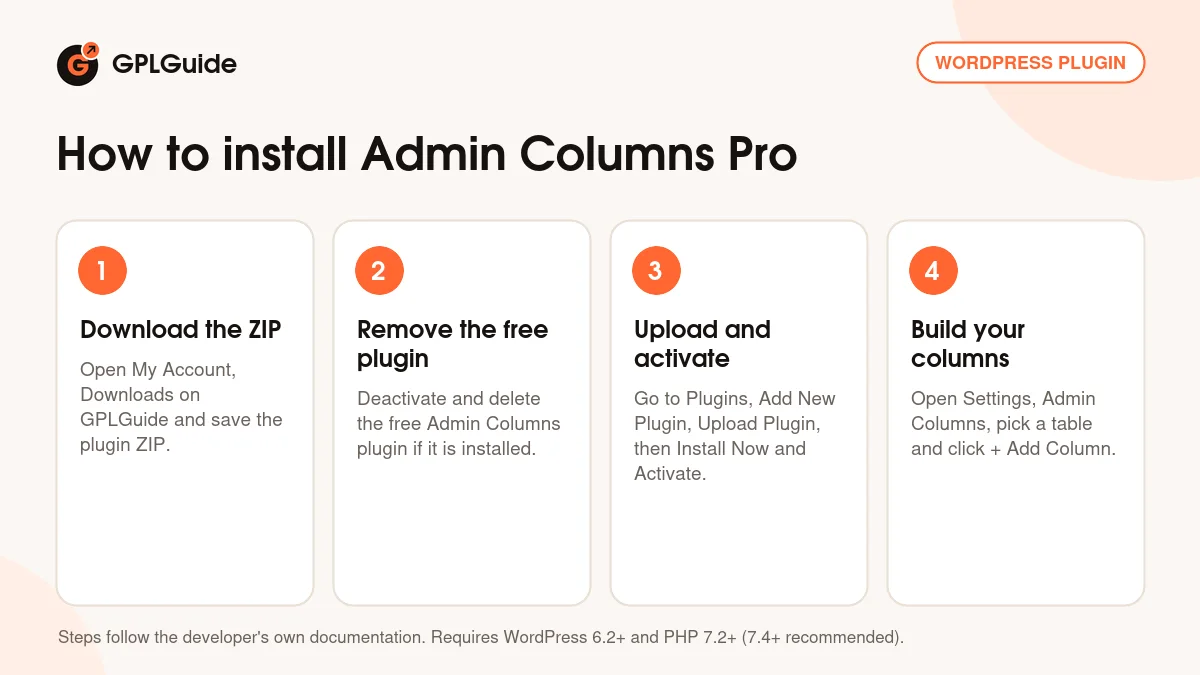
Go to Settings, Admin Columns and pick a list table from the menu on the left, for example Posts, Users or Media. Click + Add Column, search for the column type and set its options. Every column has a Type, a Label (or an icon) and a Width in pixels or percent. Many types have extra options, such as the image size of a Featured Image column. Save with Update, then click View.
Icons on each column switch the Pro tools on or off: Sorting, Inline Edit and Bulk Edit, Smart Filtering, Export and Metrics (the Σ icon). You decide per column what people can sort, change or download.
To create a Table View, click + Add View, name it and base it on an existing view or a template. Below the columns you choose the roles or users who see it, and anyone with several views gets a dropdown next to the page title. Under Table Elements you can hide parts of the table per view, such as Search, Bulk Actions, Inline Edit, Bulk Edit, Bulk Delete, Smart Filters, Export, Add Row (Quick Add) and Resize Columns.
Preferences set a default sorted column per table. Developers can store settings as files with File Storage, so a setup can live in Git.
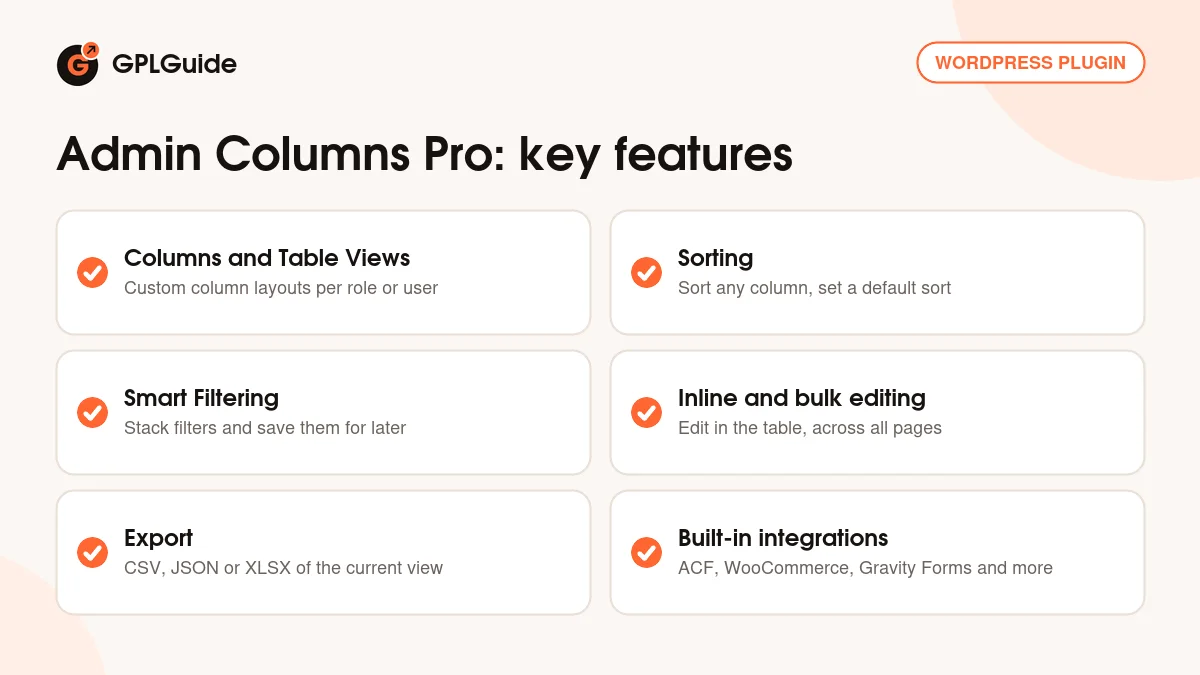
Sorting. Click a column header to sort, and again to flip the order. It also works on columns WordPress can't sort, like a custom field.
Smart Filtering. Click Add Filter above the table, then choose a column and an operator. Operators depend on the column and include contains, is, starts with, larger than, between, is before, is in the past and is within x days. You can stack filters. Save Filters stores the combination with the sort order, post status and search term. Administrators can tick Make available to all users to share a filter, and a public filter can become a table's default.
Inline and bulk editing. Turn on the editing switch above the table and a pencil icon appears next to each editable value. On posts that covers the title, status, author, categories, tags, featured image, date, excerpt, slug and page template. Bulk Edit appears once you select rows, and you can select every result across all pages, so you can filter first and then change only the matches.
Editing custom field columns is off by default. Admin Columns Pro needs the field type, such as Text, Number, Date, Image, True / False, Post or User, to save each value in the right format.
Export and formatting. The Export button downloads the current view with its filters and sort order, across all pages, as CSV, or as JSON or XLSX since version 7.1. Conditional formatting colors values that match your rules, and Quick Add inserts a new post as the first row.
Since version 6.0 the integrations are part of the Admin Columns Pro plugin itself. There is nothing extra to download: each integration loads only when the plugin it supports is active. The developer lists Advanced Custom Fields, WooCommerce, Meta Box, JetEngine, Toolset Types, Gravity Forms, Yoast SEO, The Events Calendar, Pods, BuddyPress, Rank Math and SEOPress, plus Beaver Builder and Media Library Assistant as third-party integrations.
ACF. Field columns are grouped by field group, and you can sort, filter, edit and export them. For a repeater you can show one sub field or all of them; filtering, editing and sorting need one chosen sub field.
WooCommerce. Extra columns appear on products, variations, orders, coupons, subscriptions and users, such as Products Sold, Total Revenue, Stock Value and Average Order Value. The products table has a Price Update Wizard and a Sale Wizard for scheduled sale prices, and version 7.1 added a Product Reviews table.
Forms and SEO. Gravity Forms gets a full entries table with editing, filters and export. With Yoast SEO you edit the SEO title, meta description and focus keyword inline.
Version 7.1.7 came out on October 7, 2026 and is a fix release. WordPress no longer keeps reporting an update after you update, the WooCommerce on sale product filter works when nothing is on sale, and filtering the Customer column by User Nicename finds results again. Links can now be added in the WYSIWYG editor while editing inline, the value modal cleans its content like the table does, and PHP 8.4 deprecation notices are gone.
Version 7.1.6 (September 22, 2026) made the WooCommerce Coupons Used column work with Smart Filtering and fixed several sorting bugs plus ACF columns lost when upgrading from ACF 5. Version 7.1.5 (September 8, 2026) fixed a slow Users table and incomplete exports, and 7.1.4 (August 28, 2026) fixed memory problems on large WooCommerce catalogs. The bigger step was 7.1.0 (June 30, 2026), which added Metrics, Custom List Tables and JSON and XLSX export.
Admin Columns ties the column settings to a license. Its terms, last updated September 7, 2026, say that after one year a new license is needed to keep support, updates and access to the column settings. The copy you download here comes with the license key already activated, so you can set up and change your columns without entering a key.
Coming from version 6? Admin Columns 7 changed the developer API. Custom columns written in PHP before 7.0 must be rewritten and many hooks were renamed. Sites that only use the settings screen need no changes, and a Help tab lists deprecated hooks found on your site.
Custom List Tables are a developer tool: you register a database table in PHP, and only MySQL or MariaDB tables work. The integrations need their own plugins, such as ACF or WooCommerce, which are not included.
From GPLGuide you get the original Admin Columns Pro 7.1.7 plugin file, released under the GPL like every Admin Columns product. The code is the same, including the built-in integrations, Table Views, Smart Filtering, editing, export, Metrics and Custom List Tables.
An official license adds updates inside WordPress through your license key, premium support from the Admin Columns team and a 30-day money-back guarantee. Prices are $79 for Single (1 site), $159 for Business (5 sites) and $299 for Agency (unlimited sites), each with one year of support and updates that renews yearly. GPLGuide does not provide support from the developer.
A good first project in Admin Columns Pro is the table you open most. Add two or three columns you always wished you had, switch on Sorting and Smart Filtering for them, click Update and then View. Try a filter and save it. Then turn on Inline Edit for one simple column, such as the title, before you allow editing of custom fields.
Updates from GPLGuide are manual. When a new Admin Columns Pro version is listed here, download it from your account and upload it under Plugins, Add New Plugin, Upload Plugin. WordPress offers to replace the installed copy, and your column settings stay in place because they are stored in the database, or in files if you use File Storage. If you see a newer version that we haven't added, let us know on the Request Item/Update page.
Do I also need the free Admin Columns plugin? No. Admin Columns Pro works on its own, and the developer advises removing the free plugin first.
Are the ACF and WooCommerce integrations included? Yes. Since version 6.0 they are inside Admin Columns Pro and load by themselves when ACF or WooCommerce is active.
Can I edit custom fields in the list table? Yes, once you set the field type and switch on Inline Edit or Bulk Edit for that column.
Can different users see different columns? Yes. Create Table Views and assign each one to roles or specific users.
Which export formats are there? CSV, and since version 7.1 also JSON and XLSX. The export follows your filters and sorting.
Can I share saved filters with my team? Yes. Administrators can tick Make available to all users when saving a filter.
Does Admin Columns Pro work on multisite? Yes. The developer lists multisite support, with extra columns for Network Users and the Sites page.
Will my custom PHP columns from version 6 still work? Not without changes. They must be moved to the new 7.0 API, and the upgrade guide and Help tab show what to change.
Browse other WordPress plugins on GPLGuide, or see what a GPLGuide membership includes. If you only need extra columns without sorting, filtering or editing, the free Admin Columns plugin is on WordPress.org.
More plugins you might like from the GPLGuide library.