Amelia – Enterprise-Level Appointment Booking WordPress Plugin
100% Original fileUnmodified copy of the developer's release
DeveloperweDevs
Up to dateOriginal released Oct 2, 2026 · File last updated Oct 23, 2026
About this product
Amelia Booking is a WordPress plugin that takes appointments and event bookings on your own site, with online payments, staff schedules and reminders built in. It suits any business that sells time: a salon with five chairs, a physio clinic, a yoga studio, an online coach. Customers pick a service, an employee and a free slot, pay if you want them to, and get a confirmation. This page is for Amelia 9.9.1, released on October 2, 2026. On GPLGuide you download the original plugin file to install on your own WordPress websites.
Good for: salons, spas, barbers, clinics, therapists, tutors, personal trainers, coaches and consultants who book one-to-one or small group sessions, plus anyone selling seats at classes, workshops or conferences.
Requirements: The developer's free Amelia Lite listing asks for WordPress 6.5 or newer and PHP 7.4 or newer, and the item page lists compatibility with WordPress 7.0.x. Reminders need a server cron job. WooCommerce is optional. The Amelia Booking file you download here comes with the license key already activated, so the plugin pages open and work right after you install it.
What Amelia Booking does
Everything starts in the Catalog. You create categories and services there, each with its own duration, price, capacity and buffer times, then assign the employees who deliver them. Employees have their own work hours, days off and special days, and you can add several business locations. Amelia Booking works out which slots are actually free and only shows those to customers.
On the front end you place an Amelia booking form on a page: a step-by-step wizard, a catalog of services, or a list or calendar of events. New bookings land under Bookings, Appointments, where you approve, edit or cancel them, and the Dashboard shows business performance and KPIs. Customers get email notifications and, if you sign up for it, SMS. A Customer Panel lets them reschedule or cancel, and an Employee Panel shows staff their own bookings without opening wp-admin.
Services, staff and scheduling rules in Amelia Booking
Services. Each service has a Pricing & duration tab. Duration is required, and a Price of 0 hides the payment step for free sessions. Buffer time before and Buffer time after keep a gap for cleaning or notes. Minimum and maximum capacity turn a service into a group booking, and Show Bringing anyone with you lets one customer book for several people. Custom pricing adds Pricing by duration (a 30 and a 60 minute massage), Pricing by number of people, or Pricing by date & time for evening and weekend rates. Only one of the three runs per service.
Employees. Add staff under Amelia, Employees, + Employee, and switch on Show on website so customers can pick them. Every employee gets default hours that you change on the Work Hours tab, plus days off and special days. Each person can connect a Google Calendar, an Outlook Calendar or a Zoom user.
Booking rules. The main switches live in Amelia, Settings, Bookings, Appointments. Default appointment status is Approved; choose Pending if you want to check every request. Employee selection logic decides who gets a booking when the customer doesn't choose: Random by default, or Round-robin, Highest price or Lowest price. Slots follow the Default time slot step from General settings unless you turn on Use service duration for booking a time slot. Get these right before you go live. Changing them later confuses your regulars.
Amelia booking forms, shortcodes and panels
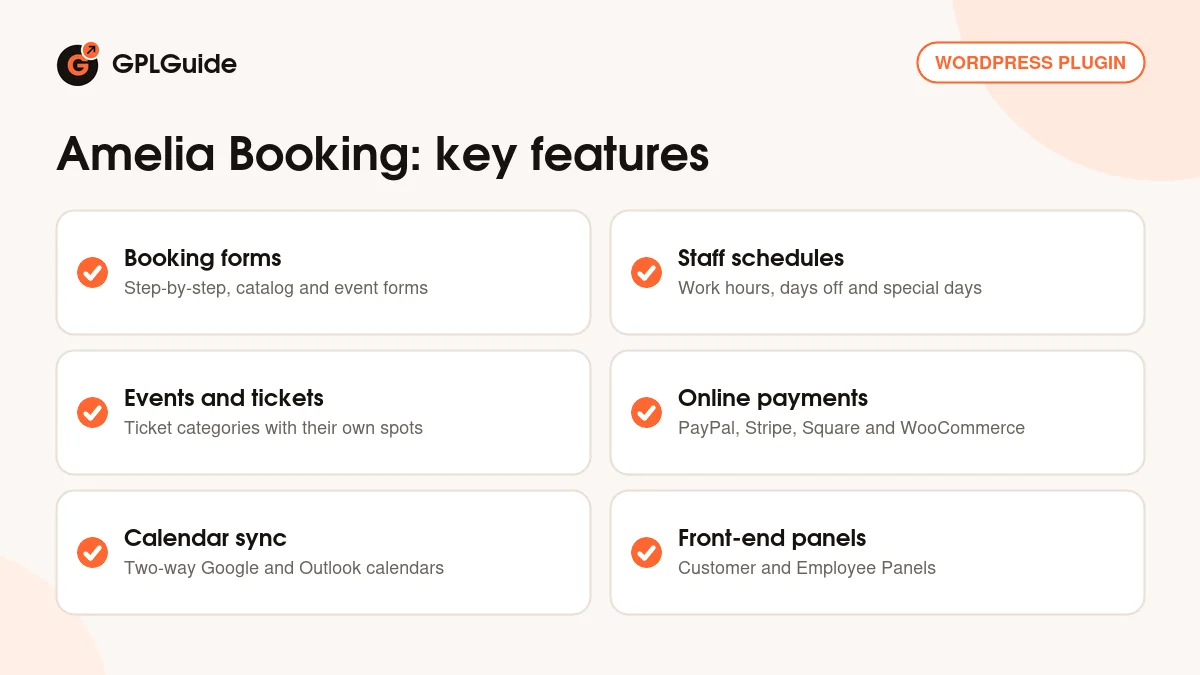
The step-by-step Amelia booking form, [ameliastepbooking], is the one most sites use. It runs through service, employee and location, then Extras, Bringing anyone with you, date and time, Your information, Payment and a Confirmation screen with add to calendar buttons for Google, Outlook, Yahoo and Apple. Under Amelia, Customize, Step-by-step form you pick List layout or Steps layout and decide which customer fields are mandatory.
[ameliacatalogbooking] shows categories and service cards, which works better with twenty services than with three. Events get [ameliaeventslistbooking], with a range attribute for future, past or a date span, and [ameliaeventscalendarbooking] for a monthly view. Add trigger and trigger_type and any Amelia booking form opens as a popup behind your own button. Prefer blocks? There are blocks and widgets for Gutenberg, Elementor and Divi.
[ameliacustomerpanel appointments=1 events=1] gives customers a page where they reschedule if you allow it, cancel, download invoices and pay a balance with Pay now. Under Settings, Roles & permissions, Customer you choose a password login or an access link by email. [ameliaemployeepanel] does the same job for staff.
Payments, events and calendar sync
Payments. The Default payment method is On-site, which suits clinics where people pay at the desk. Online, Amelia Booking supports PayPal, Stripe, Mollie, Razorpay, Square, Barion and WooCommerce. PayPal takes your own Live or Sandbox Client ID and Secret, Stripe your publishable and secret keys with a Test mode. If Pending is your default status, turn on Auto-approve booking after payment so paid bookings confirm themselves. With WooCommerce, Amelia creates a hidden product called Appointment and sends each booking to the Cart or straight to Checkout, with status rules for On-hold, Processing and Completed orders.
Events. Go to Amelia, Events, + Event. Booking opens immediately and Booking closes when event starts are on by default; switch either off to set your own dates. Pick an organizer, add staff and a Zoom user, or use + Add date for irregular dates. With Tickets on, you sell categories such as Adults, Children or VIP, each with its own price and spots.
Calendars and video. Google Calendar sync is two-way for entries Amelia Booking creates: move one in Google and the booking is rescheduled. Busy events from up to six calendars block slots, and online services get a Google Meet link per appointment. Outlook and Microsoft Teams work the same way, and Zoom creates meetings once you add your own Server-to-Server OAuth app.
Amelia Booking setups you can copy
- Hair salon: categories for Cuts, Colour and Treatments, each stylist as an employee, Buffer time after of 10 minutes on colour, and Employee selection logic set to Round-robin.
- Clinic that checks every request: Default appointment status Pending, Stripe online, Auto-approve booking after payment on, and phone made mandatory in the form.
- Weekend workshop: an event with Standard, Student and VIP tickets, Booking closes when event starts switched off, and [ameliaeventslistbooking range=future] on your Workshops page.
- Online coaching: a Zoom user for each coach, Recurring appointments set to Weekly on the service, and Recurring appointment payment set to charge the whole series at checkout.
What's new in Amelia 9.9.1
Amelia 9.9.1 came out on October 2, 2026, and it's a bug-fix release. Stripe webhooks that returned an HTTP 500 error are now processed, Stripe Payment Link bookings no longer stay unpaid when the customer closes the checkout window, and Microsoft Teams link placeholders now appear in event reminder emails.
The bigger change came a week earlier. Version 9.9 (September 24, 2026) added full two-way Google Calendar and Outlook Calendar sync, a default landing tab for the Customer and Employee Panels and a confirmation step for the appointment cancel link. 9.8 (August 17, 2026) brought booking form previews in page builder editors and more Stripe payment methods, and 9.7 (July 15, 2026) added public event pages and a full data export and import. At the time of writing, 9.9.1 is the newest version in the developer's changelog.
Good to know before you buy
The developer says an Envato licence matches its Standard plan, so this page describes the Standard set. Its docs put Packages, Resources, the Cart, the appointment waiting list, WhatsApp and Stripe Connect in the Pro and Elite plans, and the REST API, White label and the business mobile app in Elite only. If your Amelia Booking setup depends on one of those, read the developer's plan details first.
Amelia Booking sends SMS through the developer's own SMS platform. You sign up for a separate Amelia SMS account under Settings, Notifications, SMS, keep a positive balance and pay per message segment at your country's rate. Twilio and other providers can't be plugged in. Email goes through your own mail setup: PHP Mail, WP Mail, SMTP, Mailgun or the Outlook mailer.
Google and Outlook connect with a standard Sign in with Google or Sign in with Microsoft button that needs no Google Cloud or Azure setup, and both have an advanced setup if you'd rather use your own credentials. Reminders only go out once you add the cron command shown under Amelia, Notifications to your hosting. The developer suggests every 15 minutes.
Since 9.9 the changelog says plugin pages stay blocked until a purchase code is activated. Your file already has its license key activated, so you won't meet that screen. When you deactivate Amelia, leave the checkbox that deletes its tables and settings unticked.
Amelia Booking from GPLGuide vs the official licence
From GPLGuide you get the original Amelia 9.9.1 plugin ZIP, with the license key already activated. The Amelia booking forms, panels, events and tickets, payment gateways and calendar integrations are all in that file. Under Envato's licence for this item, its PHP code is licensed under the GPL.
Some things only the developer gives you: support (six months with a CodeCanyon purchase, extendable to twelve), the credits on its SMS platform and refunds under its own terms. The item page lists the Regular License at $299 and the Extended License at $1,495. The developer's own store also sells Starter, Standard, Pro and Elite plans, with a 15-day money-back guarantee on new subscriptions.
How to install Amelia Booking
- Sign in to GPLGuide, open My Account, Downloads and save the Amelia Booking ZIP.
- In WordPress go to Plugins, Add New Plugin, Upload Plugin, choose the file and click Install Now. If Amelia Lite is installed, let WordPress replace it. Your Lite data stays.
- Click Activate Plugin, then clear your site, server and CDN caches. The developer is firm about this step.
- Open Amelia in the admin menu. The license key is already activated, so go straight to Amelia, Employees and add your first employee.
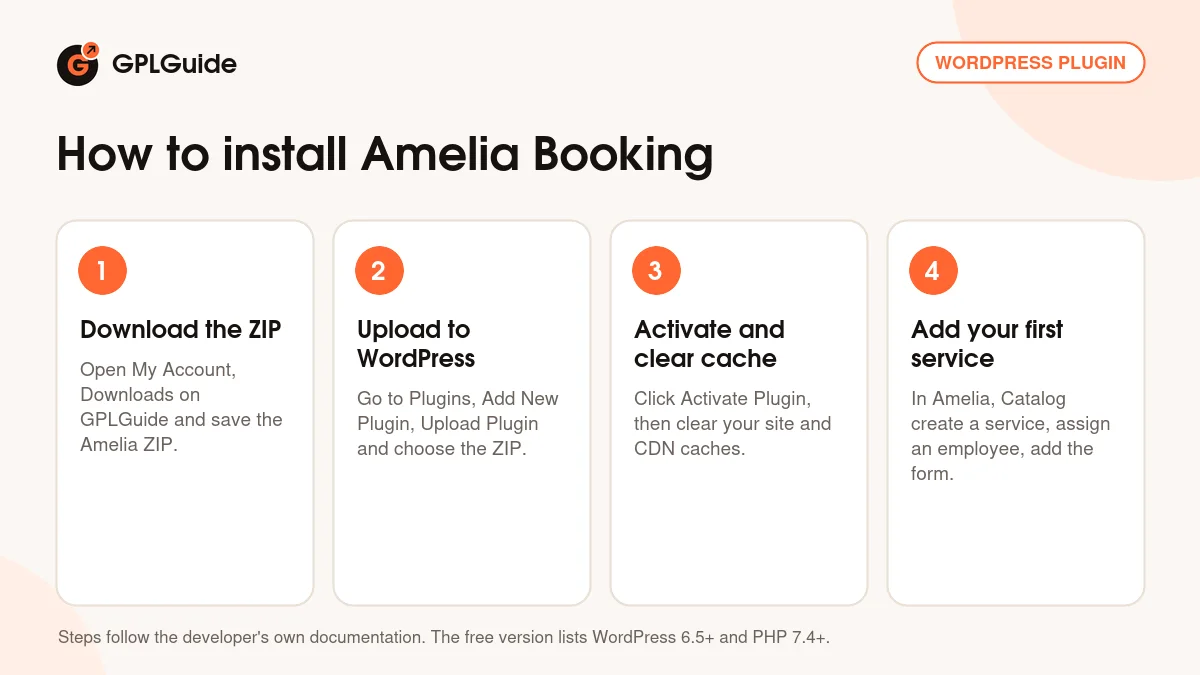
For a good first setup, follow the developer's quick start. Add one employee with Show on website on, then in Amelia, Catalog create a category and a service, assign the employee and set the duration and price. Put [ameliastepbooking] on a new page, publish it and make a test booking in a private window. It should show up under Amelia, Bookings, Appointments. Then add the cron job, so your first reminder doesn't silently fail.
Keeping it up to date
Updates from GPLGuide are manual. When a newer Amelia Booking version appears in your account, download it and upload it under Plugins, Add New Plugin, Upload Plugin. WordPress offers to replace the installed copy, and the developer says your settings, appointments and events stay intact. Clear your caches afterwards so old scripts don't load. If you see a newer version that we haven't added yet, tell us on the Request Item/Update page.
Questions about Amelia Booking
Can I move from Amelia Lite without losing bookings? Yes. Upload the full plugin over Lite and let WordPress replace it. Your data stays, and you don't need to deactivate Lite first.
Do I need to enter a purchase code? No. The Amelia 9.9.1 file you download here comes with the license key already activated.
Are SMS messages included? No. SMS goes through the developer's SMS platform, with its own account and pricing per segment by country. Email notifications cost nothing extra.
Does it work with Elementor and Divi? Yes. You get Amelia widgets for Elementor, blocks for Gutenberg and integrations for Divi 4 and Divi 5.
Can customers pay through WooCommerce? Yes. Enable WooCommerce under Settings, Payments, and each Amelia booking goes through your cart or checkout with the gateways you already use.
Why aren't my reminders going out? Almost always a missing cron job. Copy the command from Amelia, Notifications into your host's Cron Jobs section and run it every 15 minutes.
Can each employee sync their own calendar? Yes. An employee connects a Google or Outlook account, and Amelia Booking writes new bookings to one calendar and reads busy times from up to six.
Taking payments through a shop? Browse WooCommerce plugins, pair your Amelia appointment booking pages with Elementor Pro, or look through more WordPress plugins on GPLGuide. If you run several premium plugins, see what a GPLGuide membership includes.
Features & capabilities
- Step-by-step, catalog, event list and event calendar booking forms
- Employees with work hours, days off, special days and locations
- Buffer times, group capacity and pricing by duration, people or date
- Events with ticket categories and their own booking open and close dates
- On-site, PayPal, Stripe, Mollie, Razorpay, Square, Barion and WooCommerce payments
- Two-way Google Calendar and Outlook sync with Meet, Teams and Zoom links
- Customer Panel and Employee Panel on the front end
- Recurring appointments, email and SMS reminders, and Gutenberg, Elementor and Divi blocks