Booknetic – WordPress Booking Plugin for Appointment Scheduling [SaaS]
![Booknetic – WordPress Booking Plugin for Appointment Scheduling [SaaS]](https://gplguide.com/wp-content/uploads/2026/10/preview_2022_08.webp)
100% Original fileUnmodified copy of the developer's release
DeveloperThemeforest
Up to dateFile last updated Oct 23, 2026
About this product
Booknetic is a WordPress appointment booking plugin that puts a step-by-step booking panel on your site, where customers pick a location, a staff member, a service and a free time slot, then pay online or when they arrive. It suits anyone who sells time by the hour, from a barber to a clinic with several branches. Booknetic here is the regular edition for your own business, not the separate multi-vendor SaaS edition. This page is for Booknetic 5.2.2. On GPLGuide you download the original plugin file to install on your own WordPress websites.
Good for: salons, barbers and spas, clinics and therapists, tutors and coaches, consultants, photographers, gyms and repair shops that take bookings for staff time, with one location or many.
Requirements: PHP 7.4 or newer, MySQL 5.6 or newer, a database user with CREATE TABLE permission and the PHP cURL extension. The developer's item page lists WordPress 4.9 and later as compatible. You also need a real server cron job that runs every minute, because workflow emails and reminders depend on it. WooCommerce is optional and only adds its payment methods.
What Booknetic does
Everything is built from four parts: locations, services, staff and customers. You add a location, sort services into categories and assign each staff member to the locations and services they cover. Booknetic then works out open slots from your business hours, each person's schedule, special days, holidays and existing bookings, so customers only see times that are really free.
New bookings land in the Appointments list and on the Calendar module, where you filter, edit and reschedule them. Since version 5.0 you can group customers into customer categories that workflows can target, such as a separate message for VIP clients. Payments are tracked per appointment, with local payment by default and an optional deposit.
Group appointments set a maximum capacity per slot, recurring appointments repeat one booking daily, weekly or monthly, and service extras let people add extra time or a small upgrade to a service. Many integrations are separate Booknetic add-ons that the developer sells through Boostore, the add-on store inside the plugin.
Services, staff and working hours in Booknetic
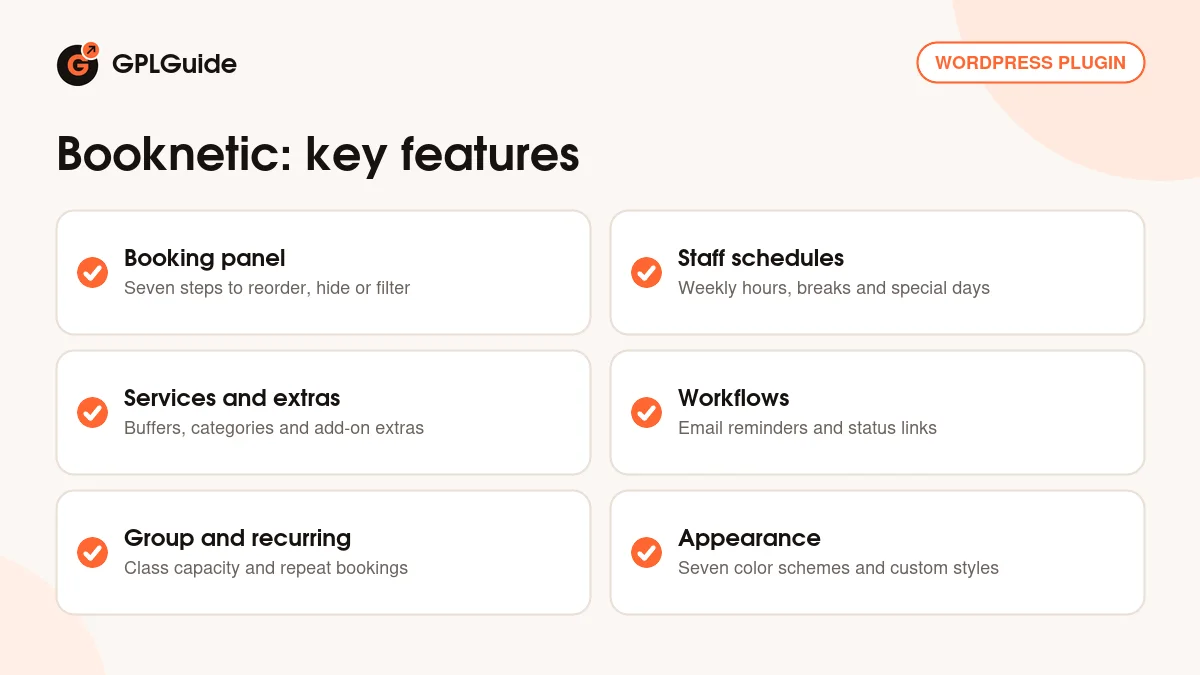
Services. Click the plus icon next to a category and choose Service. The form has Service Image, Service Name, Category, Service Duration, Buffer Before, Buffer After and Service Price, plus switches to hide the price or duration on the panel. The Staff tab needs at least one person. The Timesheet tab gives a service its own hours, blackout dates and special availability. Under Extras, Add Extra asks for Extra Name, Extra Price, Extra Image, Extra Duration and Maximum Quantity.
Staff. ADD STAFF opens four tabs: DETAILS, WEEKLY SCHEDULE, SPECIAL DAYS and HOLIDAYS. Details holds the name and photo customers see, email, phone, locations and an internal Note. A staff member follows business hours until you tick Configure specific timesheet. Then you set each weekday, days off and breaks with Add break.
Time rules. Staff hours beat service hours, which beat business hours. Time Slot Length sets the grid: 30 minutes gives 09:00, 09:30 and 10:00, or turn on Set Slot Length as Service Duration. Minimum Time Requirement Prior to Booking stops last-minute bookings, and Limited Booking Days caps how far ahead people book, with 0 meaning no limit. Holidays under Settings, Holidays block whole days and don't repeat. Add next year's dates while you're there.
The booking panel and its shortcodes
Customers go through seven steps by default: Location, Staff, Service, Date & Time, Information, Payment and Confirmation. Drag them into a new order under Booknetic, Settings, Front-end Panels, Booking Steps, and switch off the ones you don't need. One catch: a hidden step that still has several options quietly uses the option with the lowest ID. Hide Staff with three people on the team and every booking goes to the same person. Filter the panel instead.
That's what the shortcode attributes are for. [booknetic] shows the full panel, and you narrow it with location, staff, service, category and theme, for example [booknetic staff=2 service=1]. Service and category IDs show when you hover their names. For a button that opens it in a popup, use the Booking Panel in Popup block, which writes [booknetic-booking-button] and takes Class(es) and Style.
The look comes from Appearance, with seven color schemes: Default, Brown, Red, Green, Blue, Purple and Pink. Create New Style sets Panel Height, Font Family, Panel Background, step colors, Title Color, Border Color and Price Color, and can hide steps for that style only. There's a Custom CSS box as well. Panel text is translated in place under Settings, Front-end Panels, Labels: hover a label, click the pen icon and type.
Workflows, reminders and status links
All messages run through Workflows. Click Create new workflow, name it and pick a trigger: an appointment is booked, rescheduled, paid or changes status, starts or ends, or a new customer is created through a first booking. The Edit button next to the trigger sets the timing, filters for location, service, staff and status, Called from (Backend or Frontend) and Locale, so people get messages in the language they booked in.
One trigger can run several actions: an email, an SMS, WhatsApp or Telegram message, an HTTPS request to another app, or a status change. Choose Customer in the To field to email the person who booked, and add your own addresses for the team. Keywords such as {appointment_date} and {staff_name} are filled in when the message goes out. Save & Test sends them unreplaced, so a strange-looking test email is normal.
A standard reminder uses the appointment-starts trigger set to Before, 1, Hour, with an email action. For approvals, set Default Appointment Status to Pending and email staff the {link_to_change_appointment_status_to_approved} and {link_to_change_appointment_status_to_canceled} links. They need a page with [booknetic-change-status], picked under Settings, Front-end panels, Pages. Set up the cron first, or reminders arrive late.
Setups you can copy with Booknetic
These use only the settings above. Swap in your own names.
- One-person barber: one location, one staff member, Location and Staff steps switched off, a Time Slot Length of 15 minutes and Buffer After of 10 minutes.
- Clinic with several practitioners: one location per branch, each doctor with Configure specific timesheet on, and a page per doctor with [booknetic staff=ID].
- Yoga class: a service with Group Appointments on and a maximum capacity of 15, so the panel shows a badge like 5/15 as the slot fills.
- Weekly tutoring: recurring appointments set to Weekly, Fixed Full Period of 4 weeks and Fixed Frequency of 2, which books eight lessons, paid with Pay per appointment.
- Bookings you approve first: Default Appointment Status set to Pending, plus a workflow that emails staff the approve and cancel links.
- Book button on a services page: a Booking Panel in Popup block styled from Appearance, with Minimum Time Requirement Prior to Booking set to 24 hours.
What's new in Booknetic 5.2.2
The developer's changelog has no separate entry for 5.2.2. It belongs to the 5.2 line, which started with 5.2.0 on March 11, 2026, and the next listed release is 5.2.4 on April 4, 2026. So the 5.2.0 notes are the best guide. They add Location Categories, an Appointments dashboard widget, Email Preferences, Blocked Customers, duplication of locations, staff, services and workflows, a service search on the booking form and REST API endpoints for locations. Time Priority got a Merge option.
The same release fixed about 25 bugs, among them recurring bookings blocked by a busy slot when the waiting list is on, and customer CSV import failing with "Too many fields detected". Before it, 5.1.0 (February 3, 2026) added the REST API, Loyalty Points and in-app notifications, and 5.1.2 (February 22, 2026) added sidebar customization and a global deposit option. Newer versions exist: 5.10.4 came out on October 13, 2026.
Good to know before you buy
This is the regular plugin for one business. The SaaS edition, where other businesses sign up and pay you for their own booking dashboards, is a different product on its own version line.
Plenty of the integrations are Booknetic add-ons. Google Calendar, Zoom, SMS, WhatsApp and Telegram, the front-end customer panel, coupons, invoices and most payment gateways come from Boostore, where you buy them and install them from Boostore, My Purchases. Those purchases go through the developer's store, and the staff mobile app has its own seat-based plans from the developer. In this version the Google Calendar add-on also needs your own Client ID and Client Secret from Google. A shared sign-in only arrived with 5.6.0.
Version 5.2.2 is several releases behind the newest one. The 5.10.3 and 5.10.4 releases from October 2026 added security hardening, and 5.9.0 moved every workflow action onto the cron queue. Check the version shown here before you build a new site on it.
Booknetic from GPLGuide vs the official subscription
From GPLGuide you get the original Booknetic 5.2.2 plugin ZIP, with every feature that's in it and the license key already activated. You set it up just as the developer's documentation describes.
Buying from the developer gives you their support, a 14-day money-back guarantee, updates inside WordPress and access to Boostore add-ons and the mobile app. Annual plans run from Basic at $45 a year for one domain (listed down from $89) to Elite at $299 a year for unlimited domains, and lifetime plans cost $99 to $699. On CodeCanyon the Regular License is $299 with six months of support. Under Envato's licence for this item, its PHP code is licensed under the GPL.
How to install Booknetic
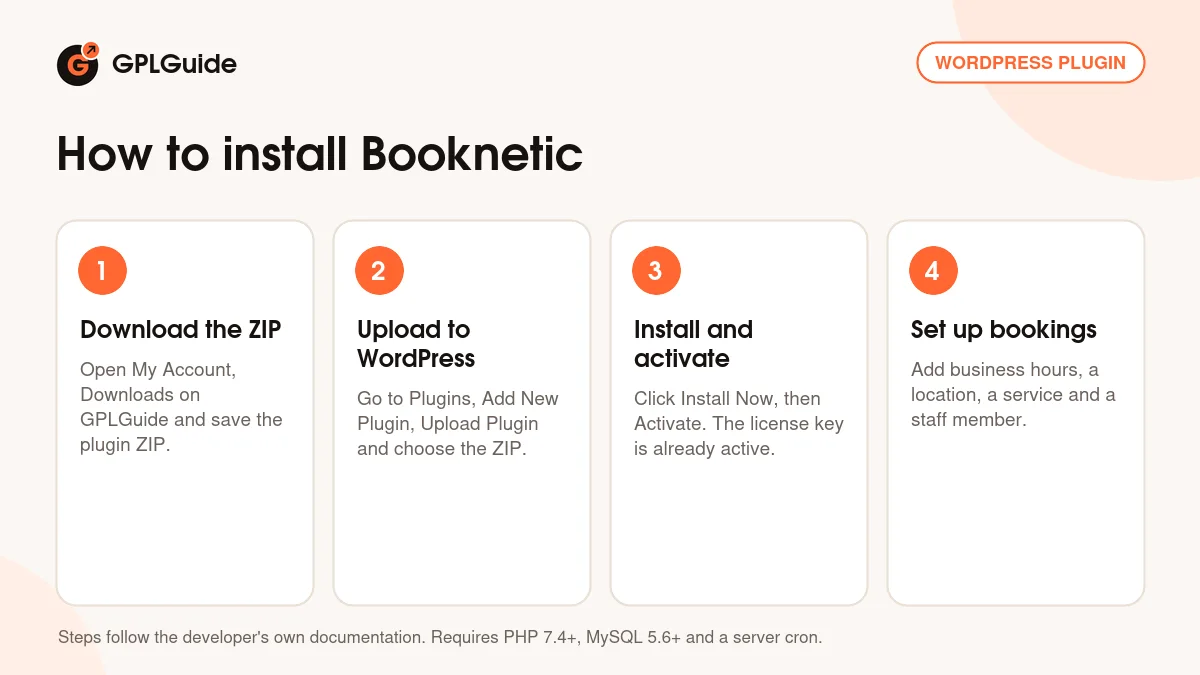
- Sign in to GPLGuide, open My Account, Downloads and save the Booknetic ZIP.
- In WordPress go to Plugins, Add New Plugin, Upload Plugin and choose the ZIP.
- Click Install Now, then Activate. A new Booknetic item appears in the admin menu.
- Open it and start with Settings, Business Hours, then add a location, a service and a staff member.
For a good first setup, follow the developer's order: business hours, one location, a category and a service, then a staff member assigned to both. Put [booknetic] on a test page and book yourself a slot. Install an SMTP mail plugin before you go live, as the developer recommends, and set the cron job early so your first reminder doesn't go missing.
Keeping it up to date
Updates from GPLGuide are manual. When a newer version is listed here, download it from your account and upload it under Plugins, Add New Plugin, Upload Plugin. WordPress offers to replace the installed copy. Take a backup first. From 5.6.0 the developer split the plugin into a free core and a Pro layer, so a later update may come as two plugin files. If you spot a release we haven't added, use the Request Item/Update page.
Questions about Booknetic
Is this the SaaS edition? No. It's the regular plugin for a single business. The SaaS edition is a separate product with its own versions and price.
Do I need to enter a license key? No. The file comes with the license key already activated, so you can set up locations, services and staff right after you install it.
Do I need WooCommerce? No. Local payment works by default. WooCommerce only matters if you want to route payments through its checkout.
Can customers pay online? Yes, with a payment add-on. The developer offers Stripe, PayPal, Square, Mollie, Razorpay and others, and customers can pay a deposit or the full amount.
Does Google Calendar sync both ways? Yes, through the Google Calendar add-on. Bookings appear in each staff calendar, and busy times in Google block those slots, using Live sync or Background sync.
Can I translate the booking panel? Yes. Use Settings, Front-end Panels, Labels and the pen icon. The site language under WordPress Settings, General decides which translation shows.
Will reminders work without a cron job? Not reliably. The developer asks for a real server cron that hits wp-cron.php every minute and calls the built-in WordPress cron too unreliable for this.
Can holidays repeat every year? No. Holidays cover whole days and have to be added again each year, both in Settings and on each staff member's Holidays tab.
Running a business site on WordPress? Browse more WordPress plugins on GPLGuide, or see what a GPLGuide membership includes if you use several premium plugins.
Features & capabilities
- Seven-step booking panel you can reorder, trim and filter by shortcode
- Locations, multi-level service categories, extras and buffer times
- Staff weekly schedules, breaks, special days and holidays
- Group appointments with capacity and recurring daily, weekly or monthly bookings
- Workflows with triggers, filters, keywords and email, SMS or webhook actions
- Approve or cancel links in emails and a popup booking button
- Seven color schemes plus your own styles, Custom CSS and a visual translator
- Customer categories, deposits, local payment and Boostore add-ons