BuddyBoss Platform Pro
100% Original fileUnmodified copy of the developer's release
DeveloperBuddyBoss
Up to dateOriginal released Oct 13, 2026 · File last updated Oct 23, 2026
About this product
BuddyBoss Platform Pro is the paid add-on for the free Platform community plugin. It switches on what a growing membership or course community usually asks for next: access rules, Zoom meetings inside groups, live messaging, browser push and LMS group sync. It suits site owners who already run the free platform and want more control. This page is for BuddyBoss Platform Pro 3.3.4, released on October 13, 2026. On GPLGuide you download the original plugin file to install on your own websites.
Good for: membership sites, course communities, coaching programs, clubs and staff networks on the free platform that need to limit who can post, run Zoom calls in groups, or tie Tutor LMS and MemberPress Courses to social groups.
Requirements: the free Platform plugin from the developer, installed and active before you add BuddyBoss Platform Pro. The developer's server guide asks for WordPress 4.9.1 or newer, PHP 7.3 or newer, MySQL 5.6 or MariaDB 10.1 and up, mod_rewrite and GD or Imagick. The developer's theme is optional. Zoom, Pusher and OneSignal each need your own account.
What BuddyBoss Platform Pro does
The free platform already gives you a working social network: activity feeds, profiles, groups, forums, messages, media uploads and moderation. Pro doesn't replace any of that. It's a second plugin that adds options to screens you already know, under Settings and Integrations in the platform's own admin menu.
BuddyBoss Platform Pro adds three kinds of things. Control means member access rules and group activity topics. Communication covers Zoom meetings and webinars, real-time messaging through Pusher and web push through OneSignal. Content brings Tutor LMS and MemberPress Courses group sync, scheduled posts, titles and featured images on activity posts, blog bookmarks and category subscriptions, plus header and directory layouts for profiles and groups.
One change matters if you've used older versions. In Pro 3.2.0 (August 5, 2026) the developer took the polls, reactions and social login code out of the Pro plugin, and its pricing page now lists those three under the entry plan. So BuddyBoss Platform Pro 3.3.4 is about the parts above, not polls or reactions.
Access controls and group topics in BuddyBoss Platform Pro
Member Access Controls. This is the part most paid communities buy BuddyBoss Platform Pro for, and the developer's docs list it as a Pro feature. Each rule answers one question: who may do this? For groups, open Settings, Social Groups and click Access Controls. You get two settings, Create Groups and Join Groups, each with a Select Role dropdown. The conditions on offer are WordPress Role, Profile Type, GamiPress, Membership and Gender.
The same idea reaches other actions. Pro lets you decide who can create activity posts, upload photos and documents, send connection requests and send private messages. Version 3.3.0 (August 27, 2026) added the developer's own membership feature as a provider, so activity, groups, media, messages and profile actions can follow a membership plan.
Group Activity Topics. The docs say group topics are available only in Pro. Turn on Enable Topics under Settings, Activity first (Topic Required is optional), then enable Group Topics and pick Use global Activity Topics, Create custom topics or Allow both. Organizers add topics from the group's Manage tab, Topics, and set who can post: All group members, Organizers and Moderators Only, or Organizers Only.

Zoom, live messaging and web push
Zoom. BuddyBoss Platform Pro talks to Zoom through a Server-to-Server OAuth app that you build in the Zoom App Marketplace, and that needs a Zoom admin account. Copy the Account ID, Client ID, Client Secret and Secret Token, add the user scopes the guide lists, then activate the app. Back in WordPress, open Settings, find Zoom in the Integrations section, enable it and paste the values. A working link shows "Zoom Gutenberg Blocks connected Successfully".
For groups, tick Social Groups under Zoom Settings. Each group then gets Manage, Zoom, where the organizer enters credentials for a Zoom app and uses the Group Permissions tab to choose who can create, edit and delete meetings. Webinars and recurring meetings work there too, and the Zoom Meeting block can create a meeting or add one by its ID. The shortcode [zoom_meeting id="123456789"] does the same job. Visitors see a countdown that turns into a Join Meeting button ten minutes before the start.
Live messaging. Under Settings, Pusher Settings, enter the App ID, App Key, Secret Key and Cluster from a Pusher Channels app and click Connect. In Pusher, turn on Client events and Authorized connections, or messages won't arrive in real time. Then switch on Live Messaging, and messages appear without a page refresh.
Web push. Create a OneSignal web app with the Custom Code option, copy the App ID and REST API key from Settings, Keys and IDs, and paste them into the OneSignal integration. Under Settings, Notifications, tick Enable Web Push Notifications, upload a Default Notification Icon (a 192 by 192 PNG is suggested), and decide on Automatically Request Permission and Enable Soft Prompt. Your site URL has to match the one in OneSignal exactly.
Course groups, scheduled posts and layouts
Tutor LMS. Go to Integrations, Tutor LMS and tick Tutor LMS Group Sync. Two options appear: Course Visibility, which lets instructors link courses to groups, and Display Course Activity. Under Custom Posts you choose which items post to the feed (Courses, Lessons, Topics, Quizzes and Certificates) and whether each allows comments.
MemberPress Courses. On the MemberPress tab, tick Enable Integration, then Course Visibility. Display Course Activity posts to the group when a member starts or completes a course, finishes a lesson, or completes an assignment or quiz. In each group's settings, MemberPress LMS gives you Select Course Activities and Select Courses.
Scheduled posts, titles and featured images. Tick Schedule Posts under Settings, Activity. Site admins, group owners and group moderators then get a clock icon next to Post, with Schedule Post, View Scheduled Posts and Clear Schedule. Since Pro 2.9.0, posts can carry a title and a featured image above the content, and "Allow group owners and moderators to add a featured image to their posts" sits on the same screen. Blog posts gained bookmarks and category subscriptions in 3.1.0.
Layouts. The developer's plan table lists group and profile layouts with the Pro-level plan. In practice that's a Header Style of Left or Centered with element checkboxes for profile and group headers, Grid or List views for member and group directories, and a Primary Action button (Follow, Connect or Send Message) on member cards.
Setups you can copy with BuddyBoss Platform Pro
- Paid members start the talk: restrict creating activity posts and sending messages to a Membership condition, so only paying members open new threads.
- Course cohort: Tutor LMS Group Sync and Course Visibility on, one course linked to a private group, Lessons and Quizzes posting to the feed with comments off.
- Weekly live call: Zoom enabled for Social Groups, Group Permissions set so only organizers create meetings, one recurring meeting, and a scheduled post as a reminder.
- Tidy feed: Enable Topics with Topic Required, Group Topics set to Allow both, and an Announcements topic limited to Organizers and Moderators Only.
- Fast chat: Pusher with Live Messaging on, plus OneSignal web push with Enable Soft Prompt and friendly Allow Button text.
- Clean directory: Grid as the Default View, Online Status and Followers shown, Primary Action set to Follow.
What's new in BuddyBoss Platform Pro 3.3.4
Version 3.3.4 came out on October 13, 2026, and it's a fix release aimed at larger sites. Regular members' browsers could freeze, and their post wouldn't save, when they changed a post's visibility to anything other than Public. Uploading media in very large groups could hit an out-of-memory error. On big sites with many members and unread message notifications, a messages slowdown made pages load very slowly. All three are fixed.
Before it, 3.3.2 (September 21, 2026) fixed "View details" not showing update details, a WordPress compatibility version that showed as unknown, and interface text appearing in the wrong language on multilingual sites. 3.3.1 (September 3, 2026) added Member Directory settings to the REST API for apps. At the time of writing, 3.3.4 is the newest BuddyBoss Platform Pro version in the developer's release notes.
Good to know before you buy
BuddyBoss Platform Pro does nothing without the free Platform plugin, so install that first. It won't give you polls, reactions or social login either, because that code left the Pro file in 3.2.0. Activity sharing, gamification and media offload are separate products and aren't in this ZIP.
Several parts lean on outside accounts. Zoom needs an admin account to build the Server-to-Server OAuth app, Pusher needs a Channels app, and OneSignal needs an account. The developer says OneSignal's free plan suits most communities, with an upgrade suggested past 10,000 subscribers. The course parts need Tutor LMS, or MemberPress with its Courses add-on (sold by their own makers). The developer's mobile app is a separate subscription and service of its own.
Hosting matters too. The developer recommends a VPS or better and steers people away from shared hosting. With very large groups, keep an eye on PHP memory.
BuddyBoss Platform Pro from GPLGuide vs the official subscription
From GPLGuide you get the original BuddyBoss Platform Pro 3.3.4 plugin ZIP, the same file the developer ships, with access controls, Zoom, Pusher, OneSignal, LMS group sync, scheduled posts and the layout settings inside. The license key is already activated, so there's nothing to type in after you upload it.
Buying from the developer gets you what a file can't: their support tickets, updates through the WordPress Updates screen and a 14-day money-back guarantee. Pro isn't sold on its own any more. The developer renamed it Launch, at $199 per year for one production site at the intro rate, renewing at $399 per year, and that plan includes the developer's theme. Extra site licences cost $99 each.
How to install BuddyBoss Platform Pro
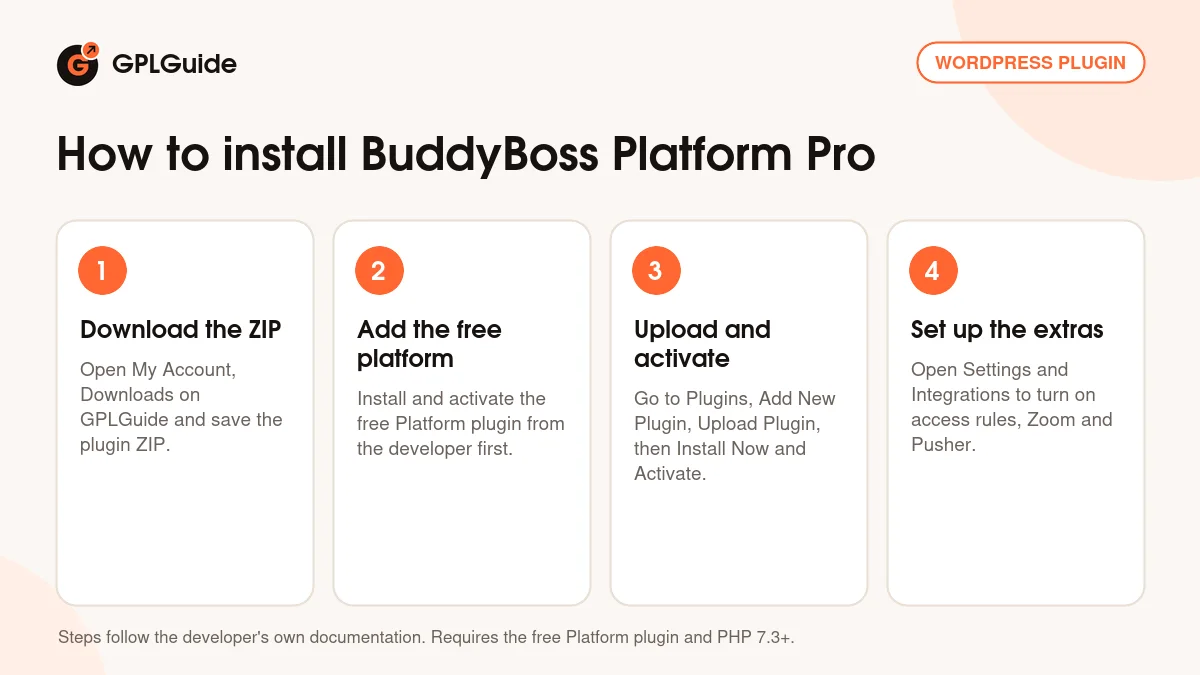
- Sign in to GPLGuide, open My Account, Downloads and save the BuddyBoss Platform Pro ZIP.
- Check that the free Platform plugin from the developer is installed and active on the site.
- In WordPress go to Plugins, Add New Plugin, Upload Plugin, choose the ZIP, click Install Now and then Activate.
- Open the platform's Settings and go straight to Integrations and Social Groups to switch on the parts you need.
For a good first setup, keep it small. Turn on Group Topics and create one Announcements topic for organizers, then set Join Groups to a WordPress Role or Membership condition and test it from a non-admin account in a private window. Add Pusher next, because live messaging is the change members notice first. Leave Zoom and OneSignal until those two behave.
Keeping it up to date
Updates from GPLGuide are manual. When a new version of BuddyBoss Platform Pro is listed here, download it from your account and upload it under Plugins, Add New Plugin, Upload Plugin. WordPress offers to replace the installed copy. Keep the free Platform plugin current as well, so the two stay in step. If you spot a newer version we haven't added, tell us on the Request Item/Update page.
Questions about BuddyBoss Platform Pro
Do I still need the free Platform plugin? Yes. Pro is an add-on, and the developer's install guide says to install the free Platform first.
Do I need the developer's theme? No. BuddyBoss Platform Pro runs with the platform's ReadyLaunch templates or another theme, and version 3.1.1 even fixed blog options for third-party themes.
Is there a license key to enter? No. The BuddyBoss Platform Pro file from GPLGuide comes with the license key already activated.
Does it include polls and reactions? No. Since 3.2.0 the polls, reactions and social login code isn't in the Pro plugin, and the developer lists those under its Start plan.
Do Zoom, Pusher and OneSignal cost extra? They can. Each is a separate service with its own account and plans.
Who can schedule activity posts? Site administrators, group owners and group moderators, according to the docs.
Which LMS plugins connect to groups? Tutor LMS and MemberPress Courses. Both get a course tab in groups and course activity posts in the feed.
Will reinstalling the plugin wipe my settings? No. The developer says settings and data live in the database, so deleting the plugin folder to reinstall keeps them.
Running a bigger community stack? Browse more WordPress plugins on GPLGuide, or see what a GPLGuide membership includes if you use several premium plugins.
Features & capabilities
- Member Access Controls by role, profile type, membership, GamiPress or gender
- Group Activity Topics with global, custom or mixed topics per group
- Zoom meetings, webinars and recurring meetings in groups and blocks
- Real-time private messaging through a Pusher Channels app
- OneSignal web push with soft prompt and a default notification icon
- Tutor LMS and MemberPress Courses group sync with course activity posts
- Scheduled activity posts, post titles and featured images
- Header and directory layouts for profiles and groups, plus blog bookmarks