Convert Pro
100% Original fileUnmodified copy of the developer's release
DeveloperBrainstorm Force
Up to dateOriginal released Apr 30, 2026 · File last updated Oct 16, 2026
About this product
Convert Pro is a WordPress plugin by Brainstorm Force for building popups, info bars, slide-ins and inline opt-in forms in a drag and drop editor. You decide when each one appears, on which pages and for which visitors, so an offer reaches people at a sensible moment. This page is for Convert Pro 1.8.10, released on April 30, 2026. On GPLGuide you download the original plugin file to install on your own websites.
Good for: bloggers, shop owners and agencies who want to grow an email list, offer a discount, catch visitors before they leave or add a signup box to the end of every post, without writing code.
Requirements: the developer lists PHP 5.4 or newer, the cURL module enabled, at least 128MB of PHP memory and the latest available version of WordPress. That page dates from 2022, so treat it as a bare minimum. The plugin runs on its own. Sending leads to an email marketing service, A/B tests and Google Analytics tracking need the separate Convert Pro Addon plugin, which is not part of this download.
What Convert Pro does
Everything in the plugin is built around the call-to-action: a design, such as a popup, a bar or a box inside your content, plus rules for when and where it shows. You start one from Convert Pro, Create New, pick a template, give it a name and the editor opens.
The editor covers three jobs. First you design the call-to-action by dragging in text, images, form fields, buttons and shapes. Then the configuration settings choose the trigger, the target pages and visitors, and how often the same person sees it. Finally you decide where the leads go: an email to you, or an email marketing service.
Designs are responsive, with a separate mobile editor for small screens. The developer's template page lists more than 45 templates from its Template Cloud, so most people start from a ready design and change the words and colors.
The call-to-action types in Convert Pro
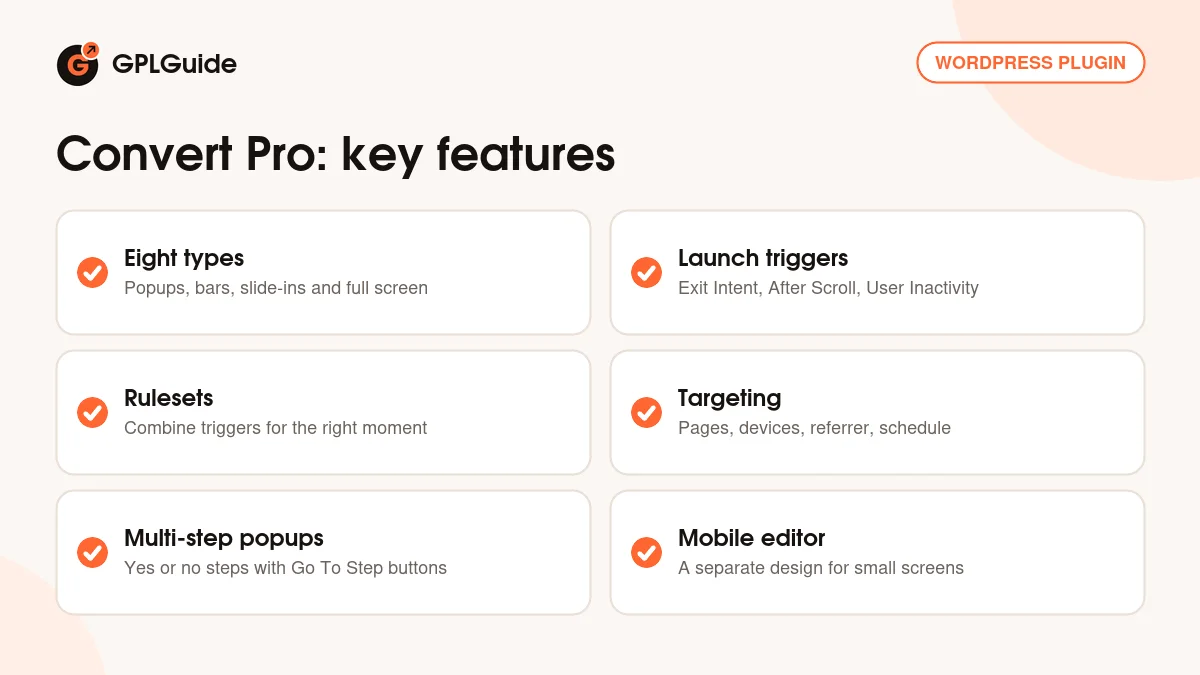
The template library is sorted into Popup, Slide-In, Info Bar, Embedded, After Post, Widget, Convert Mat and Full Screen Popup. Each type suits a different job.
Modal Popup. The classic box in the middle of the screen with an overlay behind it. Panel Settings control the size, background, overlay, animation, border and shadow, plus an optional credit link.
Infobar and Slide-in. An infobar sits on the top or bottom edge of the browser, which makes it a polite choice for sale banners and shipping notes. A slide-in stays on the side or in a corner of the screen, so the visitor can keep reading.
Convert Mat and Full Screen. Both cover the whole screen, so save them for one strong offer, such as a lead magnet.
Before/After Content and In-Content. These sit inside the page instead of on top of it. A Before/After Content call-to-action goes before the post, after it or in both places. Under Configure, Display Inline Position you can also choose Inside Post/Page Content and place it after a set Block Number or before a set Heading Block Number. An In-Content call-to-action has its own shortcode that you paste where you want it, and the Widget type fits a sidebar.
Launch, Target and Cookies: who sees each call-to-action
The configuration settings have three sections. Launch decides the moment, with After few seconds, Exit Intent, After Scroll, User Inactivity, After Blog Post, When a CSS element is visible and On click. There is also After Number of Page Visits, with Is More than and Is less than, and an Enable Ad Block detection option. The idle time for User Inactivity is set once, under Convert Pro, Settings, General.
Triggers are grouped into rulesets. Every trigger inside one ruleset must happen before the call-to-action shows, while separate rulesets work as alternatives. For example, ruleset one could be "scrolled half the page and stayed 20 seconds", and ruleset two simply Exit Intent. Whichever finishes first wins.
Target decides where and for whom. Pages picks posts, pages, archives and special pages, and User Behavior covers logged-in users and first-time visitors. Hide on Devices, Referrer Detection and a Schedule with Start Time and End Time complete the list.
Cookies decide how often. After you enable cookies, you set the number of days to hide the call-to-action after a visitor closes it, and a separate number of days after a successful form submission. For click-only popups, the Onclick accordion gives you a Copy Link Code button, or you can use a CSS class or ID on any button or menu item.
Forms, buttons and multi-step popups in Convert Pro
The editor has five sections: Design Elements, Form Fields, Buttons, Shapes and Panel Settings. Design Elements holds a heading, subheading, paragraph, custom HTML code, image, close image and close text. Form Fields covers Email, Name, Phone number, Drop Down, Text Area, Radio Button, Check box, Hidden Field and Date Field.
Buttons decide what happens on click. The actions are None, Submit and Go To Step, Submit and Go To URL, Submit and Close, Go To URL, Go To Step, Close, Close Page and Close and Go To URL. Submit and Go To URL can pass the entered data to the next page with Pass by GET Parameter.
For a multi-step popup, click the gear icon in the top bar, turn on the multi-step option and press the plus sign to add steps. That is how you build a yes or no question first and show the form only to people who say yes. The same gear icon turns on the mobile editor, which keeps a separate small screen design and has a Regenerate Mobile View button to start over.
Email Notification sits in the editor's Connect tab and sends lead details to an address you choose. Its wording lives under Convert Pro, Settings, Email Notification, with tags such as [FORM_SUBMISSION_DATA] and [SITE_NAME]. Settings, Advanced adds Allow Convert Pro for (user roles), Enable Antispam field (a honeypot) and Cache.
Setups you can copy with Convert Pro
These combinations only use settings from the developer's docs. Change the wording to suit your site.
- Exit coupon: a Modal Popup with Exit Intent, an email field and a Submit and Close button. Message: "Before you go, here is 10% off your first order." Create the coupon in your shop first. Under Cookies, hide it for 30 days after a submission and 7 days after a close.
- Sale banner: an Infobar with a Schedule that starts and ends with your sale, plus a Go To URL button pointing to the sale page.
- End of post signup: a Before/After Content call-to-action placed after the content, targeted to blog posts only under Pages.
- Yes or no first: a two-step popup. Step one asks "Want the free checklist?" with a Go To Step button for yes and a Close button for no. Step two holds the email form.
- Engaged readers: one ruleset with After Scroll and After few seconds, plus a second ruleset with Exit Intent.
- Returning visitors: After Number of Page Visits set to Is More than 3, for a softer offer aimed at regular readers.
What's new in Convert Pro 1.8.10
Version 1.8.10 came out on April 30, 2026, and it is the newest release on the developer's changelog. It has one change: better handling of internal library updates for wider compatibility.
Earlier releases were mostly maintenance. Version 1.8.9 (March 12, 2026) improved code quality and security checks. Version 1.8.8 (December 11, 2025) fixed the After Number of Page Visits ruleset setting, and 1.8.7 (December 4, 2025) fixed the Author role not being able to manage popups. Version 1.8.6 (November 19, 2025) added validation checks for access to custom post types and updated the libraries it depends on.
Good to know before you buy
The biggest point: some tools you may expect live in the separate Convert Pro Addon plugin, which is not included in this file. It holds five addons: Connects, Analytics, Advanced Script, Grid and A/B Test. The developer's docs say the Connects addon handles all integrations with email marketing services (more than 30 are listed), A/B tests need the A/B Test addon, and Google Analytics 4 tracking needs the Analytics addon.
The docs describe two places for leads to go, an email notification or an email marketing service, and explain both under Connects. They do not say clearly whether email notifications work without the Connects addon, so plan on needing it if your forms collect leads.
Templates come from Brainstorm Force's Template Cloud, a service on the developer's own servers. Smaller limits from the docs: Inside Post/Page Content only works on pages and posts built with the block editor, on-click popups have no page, visitor or cookie settings, and page visits in private browsing windows are not counted. Close Page only works on windows that another window opened.
Convert Pro from GPLGuide vs the official subscription
From GPLGuide you get the original Convert Pro 1.8.10 plugin file, released under the GPL, to use on your own websites. The file from GPLGuide comes with the license key already activated, so there is no key to enter. The editor, the call-to-action types, triggers, rulesets, targeting, cookies, multi-step forms and mobile editor in the file all work the same way.
Buying from Brainstorm Force adds things we can't pass on: help from their support team, their 14-day refund, the Convert Pro Addon download and services on their servers such as the Template Cloud. Their Annual plan costs $89 a year (regular price $99) and the Lifetime plan costs $349 (regular price $399), both for unlimited websites. If you rely on vendor support, buy it there. If you need the plugin file itself, we sell it on its own or as part of a membership.
How to install Convert Pro
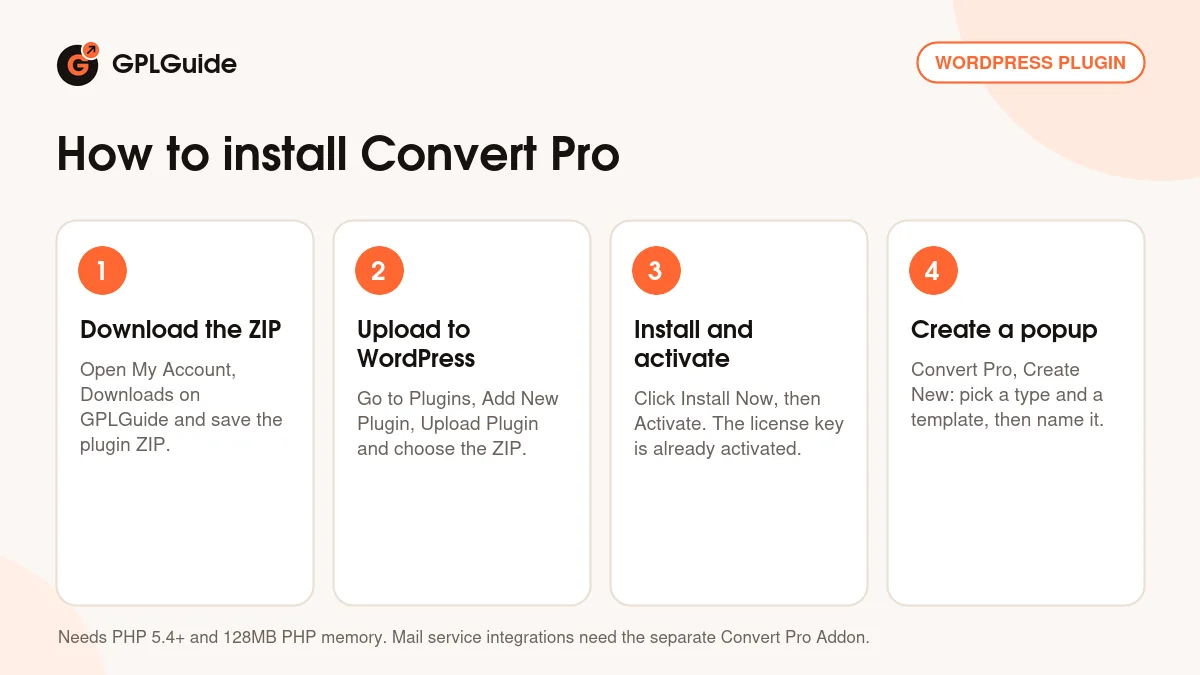
- Sign in to GPLGuide, open My Account, Downloads and save the Convert Pro ZIP.
- In WordPress go to Plugins, Add New Plugin, Upload Plugin and choose the ZIP.
- Click Install Now, then Activate. The license key is already activated.
- Open Convert Pro, Create New, choose a call-to-action type and a template, then give it a name.
A good first setup is a slide-in at the end of a post. Keep one heading, one email field and one button, then set Launch to After Blog Post and Pages to your blog posts. Turn on cookies so people who close it are left alone for a week. Before going live, check which user roles may use Convert Pro under Settings, Advanced.
Keeping it up to date
Updates from GPLGuide are manual. When a new version of Convert Pro is listed here, download it from your account and upload it under Plugins, Add New Plugin, Upload Plugin. WordPress offers to replace the installed copy, and your call-to-actions stay in place because they are saved in your database. If you spot a newer version that we haven't added yet, tell us on the Request Item/Update page.
Questions about Convert Pro
Can I show a popup only when someone is about to leave? Yes. Choose Exit Intent under Launch. You can also combine it with other triggers through rulesets.
Can I put a form inside my blog posts? Yes. Use a Before/After Content call-to-action, the Inside Post/Page Content position for block editor posts, or an In-Content call-to-action with its own shortcode.
Does it connect to Mailchimp and other email services? Yes, through the Connects addon in the separate Convert Pro Addon plugin. That plugin is not part of this download.
Can I run A/B tests? The developer's A/B testing needs the A/B Test addon from the same separate plugin. It is not in this file.
Can I stop the same visitor seeing a popup every day? Yes. Enable cookies and set how many days to hide it after a close and after a signup.
Can I design a different version for phones? Yes. Turn on the mobile editor from the gear icon. Mobile changes do not touch the desktop design.
Who can edit popups in the dashboard? You choose the user roles under Settings, Advanced, Allow Convert Pro for. Version 1.8.7 fixed an issue where the Author role could not manage popups.
Looking for other tools for your site? Browse more premium WordPress plugins, or see what a GPLGuide membership includes if you need several premium plugins and themes.
Features & capabilities
- Popup, Slide-In, Info Bar, Embedded, After Post, Widget, Convert Mat and Full Screen types
- Drag and drop editor with elements, form fields, buttons and shapes
- Launch triggers including Exit Intent, After Scroll, User Inactivity and On click
- Rulesets that combine triggers, plus page visit and ad block options
- Targeting by page, device, referrer, logged-in status and schedule
- Cookie settings to hide a call-to-action after a close or a signup
- Multi-step popups with nine button actions
- Separate mobile editor and inline placement inside block editor posts