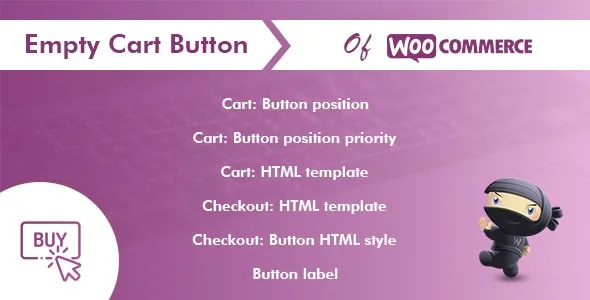
Empty Cart Button Pro for WooCommerce
100% Original fileUnmodified copy of the developer's release
DeveloperProWCPlugins
Up to dateOriginal released Apr 10, 2023 · File last updated Oct 28, 2026
About this product
Empty Cart Button Pro for WooCommerce 1.3.7 adds an Empty cart button so shoppers can clear everything in their cart with one click instead of removing items one by one. It suits shops where carts fill up fast with many lines, such as wholesale and trade orders, grocery or restaurant ordering, print shops and stores that sell lots of small add-ons, and where customers often want to start over. You decide where the button sits on the cart page and on the checkout page, what it says and whether it asks for confirmation first. Everything is set on one tab under WooCommerce, Settings, Empty Cart Button, and a shortcode lets you place the button on other pages too.
How to install Empty Cart Button Pro for WooCommerce
- Install and activate WooCommerce under Plugins, Add New Plugin if your site doesn't run it yet, because the button works on the WooCommerce cart and checkout pages.
- Log in to GPLGuide, open this product and click Download under Your downloads.
- In your WordPress dashboard go to Plugins, Add New Plugin, Upload Plugin, choose the ZIP you downloaded, click Install Now, then click Activate.
- Go to WooCommerce, Settings, Empty Cart Button, tick the option that enables the button and save to see it on your cart page.
- Pick the cart and checkout positions, change the button label and add a confirmation text or redirect page if you want them, then save again.
Features & capabilities
- A one-click button that empties the whole cart
- Cart page positions such as before the cart table, after the cart totals or after the Update cart button
- Checkout positions including before the form, in the billing or shipping details or in the order review
- A position priority number for the cart and checkout buttons
- Your own button label in place of the default Empty cart text
- An optional confirmation pop-up with its own question text
- A redirect after the cart is emptied, to the page or address you enter
- Separate HTML template, CSS class and inline style fields for cart and checkout
- A shortcode to show the button on any page or widget
- A reset option that brings back the default settings
Frequently asked questions
Is this the original file?
Yes. Every product on GPLGuide is the developer’s own release, unchanged. The license key comes already activated. If a product does ask for a key, the activation steps appear on its page once you have it.
Is it legal to use a GPL plugin or theme from GPLGuide?
Yes. WordPress plugins and themes are released under the GPL, which lets anyone use, share and change the code. The developer’s support desk and the developer’s own update service are not part of the file; those stay with the developer.
How do I install it?
Log in, open the product page and click Download under Your downloads. For a plugin go to Plugins, Add New Plugin, Upload Plugin, choose the ZIP, then Install Now and Activate. For a theme go to Appearance, Themes, Add New Theme, Upload Theme.
How do updates work?
When a newer version is listed on GPLGuide, download it from the product page and upload it over the installed copy; WordPress offers to replace the old version. Updates are manual.
Can I use it on more than one site?
Yes. The GPL lets you use it on as many of your own sites as you like.
What if the file does not work or a newer version is out?
Tell us on the Request Item page or through Support. We check the file and add the newer version when we have it.