Asset CleanUp Page Speed Booster Pro

100% Original fileUnmodified copy of the developer's release
DeveloperGave Livan
Up to dateOriginal released Oct 5, 2026 · File last updated Oct 23, 2026
About this product
Asset CleanUp Pro is the premium edition of Asset CleanUp: Page Speed Booster, a WordPress plugin that lists every CSS and JavaScript file a page loads and lets you switch off the ones that page doesn't need. Pro can also stop whole plugins on chosen requests and change how the remaining files load. This page is for Asset CleanUp Pro: Page Speed Booster 1.2.8.4, released on October 5, 2026. On GPLGuide you download the original plugin file to install on your own websites.
Good for: site owners, freelancers and agencies with plugin-heavy sites, such as WooCommerce stores, membership sites and page builder builds where form, slider and shop files load on every page.
Requirements: the developer's page says Asset CleanUp Pro is tested with WordPress 7.1 and supports PHP 5.6 and up, with PHP 8.5 listed. The free Lite listing asks for WordPress 4.7 or newer. No other plugin is required. If the free Asset CleanUp is installed, deactivate and delete it before adding Pro; your settings stay in place.
What Asset CleanUp Pro does
Most WordPress plugins load their styles and scripts everywhere. A form plugin you use on one contact page still adds its files to your homepage, your blog posts and your shop. Asset CleanUp Pro shows you that list per page and lets you unload a file on that page, on a group of pages or across the whole site.
You work from Asset CleanUp, CSS & JS Manager in the Dashboard, from the post edit screen, or from a list at the bottom of the page in the front-end view. It isn't a page caching plugin. Asset CleanUp Pro trims what WordPress outputs, and your cache or CDN then serves the lighter page, so it pairs well with a cache plugin such as WP Rocket.
Nothing is switched on at first activation. Optimized copies go to /wp-content/cache/asset-cleanup/, the original plugin and theme files are never changed, and cached copies are rebuilt after 24 hours or when the source changes.
Unload rules and load exceptions in Asset CleanUp Pro
Every file in the manager gets its own rules. On a single page you can unload it just there. The bulk options save the most time: "Unload everywhere", "Unload on All Pages of post post type" (or page, product, any custom type), taxonomy rules such as all product_cat pages, "Unload on All Author Pages", "404 Not Found", "Search Results Pages" and "Date Pages". Asset CleanUp Pro adds custom URI patterns too, so one rule can cover a section such as /blog/.
Site-wide rules win over the rest, so there are load exceptions. Unload a stylesheet everywhere, then keep it on the two post types that use it. Since 1.2.8.1, the Overview screen is the place to see every rule, exception and page option in one list.
Two habits save trouble. Turn on Asset CleanUp, Settings, Test Mode before you touch anything: rules then apply only to you as a logged-in administrator, and visitors see the site unchanged. Then add ?wpacu_no_load to any URL to see that page with Asset CleanUp Pro switched off, so you can compare before and after.
The manager reads files in one of two ways. Direct, the default, shows what a logged-in admin gets. WP Remote POST fetches the page as a guest, which matters for popups or trackers that only load for visitors.
The Asset CleanUp Pro Plugins Manager
Unloading a plugin's CSS and JS still leaves its PHP running. The Plugins Manager, which only saves rules in Pro (Lite shows a preview), stops the plugin itself on the requests you choose, so it runs no code and makes no database queries there. Open Asset CleanUp, Plugins Manager and start on the IN FRONTEND VIEW (your visitors) tab.
For each plugin you get "Unload this plugin in the front-end:" with "On all pages", "On pages of these post types:", "If request URI matches these RegEx(es):" and, since 1.2.7.5, specific posts and pages by ID. "If the logged-in user has any of these roles:" works for rules and exceptions alike. Once a plugin is off on all pages, a second box appears: "Make an exception from any unload rule & always load it in the front-end:".
The IN THE DASHBOARD /wp-admin/ tab does the same for admin screens, handy when one heavy plugin slows all of wp-admin. Tick "Enable all the rules below" first. Unloading plugins there can hide sidebar links, so Asset CleanUp Pro offers "Restore the left sidebar area as it was, if plugins are unloaded on admin pages", with No overlay, Show overlay or Show overlay & loading spinner.
REST API calls are left alone by default. To apply rules there, set the WPACU_LOAD_ON_REST_CALLS constant to true in wp-config.php, above the line that loads wp-settings.php, and use a RegEx rule such as #/wp-json/#.
How the remaining files load
Once a page loads only what it needs, Asset CleanUp Pro changes how the rest arrives. Scripts can get defer or async, and the developer recommends defer while leaving jQuery alone. Non-critical CSS can be set to "Preload (if kept loaded)?" with "Yes, async", which works best next to your own Critical CSS for the top of the page. Files can also move between HEAD and BODY.
With "Make the browser download the file only if this media query is matched:", a mobile menu stylesheet downloads only on small screens. For files that already carry a query, such as woocommerce-smallscreen, pick "only if its current media query is matched" and desktop visitors skip it. Preloading cancels this, so don't use both on one file.
Hardcoded files, printed straight into the HTML without a WordPress handle, can be moved, preloaded, deferred and media-query loaded too. Combining sits under Settings, Optimize JavaScript, "Combine loaded JS (JavaScript) into fewer files", but on an HTTP/2 server the developer suggests deferring instead.
Setups you can copy
Run each one with Test Mode on, then check the page logged out.
- Contact form on one page: in the Plugins Manager, unload the form plugin On all pages, then add an exception for the contact page by its ID.
- Shop files off the blog: unload the WooCommerce styles with "Unload on All Pages of post post type", so products, cart and checkout keep them.
- Desktop skips small-screen CSS: set woocommerce-smallscreen to "only if its current media query is matched".
- Faster REST calls: add the WPACU_LOAD_ON_REST_CALLS constant and unload a slider plugin with #/wp-json/#, then test forms and checkout.
- Lighter wp-admin: on IN THE DASHBOARD /wp-admin/, unload a page builder on admin screens where you never use it, with the sidebar restore option on.
- Calmer first paint: paste Critical CSS for your homepage, set non-critical stylesheets to Preload "Yes, async" and defer non-essential scripts.
What's new in Asset CleanUp Pro 1.2.8.4
Version 1.2.8.4 came out on October 5, 2026, and its headline is Alternative Assets, under CSS/JS Manager, Alternative Assets. You pick a CSS or JavaScript file with "Search or enter the original handle" (or "Find more assets", which scans up to 20 pages), edit a lighter copy, and choose under "Apply on" where it replaces the original: all pages, chosen posts, term archives, the homepage, URI matches, logged-in users or roles. "Serve minified" is the recommended output and Priority starts at 10.
Three of the other four changes in 1.2.8.4 deal with combining. Cache checks for Combine CSS/JS do less redundant work and no longer rebuild when inline JS, JSON or CSP nonce values change. Asset ordering and regeneration of missing combined files are more reliable, deferred BODY scripts keep their order, and Import/Export now keeps Pro settings even when they pass through Lite.
Before that, 1.2.8.2 (September 28, 2026) added a Rollback option under the plugin's Tools menu and fixed two cross-site scripting issues. The developer has since released 1.2.8.4 (October 17, 2026), which moves the front-end manager into an isolated frame.
Good to know before you buy
This is a hands-on tool. Asset CleanUp Pro doesn't remove unused CSS automatically or generate Critical CSS for you; you decide what to unload and write any Critical CSS yourself. Unloading a file a page really needs breaks that page, so change one thing at a time, check menus, forms, sliders and checkout on desktop and mobile, then clear your page, server and CDN caches.
If you run another optimizer, let only one tool handle minify or combine. Alternative Assets don't follow updates of the original file, so recheck them after a theme or plugin update, and inline-only code isn't supported. The announcements feed and usage tracking, under Settings, Plugin Usage Preferences, stay off until you opt in.
Asset CleanUp Pro from GPLGuide vs the official subscription
From GPLGuide you get the original Asset CleanUp Pro 1.2.8.4 plugin file, with the Plugins Manager, RegEx rules, defer and media query options and Alternative Assets all in the file. The license key is already activated, so every Pro screen is ready after install.
A license from the developer adds priority support for installation, configuration and troubleshooting (replies within 5 business days), a 30-day money-back guarantee that also covers renewals, and updates through your account. The developer sells Single-Site, Plus (3 sites) and Unlimited licenses for one or two years where available, renewing automatically, and shows prices in EUR, GBP or another currency based on where you are.
How to install Asset CleanUp Pro
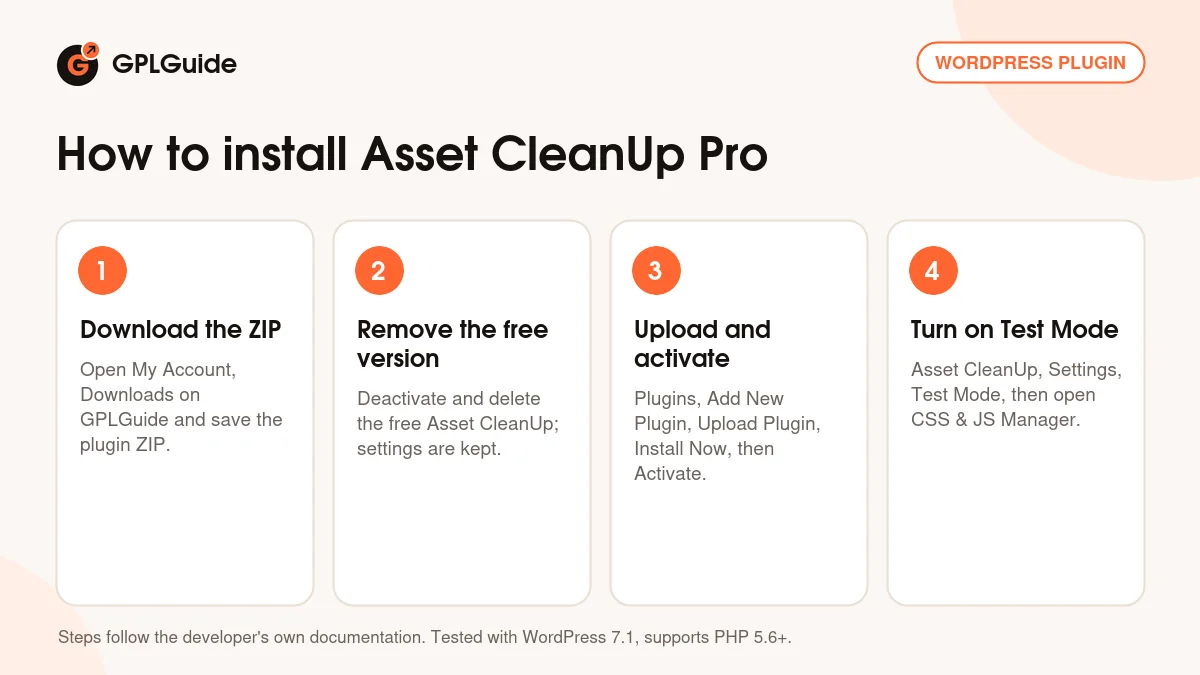
- Sign in to GPLGuide, open My Account, Downloads and save the Asset CleanUp Pro ZIP.
- If the free Asset CleanUp: Page Speed Booster is installed, deactivate and delete it under Plugins, Installed Plugins. Its settings stay in the database.
- Go to Plugins, Add New Plugin, Upload Plugin, choose the ZIP, click Install Now and then Activate.
- Open Asset CleanUp, Settings and turn on Test Mode, then go to CSS & JS Manager and pick your first page.
For a good first setup, follow the developer's Getting Started advice and pick something obvious: form files on a page with no form, or slider files where there's no slider. Unload them on that page, check it on desktop and mobile, then try a bulk rule. Turn Test Mode off only when the page works for you, and look again as a visitor.
Keeping it up to date
Updates from GPLGuide are manual. When a new version of Asset CleanUp Pro is listed here, download it from your account and upload it under Plugins, Add New Plugin, Upload Plugin. WordPress offers to replace the installed copy, and your rules stay because they're stored in the database. Spotted a newer release we haven't added? Tell us on the Request Item/Update page.
Questions about Asset CleanUp Pro
Is Asset CleanUp Pro a caching plugin? No. It controls which files and plugins load, and it works best next to a page cache, server cache or CDN.
Do I still need the free Asset CleanUp plugin? No. Pro runs on its own. Delete Lite before you install it, and your settings carry over.
Will I have to enter a license key? No. Your file comes with the license key already activated, so the Plugins Manager and every Pro option work after activation.
Can unloading break my site? Yes, if you unload a file the page needs. Test Mode keeps changes visible only to you, and ?wpacu_no_load shows the page without any rules.
Does Asset CleanUp Pro find unused CSS by itself? No. You choose what to unload, and Critical CSS is something you add by hand.
Can it speed up the WordPress Dashboard? Yes. The IN THE DASHBOARD /wp-admin/ tab of the Plugins Manager unloads plugins on admin pages once you enable those rules.
Does it work with page builders and WooCommerce? Yes. It runs with any theme or builder, has special settings for the Oxygen, Divi and Bricks editors, and its conditional rules suit stores.
Is Alternative Assets in Asset CleanUp Pro 1.2.8.4? Yes. It arrived in 1.2.8.4 and sits under CSS/JS Manager, Alternative Assets.
Looking for more ways to speed up your site? Browse more WordPress plugins on GPLGuide, or see what a GPLGuide membership includes if you use several premium plugins.
Features & capabilities
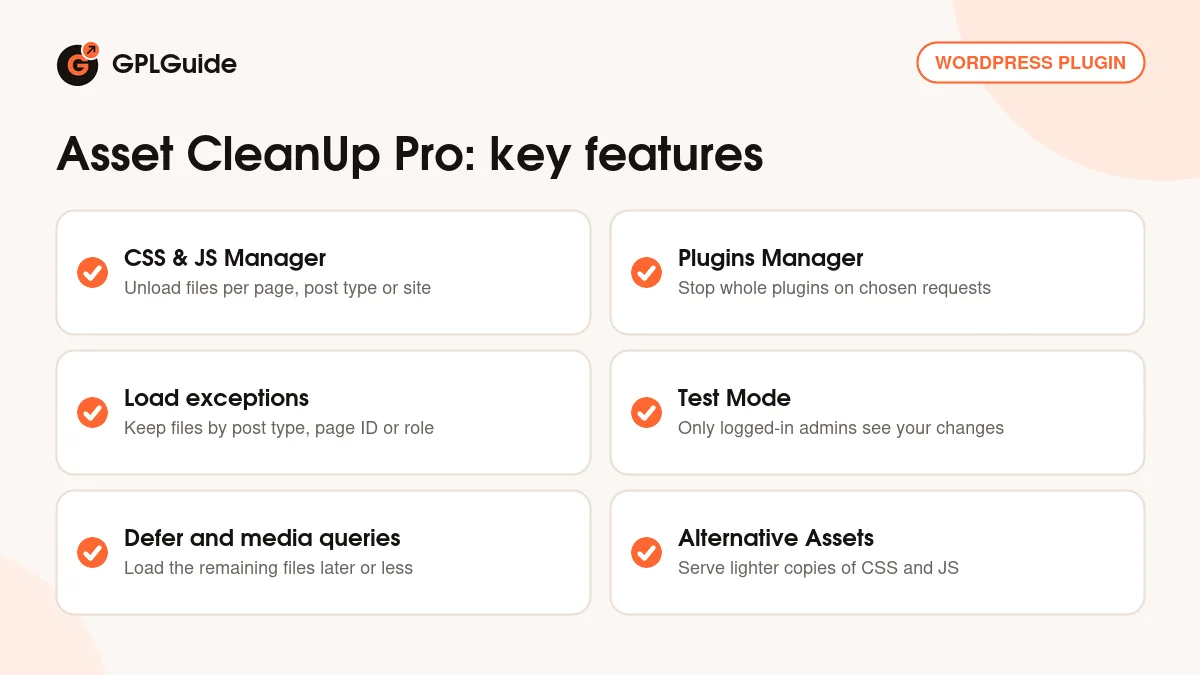
- Per-page, post type, taxonomy, archive and URI pattern unload rules for CSS and JS
- Plugins Manager that stops whole plugins on the front end and in wp-admin
- Load exceptions by post type, page ID and user role
- Test Mode so only logged-in admins see changes while you test
- Defer, async, async CSS preload and HEAD or BODY placement
- Media query loading for mobile-only or desktop-only files
- Alternative Assets to serve lighter copies of CSS and JS files
- Hardcoded asset control, Google Fonts tools and plugin rules on REST API calls