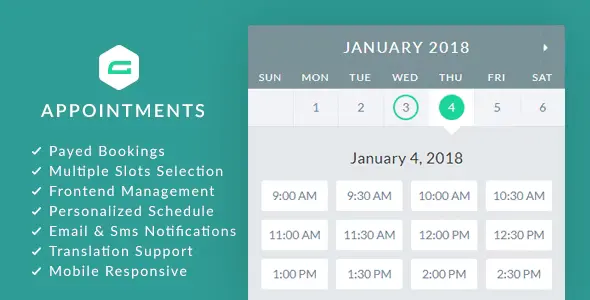
gAppointments Appointment booking addon for Gravity Forms
Note
This is an addon of Gravity Forms Plugin
100% Original fileUnmodified copy of the developer's release
DeveloperCode Canyon
Up to dateOriginal released Oct 2, 2026 · File last updated Oct 23, 2026
About this product
gAppointments is an appointment booking add-on for Gravity Forms, now maintained by a new developer. It adds booking fields to your forms, so a client can pick a service, a provider, a date and a time slot, and pay in the same form if you charge for the booking. This page is for gAppointments 1.25. On GPLGuide you download the original plugin file to install on your own WordPress sites.
Good for: salons, hair stylists, massage therapists, personal trainers, consultants and other service businesses that already build their forms with Gravity Forms and want bookings, payments and reminders to run through those forms.
Requirements: WordPress 6.3 up to 7.0, the range the item page lists, and Gravity Forms, installed, active and licensed. Gravity Forms is a paid plugin that we do not sell. The developer does not publish a minimum PHP version, but recent releases fixed errors on PHP 8 and 8.1 and were tested with Gravity Forms 3.0.2.5. Paid bookings need a Gravity Forms payment add-on, text messages need the free WP Twilio Core plugin and a Twilio account, and Google Calendar sync needs your own Google Cloud credentials.
What gAppointments does
gAppointments turns a normal Gravity Forms form into a booking form. In the form editor it adds an Appointment Booking group with four fields: Booking Services, Booking Providers, Booking Calendar and Booking Cost. The client chooses a service, picks a provider if you offer more than one, then clicks a free date and slot. Each booking becomes an appointment in the plugin's own list, and the form entry keeps the date and time like any other field.
Behind the form sit services, providers and settings, all under the gAppointments menu in WordPress. A service holds the price, the slot length and the booking rules. A provider is a person who delivers one or more services. The settings cover the time zone, policies, emails, text messages, Google Calendar, colours and translation.
Clients and providers also get pages on the front end. With two shortcodes, clients can see and cancel their appointments, and providers can confirm or cancel theirs and, if you allow it, edit their own schedule. Emails, and text messages if you set them up, tell both sides when a booking is pending, confirmed or cancelled.
Setting up services and time slots in gAppointments
Services live under gAppointments, Services, Add service. Give the service a name and a price without a currency symbol, because the currency comes from Gravity Forms. Then choose Available Appointment Times: Time Slots for appointments at set times, or Dates for bookings by the day. With Time Slots you set the Duration and a Cleanup time, the gap kept free after each appointment. Reduce Gaps lets clients book straight after an earlier appointment, and Time Format, Show End Times and Remove AM/PM text control how slots look.
Max capacity sets how many clients can book the same slot, which suits group classes. New Appointment Lead Time sets the minimum notice, for example 4 hours. Availability period decides how far ahead people can book: Future days, a Date range or Custom dates only. Max Bookings, Multiple Bookings and Multiple Max Selection control how many slots one client can take, and Prevent Double Bookings stops a client booking the same time twice.
Every service can belong to one or more categories. In each form, under Settings, gAppointments, you choose which category that form offers, or leave it on All services. So one site can run a form for massages and another for personal training.

Providers, schedules and booking policies
Providers are added under gAppointments, Providers, Add provider. Assign User links the provider to one registered WordPress user, which lets that person sign in and manage bookings on the front end. Services sets what they offer. Set Calendar to Yes and you get a Work schedule for each weekday, Add Breaks and Holidays. Set it to No and the provider uses the default hours, breaks and non-working days from gAppointments, Settings, Calendar.
The Policies tab decides who can do what. Auto confirm appointments confirms bookings straight away, and paid bookings once the payment arrives. Provider confirms own appointments, Cancellation Policy, Provider Cancellation Policy and Provider Manages Schedule let providers and clients act from the front end. On the General tab you set the Time Zone, Week Starts On, Auto complete appointments and Cancel unpaid appointments, which frees a slot when a pending booking is not paid in time.
Emails, text messages, payments and Google Calendar
The Notifications tab holds From name, From email and templates for clients and providers: pending, confirmation and cancelled, plus versions for multiple bookings. Templates accept HTML and tags such as %client_name%, %appointment_date% and %service_name%. You can add calendar links so people save the appointment to Google Calendar or Yahoo. Text messages use the same set and are sent through Twilio with the free WP Twilio Core plugin, so you need your own Twilio account and Twilio charges for the messages.
For paid bookings, keep the Booking Cost field, add a Gravity Forms Total field and connect a Gravity Forms payment add-on. The developer names PayPal, Stripe and Authorize.net, and its form guide walks through the PayPal Standard Add-On with Payment Amount set to Form Total. The payment add-on belongs to Gravity Forms, and you need your own account with the payment provider.
Google Calendar sync sits under gAppointments, Settings, Google Calendar. You create your own Google Cloud project, turn on the Google Calendar API, make an OAuth client, paste the Client ID and Client Secret into the plugin and click Generate access code. One-way mode sends appointments to Google. Two-way mode also reads your Google events and hides those times from the booking calendar.
Booking setups you can copy
- One-person studio: one provider with Calendar set to No, a 60 minute Duration with 15 minutes of Cleanup, and Auto confirm appointments on. Add a Gravity Forms Stripe or PayPal add-on to take payment upfront.
- Group class: set Max capacity to the number of places, for example 12, so several people can book the same slot.
- Salon with several stylists: make each stylist a provider with their own Work schedule and Holidays, add the Booking Providers field, and turn on Provider Manages Schedule.
- Free first consultation: leave out the Booking Cost and Total fields and set up no payment feed. Turn on calendar links in the client emails.
- Fewer no-shows: send the confirmation text message to clients and set New Appointment Lead Time to 24 hours.
Test each setup with a booking of your own before you share the form.
What's new in gAppointments 1.25
Version 1.25 came out on October 2, 2026. It fixes the appointment date and time showing as raw serialized data in notification emails, confirmations and the entries list on AJAX forms under Gravity Forms 2.9 and newer. Entries saved with the broken value now display correctly without being saved again. The changelog says the bookings themselves were never affected and no booking data was lost.
Version 1.24 (September 12, 2026) is the big security release. It fixed an SQL injection issue in the double booking checks, a reflected XSS issue on the booking form, and gaps that let one client act on another client's appointment. It also fixed a PHP 8 error with multiple slot selection, front-end schedule saving and the Prevent Double Bookings setting. Before that, 1.23 (September 9) fixed the provider and service dropdowns, and 1.22 and 1.21 (both September 4) added a warning for custom slots with no availability days and fixed Gravity Forms conditional logic on booking forms.
Good to know before you buy
You need your own licensed copy of Gravity Forms. The other outside pieces are yours too: a payment add-on and merchant account for paid bookings, a Twilio account for text messages and a Google Cloud project for calendar sync.
The online docs are labelled for version 1.15. The Shortcodes page does not spell out the shortcode names in its text. The Google Calendar settings use one Client ID and one Calendar ID, and the provider guide says pairing providers with Google Calendar is only explained privately by the author. Two-way sync can make the form load a little slower.
The docs name WP Twilio Core for text messages. On WordPress.org it is now listed as NotifSMS, version 2.0.0, and the developer has not said whether it was tested with that version, so try a text message on a test site first. Item support from the author runs through a CodeCanyon contact form, replies can take up to 2 business days, and installation and customization are not included.
gAppointments from GPLGuide vs the official subscription
gAppointments is sold on CodeCanyon, and the developer's own site sends every buyer there. The Regular licence costs $60 for one site and, as the item page states, includes future updates and 6 months of support from the author, with an option to extend support to 12 months. The developer's site also lists a Multi-site Bundle at $177 for up to four sites and an Extended licence at $675. Under Envato's licence for this item, its PHP code is licensed under the GPL.
From GPLGuide you get the same original gAppointments 1.25 plugin file with everything in it: services, providers, the booking fields, policies, emails, text messages, Google Calendar sync and translation. The file from GPLGuide comes with the license key already activated, so there is no key to enter. Only CodeCanyon gives you item support from the author, its refund route and updates through your Envato account. New versions come through your GPLGuide account.
How to install gAppointments
- Sign in to GPLGuide, open My Account, Downloads and save the gAppointments ZIP.
- Make sure Gravity Forms is active, then go to Plugins, Add New, Upload Plugin and choose the ZIP.
- Click Install Now, then Activate.
- Add a service and a provider under the gAppointments menu, then add the Booking Services and Booking Calendar fields to a form.

A good first setup is one free service with Time Slots and a 30 minute Duration. Build a form with Name, Email, Booking Services and Booking Calendar, add it to a page with Enable Ajax ticked, and turn on Auto confirm appointments. Book a slot yourself and check that the email shows the right date and time. Then add the Booking Cost and Total fields and your payment add-on.
Keeping it up to date
Updates from GPLGuide are manual. When a new version of gAppointments is listed here, download it from your account and upload it under Plugins, Add New, Upload Plugin. WordPress offers to replace the installed copy. The developer's own guide has you delete the old copy first and does not say whether your appointments survive that, so replacing is the gentler route. Back up your database first. If we have not added a newer version yet, tell us on the Request Item/Update page.
Questions about gAppointments
Do I need Gravity Forms? Yes. gAppointments is an add-on and does not replace Gravity Forms, so you need your own licensed copy, which we do not sell.
Which payment gateways work? Any gateway that Gravity Forms handles through its payment add-ons, such as PayPal, Stripe and Authorize.net, with your own account.
Can I take free bookings? Yes. Leave out the Booking Cost and Total fields and set up no payment feed.
Does it sync with Google Calendar? Yes, one-way or two-way, once you connect your own Google Cloud project in the plugin settings.
Can several people book the same slot? Yes. Raise Max capacity on the service, which works well for classes.
Can clients cancel their own bookings? Yes, when Cancellation Policy is on. They cancel pending appointments from the client appointments page.
Can I translate the booking form? Yes. You can translate the calendar and each form on its own, and the developer says it is tested with WPML and Polylang.
Is there a license key to enter? No. The gAppointments file we provide comes with the license key already activated.
Looking for more tools for your site? Browse our WordPress plugins, or see what a GPLGuide membership includes if you need several premium plugins. The free WP Twilio Core plugin used for text messages is on WordPress.org.
Features & capabilities
- Booking Services, Booking Providers, Booking Calendar and Booking Cost fields for Gravity Forms
- Time slots with duration, cleanup time, lead time and capacity, or bookings by date
- Providers with their own work schedule, breaks and holidays
- Paid or free bookings through any Gravity Forms payment add-on
- Pending, confirmation and cancelled emails and text messages with tags
- One-way or two-way Google Calendar sync with your own Google account
- Front-end appointment pages for clients and providers
- Translation for the calendar and for each form