
GeoDirectory Location Manager
100% Original fileUnmodified copy of the developer's release
DeveloperCode Canyon
Up to dateOriginal released Oct 8, 2026 · File last updated Oct 23, 2026
About this product
GeoDirectory Location Manager is the add-on that turns a one-city GeoDirectory site into a directory that covers countries, regions, cities and neighbourhoods. It is made by the UK developer behind the free GeoDirectory plugin, and it adds a location switcher, Near Me searches and a page of its own for every location. This page is for GeoDirectory Location Manager 2.3.40. On GPLGuide you download the original plugin file to install on your own directory websites.
Good for: directory owners who list businesses, places or events in more than one city, local guides that want neighbourhood pages, and anyone building a national or worldwide directory where visitors need to switch location or find the listings closest to them.
Requirements: WordPress 6.2 or newer, PHP 5.6 or newer and the free GeoDirectory core plugin, version 2.3 or newer. The current GeoDirectory release on WordPress.org is 2.8.193. The Near Me button works best on a site served over HTTPS, because the developer lists HTML5 geolocation as needing a secure connection.
What GeoDirectory Location Manager does
Out of the box, GeoDirectory works with one default location. The core plugin's own FAQ says you need this add-on as soon as your directory covers more than one city. Once GeoDirectory Location Manager is active, every listing belongs to a country, a region and a city, and optionally a neighbourhood. You can let listings go anywhere in the world or keep the directory to a short list of places you choose.
You don't have to type every location in by hand. When someone adds a listing, any missing location is created from its address, with the details coming from Google or OpenStreetMap.
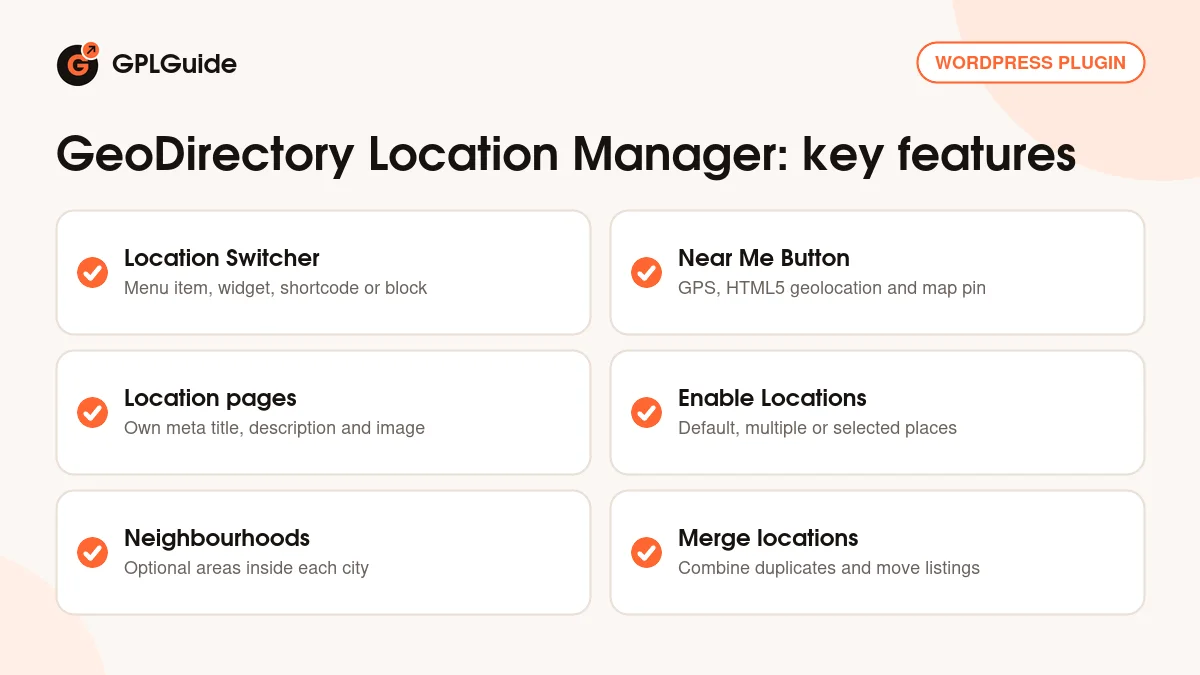
Each location gets its own page with its own Meta Title, Meta Description, Location Description, Featured Image and image tagline. Visitors switch location from a menu item, widget, shortcode or block, or press a Near Me button to see what is closest. GeoDirectory Location Manager also builds location sitemaps for Yoast SEO.
Setting up GeoDirectory Location Manager
The main options live under GeoDirectory, Settings, Locations, on the Settings sub-tab. The developer says the defaults suit most sites, so you only change what fits your plan.
Enable Locations. Country, Region and City each offer three choices: the default only, multiple, or selected. Choose the default country only and the switcher stops offering other countries. Choose selected cities and listings can only go in the cities you tick. A location must already exist before you can select it, so add it first through Add Location, a listing's map marker or a CSV import. The Enable Neighborhoods checkbox, off by default, adds a Neighborhoods sub-tab.
URL Settings. Home page should go to decides whether home links on a filtered page lead to the site root or to the current location. In the advanced options, Archive URLs and Archive URLs on details page decide whether category links keep the location. To put the location into listing URLs, open Settings, Permalinks. Locations are not part of the URL by default.
Add Listing Form. Disable Address Autocomplete turns off address suggestions while someone types an address. Show All Locations in Dropdown? lists every location, but the developer warns it can break things on large sites. Two advanced options stop the map from changing the address fields, meant for custom locations or addresses Google cannot pinpoint.
Other. Enable Location Search Autocompleter and Min characters needed to trigger location autocomplete control the suggestions in the location search. Disable Nearest Cities? turns off the nearby cities, worked out from the visitor's IP address, shown when they first click the search box.
Location switcher, Near Me and the location widgets
The Location Switcher lets visitors filter listings to a country, region or city, or sort them by distance from a place they type, such as a zip code or a landmark. It suggests nearby cities, shows suggestions as the visitor types and remembers recent searches. If a search finds nothing in your directory, it looks the text up with Google or OpenStreetMap and offers a search by distance from that spot.
To add the switcher to your main menu, go to Appearance, Menus, open GeoDirectory Endpoints, tick Change Location in the Location Switcher item and click Add to Menu.
The Near Me Button finds the visitor and opens your location page with listings sorted by distance. On phones it can use GPS. It asks the browser for permission through HTML5 geolocation, which is more accurate than guessing from the IP address. If the visitor says no, or the site is not on HTTPS, a map appears with a pin they can drag.
The Locations widget lists your countries, regions, cities or neighbourhoods. Show Locations picks the level, Output Type shows a list or an image grid, and Number of Locations and Show Current Location Only narrow it down. Location Description shows the text you wrote for the current location, and Location Meta outputs one field, such as Location Name or Location Image.
Each of these works as a widget, a shortcode or a block. The developer's docs give [gd_location_switcher], [gd_locations] and [gd_location_description], and with GeoDirectory Location Manager the [gd_listings] shortcode accepts country, region and city attributes.
Location pages, neighbourhoods and merging
To add a city by hand, open Add Location, type the City and Region, choose the Country and click See Address on Map. Drag the marker until Latitude and Longitude fill in. Then add a Meta Title, Meta Description, Location Description, Featured Image and Tagline, and click Save Location.
Neighbourhoods sit under cities. Turn on Enable Neighborhoods, go to the Cities sub-tab, click Add Neighborhood next to a city, type the name and save. The neighbourhood is then offered when someone adds a place.
Duplicates happen when a name typed by a user differs slightly from what the map service returns. Tick the locations in the list, choose Merge from Bulk Options, click Apply and pick a Destination Location. The listings move there. The developer suggests merging rather than deleting, because deleting a location can leave listings without one.
Directory setups you can copy with GeoDirectory Location Manager
- City guide with neighbourhoods: set Country and Region to the default only, City to selected, and turn on Enable Neighborhoods. Add a Locations widget set to neighbourhoods.
- National directory: keep Country on the default only, set Region and City to multiple and let locations appear as listings come in.
- Worldwide directory: set all three levels to multiple, place a Near Me Button on the home page and run the site on HTTPS.
- Visitor guide home page: give each city a Featured Image and Tagline, then show them with the Locations widget as an image grid.
- Busy site on shared hosting: tick Disable Term Autocount? to speed up saving listings, then run GD Tools, Location category counts after a big import.
Start narrow. It is easier to open a directory to more cities later than to merge locations you no longer want.
What's new in GeoDirectory Location Manager 2.3.40
Version 2.3.40 came out on October 8, 2026. It fixes one bug: a term URL cache produced wrong category links on sites that use TranslatePress. If you run a translated directory, this is the release you want.
The two releases before it were security fixes. Version 2.3.38 (September 4, 2026) fixed an SQL injection vulnerability through the latitude and longitude parameters of the REST API, and 2.3.39 (September 9, 2026) added sanitising of those values. Anyone on an older GeoDirectory Location Manager version should update.
Earlier, 2.3.37 (August 26, 2026) fixed region lookups on SiteGround, which blocks direct AJAX file access, and 2.3.36 (April 2, 2026) replaced a deprecated function with wp_slash().
Good to know before you buy
GeoDirectory Location Manager is an add-on, not a standalone plugin. It needs the free GeoDirectory core and does nothing without it. Location-aware autocomplete in search forms is listed as working with the separate Advanced Search add-on.
Address lookups and fallback suggestions come from Google or OpenStreetMap, outside services your site talks to. The Near Me Button needs HTTPS to read a visitor's position. If you turn on Disable Term Autocount?, counts can be wrong until you run Location category counts under GD Tools.
The developer also runs a Connect Site service under GeoDirectory, Extensions that links a site to an account on their website for one-click installs. That service, the support forum and refunds belong to the official licence.
GeoDirectory Location Manager from GPLGuide vs the official subscription
From GPLGuide you get the original GeoDirectory Location Manager 2.3.40 file, released under the GPL, to use on your own sites. Everything in the file works the same: the location settings, the switcher, Near Me, neighbourhoods, merging and the widgets. The license key comes already activated in the file.
The developer sells the add-on for $49 per year for a single site, $69 for 2 to 5 sites or $99 for unlimited sites, and their membership costs $229 for one year. That buys things we can't pass on: help on their support forum, their 30-day money-back guarantee and services on their own servers, such as Connect Site. If you rely on vendor support, buy from them. If you need the add-on itself, we offer the same file at a lower price, alone or as part of a membership.
How to install GeoDirectory Location Manager
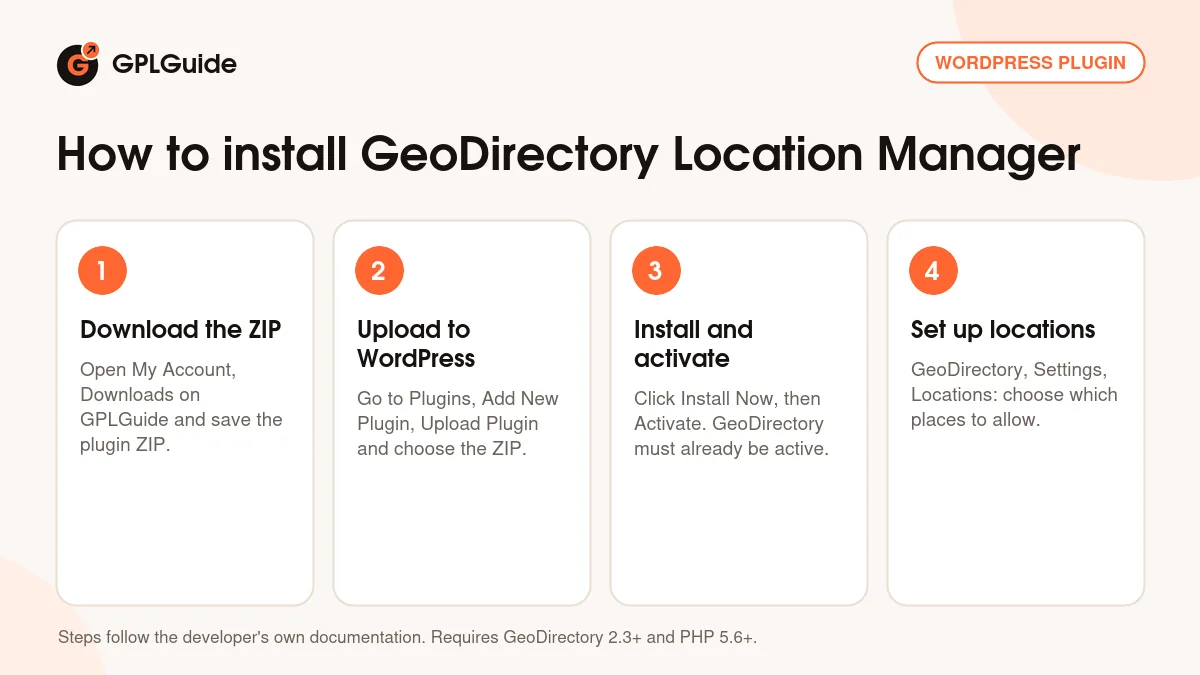
- Sign in to GPLGuide, open My Account, Downloads and save the GeoDirectory Location Manager ZIP.
- In WordPress go to Plugins, Add New Plugin, Upload Plugin and choose the ZIP.
- Click Install Now, then Activate. The free GeoDirectory plugin must already be active.
- Go to GeoDirectory, Settings, Locations and choose which countries, regions and cities to allow.
A good first setup follows the developer's three steps. Set Enable Locations to match your plan and leave the other defaults. Then open Settings, Permalinks and decide whether locations belong in your listing URLs, ideally before many listings are live. Finally add Change Location to your main menu, add a test listing in a new city and check that the city appears in the switcher.
Keeping it up to date
Updates from GPLGuide are manual. When a new version of GeoDirectory Location Manager is listed here, download it from your account and upload it under Plugins, Add New Plugin, Upload Plugin. WordPress offers to replace the installed copy, and your locations stay in place because they are saved in your database. If you see a newer version that we haven't added, let us know on the Request Item/Update page.
Questions about GeoDirectory Location Manager
Do I need it for a one-city directory? No. GeoDirectory handles a single default location on its own. You need GeoDirectory Location Manager once the directory covers more than one city.
Do I have to add every city by hand? No. Missing locations are created from the address when a listing is added.
Can I limit the directory to certain cities? Yes. Set City to selected under Enable Locations and tick the cities you want.
Does Near Me work without HTTPS? Partly. Without HTTPS a map opens and the visitor drags a pin to set their spot.
Can I put the city in my listing URLs? Yes. Go to Settings, Permalinks and choose a structure with the location, or build your own.
What if the same city shows up twice? Tick both in the list, choose Merge from Bulk Options and pick the Destination Location.
Does GeoDirectory Location Manager work with Yoast SEO and Rank Math? Yoast SEO sitemap support is listed, and version 2.3.31 added hooks to leave some Rank Math sitemaps out.
Is there a license key to enter? No. The file from GPLGuide comes with the license key already activated, so you install it and start setting up locations.
Building a directory? Browse more WordPress plugins on GPLGuide, or see what a GPLGuide membership includes if you need several premium add-ons. The GeoDirectory core plugin that GeoDirectory Location Manager needs is free on WordPress.org.
Features & capabilities
- Countries, regions, cities and optional neighbourhoods for any GeoDirectory site
- Locations created from listing addresses, with no need to prefill them
- Location Switcher as menu item, widget, shortcode or block
- Near Me Button with phone GPS, HTML5 geolocation and a map pin fallback
- Location pages with their own meta title, description, image and tagline
- Limit the directory to a default, multiple or selected set of locations
- Merge duplicate locations and move their listings in one step
- Location sitemaps for Yoast SEO and location-aware URLs