Give – Currency Switcher
Note
Note: This is an Addon for GiveWP Donation Plugin
100% Original fileUnmodified copy of the developer's release
DeveloperGive Plugins
Up to dateOriginal released Sep 3, 2026 · File last updated Oct 23, 2026
About this product
GiveWP Currency Switcher is a premium add-on for the free GiveWP donation plugin that lets donors choose the currency they give in. The add-on puts a currency choice on your donation forms, with exchange rates you control, a starting currency based on the donor's location and a list of currencies for each payment gateway. This page is for GiveWP Currency Switcher 2.2.3. On GPLGuide you download the original add-on file to install on your own GiveWP websites.
Good for: charities, churches, schools and causes that raise money from more than one country, international appeals, and any GiveWP site that wants overseas supporters to see a familiar currency instead of doing the conversion in their head.
Requirements: the free GiveWP plugin, installed and active, because this is an add-on and does nothing on its own. The developer's requirements page asks for one of the two most recent major WordPress versions, a PHP version that still gets security patches (the free GiveWP listing sets PHP 7.4 as the minimum), MySQL 5.5 or newer and a valid SSL certificate that passes TLS 1.2 tests. The developer doesn't publish a minimum GiveWP version for 2.2.3, so keep GiveWP itself up to date.
What GiveWP Currency Switcher does
Out of the box, GiveWP works in one currency, your site's base currency. GiveWP Currency Switcher adds a choice. You pick the extra currencies you want to accept, give each one an exchange rate, and donors can switch the form to their own currency before they give. A short message under the amount field tells them which rate is being used.
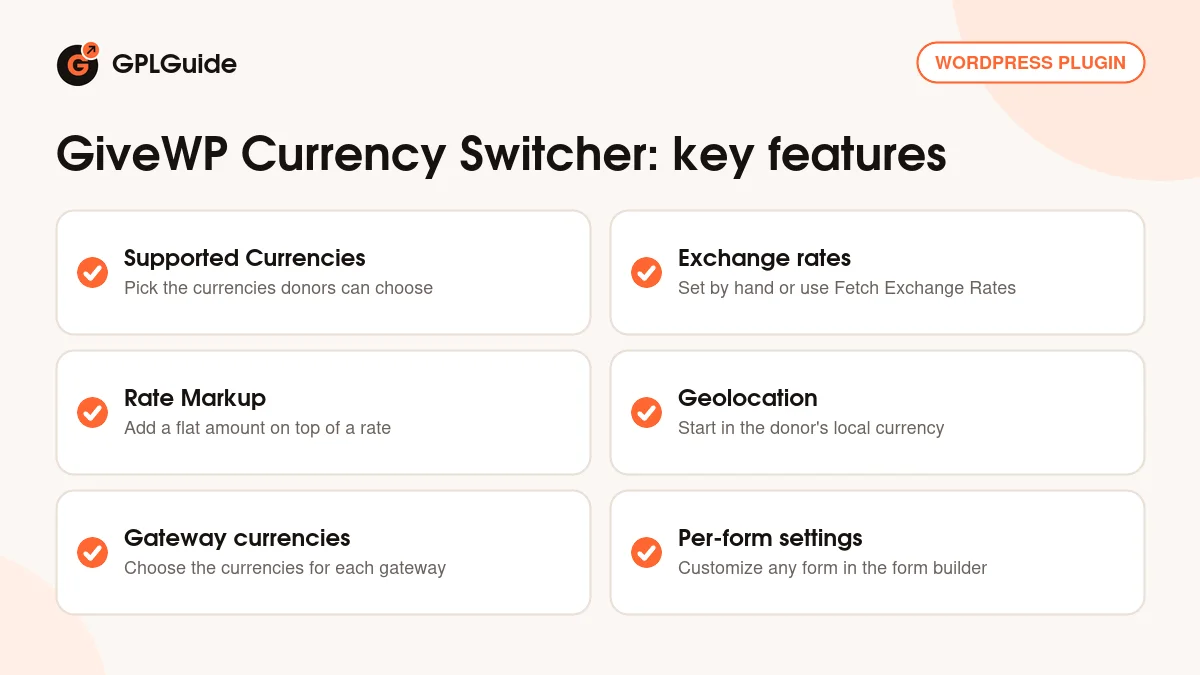
GiveWP Currency Switcher stays off until you turn it on. Then every donation form follows the global settings you set once, and any single form can get its own setup, for example a campaign page with only two currencies. Rates can be typed in by hand or fetched from an exchange rate service, and you can add a markup on top of any rate.
Two more parts make GiveWP Currency Switcher practical for real fundraising. Geolocation can pick the starting currency for each visitor based on where they are, with a fallback when the location can't be found. And because each payment gateway gets its own list of currencies, you decide exactly which currencies appear with which gateway.
Currencies, exchange rates and the donor message
The global settings of GiveWP Currency Switcher are split into three parts: General, Geolocation and Payment Gateways. In General, the first option is called Currency Switcher. It is set to Disabled by default, so change it to Enabled to start. Next comes Supported Currencies, a list of every currency GiveWP supports. Tick the ones you want to offer. Your base currency is already selected.
Each currency you tick gets a row in the Exchange Rates table, with the columns Currency, Exchange Rate, Set Manually and Rate Markup. The Exchange Rate field is locked by default. You either use Set Manually and type your own rate, or click Fetch Exchange Rates to pull in current rates. That button only works once an exchange rate service is set up in the Exchange Rate APIs section. Rate Markup adds a flat amount on top of the rate.
Rates can show more decimal places than amounts. In the developer's example, with decimals set to 6, the rate shows six places while the donation amount still shows two.
The Currency Switcher Message is the line donors see below the amount field once they pick another currency. The default reads "The current exchange rate is 1.00 {base_currency} equals {new_currency_rate} {new_currency}." You can reword it, but GiveWP Currency Switcher only fills in the three placeholders when they are typed exactly as shown, braces included.
Geolocation, payment gateways and single form settings
Geolocation has its own section in GiveWP Currency Switcher and is Disabled by default. When you enable it, the form opens in the currency that matches the donor's location. The Base Currency (if fails) option sets the currency used when the location can't be worked out, and its choices are the currencies you have enabled. Donors can still pick a different currency on the form.
The Payment Gateways section lists every gateway you have enabled in GiveWP. For each one you choose which currencies it accepts, using a search field to add a currency and the small x to remove one. If a currency has no gateways attached, donors who choose it may see fewer payment options, or the message "Payment options are not available". The developer's fix is simple: add every gateway you want to offer to each currency you have turned on.
For a single form, open it in the Visual Donation Form Builder and go to its Settings tab. The Currency Switcher options there follow the global settings at first. Choose Customize to give that form its own choices, which mirror the global ones. Since version 2.1.0 these options sit in the form settings tab rather than on the Donation Amount block, so older guides may send you to the wrong place.
How it fits GiveWP 3.x and 4.x forms
GiveWP Currency Switcher 2.0.0 (September 14, 2023) added compatibility with the visual donation form builder that came with GiveWP 3.0, and the developer's GiveWP 3.0 compatibility guide lists it among the add-ons updated for that builder. Option-based forms are still handled too. In October 2026 the free GiveWP plugin is at version 4.19.0, and its 4.14.0 changelog includes a fix for the currency switcher display. No exact minimum GiveWP version is published for 2.2.3, so update GiveWP first.
Setups you can copy with GiveWP Currency Switcher
These GiveWP Currency Switcher setups use only documented settings. Change the currencies to suit your cause.
- A UK charity with overseas supporters: keep GBP as the base, tick USD and EUR in Supported Currencies, fetch rates, then enable Geolocation with GBP as Base Currency (if fails).
- Steady rates for a short appeal: use Set Manually for each currency, so converted amounts don't move while markets do during a two-week campaign.
- Room for conversion costs: add a small Rate Markup to the currencies that cost your organisation more to convert.
- One special form: a US appeal page that only offers USD and your base currency. Open that form's Settings tab, choose Customize and enable just those two.
- Currencies by gateway: if one gateway should only take your home currency, remove the others from it in Payment Gateways and add them to the gateway that should handle them.
- A friendlier message: "Giving in {new_currency}? Today 1.00 {base_currency} is {new_currency_rate} {new_currency}." Keep the placeholders exactly as written.
Before you share a form, switch through each currency, read the message and check that every gateway you expect is shown.
What's new in GiveWP Currency Switcher 2.2.3
Version 2.2.3 came out on September 3, 2026. It is a fix release with one change. Updating exchange rates could end in a fatal error and leave the settings page loading forever when the exchange rate service returned no rates. That is now resolved. If you fetch rates instead of typing them, this is the version you want.
The releases before it were small and focused. Version 2.2.2 (September 9, 2025) fixed option-based forms calculating the wrong donation amount. Version 2.2.1 (July 23, 2025) removed a text domain notice that appeared with WordPress 6.8. Version 2.2.0 (April 30, 2025) made currency calculations more reliable and accurate, and 2.1.0 (May 15, 2024) moved the form builder settings to the form settings tab.
Good to know before you buy
GiveWP Currency Switcher is an add-on. It needs the free GiveWP plugin, and it works with the payment gateways you already use in GiveWP rather than adding new ones. Before you link a currency to a gateway, check that your payment provider accepts that currency.
The Fetch Exchange Rates button depends on an exchange rate service that you set up in the Exchange Rate APIs section. The docs we checked don't name those services, so look at that section after you install to see the choices and whether they need their own account. The 2.2.3 fix shows the service can sometimes return no rates, so check your rates now and then.
The developer's docs don't describe separate reports by currency for GiveWP Currency Switcher, so we don't promise any.
GiveWP Currency Switcher from GPLGuide vs the official subscription
From GPLGuide you get the original GiveWP Currency Switcher 2.2.3 file, released under the GPL, to use on your own websites. Everything in the file works the same: supported currencies, manual and fetched rates, markup, geolocation, gateway currencies and the per-form Customize option. This file comes with the license key already activated, so there is no key to enter in GiveWP's Licenses tab.
Officially, the developer includes GiveWP Currency Switcher only in the GiveWP Elite plan, at $599 per year; the $399 Pro plan doesn't include it. Elite also covers other add-ons such as peer-to-peer fundraising, funds and designations, and tributes. That subscription adds what we can't pass on: help from the developer's support team, their money-back guarantee and updates through their account. If you rely on vendor support, buy it there. If you need the add-on itself, we offer the same file on its own or as part of a membership.
How to install GiveWP Currency Switcher
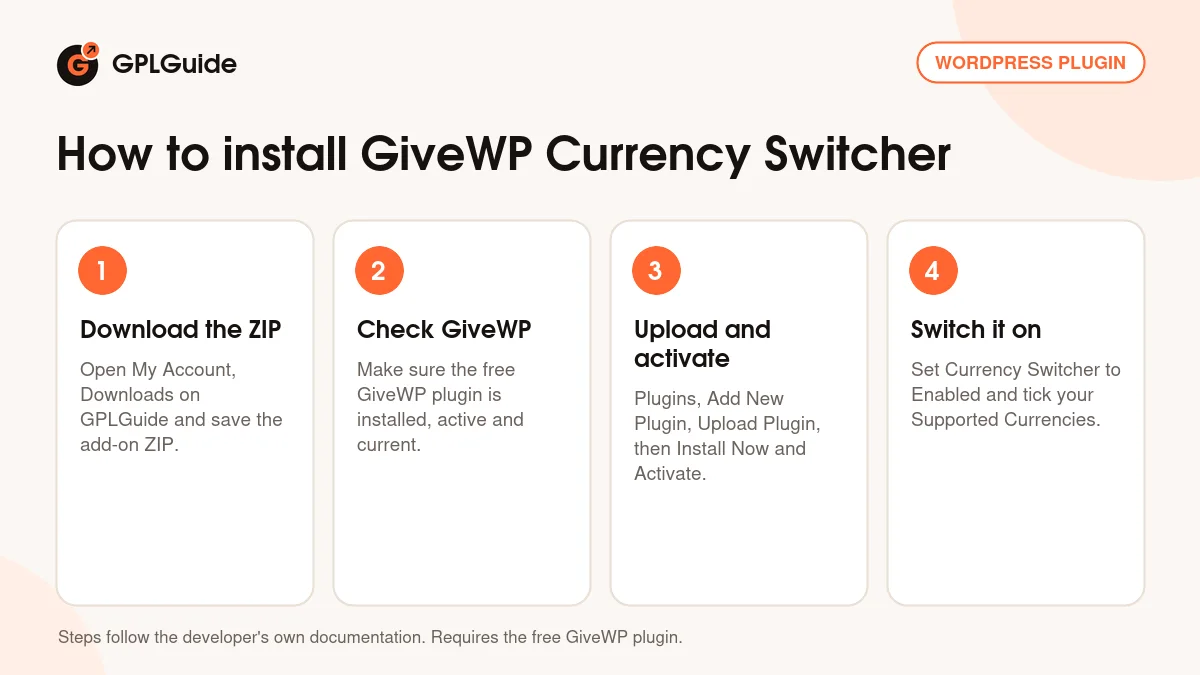
- Sign in to GPLGuide, open My Account, Downloads and save the GiveWP Currency Switcher ZIP.
- Make sure the free GiveWP plugin is installed, active and up to date.
- In WordPress go to Plugins, Add New Plugin, Upload Plugin, choose the ZIP, click Install Now and then Activate.
- Open the Currency Switcher settings in GiveWP, set Currency Switcher to Enabled and tick your Supported Currencies.
A good first setup uses two currencies: your base currency and the one most of your overseas donors use. Enter a rate with Set Manually, leave the markup at zero, and add both currencies to every gateway in Payment Gateways. Open a form, switch the currency and check that the message and gateways look right. Then enable Geolocation, set Base Currency (if fails) to your home currency, and add more currencies to GiveWP Currency Switcher as you need them.
Keeping it up to date
Updates from GPLGuide are manual. When a new version of GiveWP Currency Switcher is listed in your account, download it and upload it under Plugins, Add New Plugin, Upload Plugin. WordPress offers to replace the installed copy, and your currency settings stay because they are saved in your database. Update GiveWP itself first, since some add-on releases need a newer GiveWP core. If you see a newer version that we haven't added, let us know on the Request Item/Update page.
Questions about GiveWP Currency Switcher
Does GiveWP Currency Switcher work without GiveWP? No. It is an add-on for the free GiveWP plugin, which must be installed and active first.
Does GiveWP Currency Switcher work with the Visual Donation Form Builder? Yes, since version 2.0.0. Each form's options are in its Settings tab.
Does it still work with option-based forms? Yes. Version 2.2.2 fixed a wrong donation amount on that form type.
Do I have to type every exchange rate myself? No. You can use Set Manually for your own rates, or click Fetch Exchange Rates once an exchange rate service is set up in the Exchange Rate APIs section.
Can the form choose a currency from the donor's location? Yes. Enable Geolocation and pick a Base Currency (if fails) for visitors whose location can't be found.
Why do some payment options disappear when I switch currency? That currency is missing some gateways. In Payment Gateways, add every gateway you offer to each currency you have enabled.
Can I change the exchange rate message? Yes. Edit the Currency Switcher Message and keep the {base_currency}, {new_currency_rate} and {new_currency} placeholders exactly as written.
Can one form use different currencies from the rest? Yes. Choose Customize in that form's Currency Switcher settings and set its own options.
Do I need to enter a license key for GiveWP Currency Switcher? No. The file you download from us comes with the license key already activated.
Building a donation site? Browse more WordPress plugins on GPLGuide, or see what a GPLGuide membership includes if you need several premium add-ons. GiveWP itself is free on WordPress.org.
Features & capabilities
- Lets donors switch your GiveWP forms to the currency they prefer
- Supported Currencies list built from the currencies GiveWP supports
- Exchange rates set by hand or pulled in with Fetch Exchange Rates
- Rate Markup to add a flat amount on top of any rate
- Geolocation picks the starting currency, with a fallback currency
- Choose which currencies each payment gateway accepts
- Per-form Customize option in the Visual Donation Form Builder
- Editable rate message with {base_currency}, {new_currency_rate} and {new_currency}