
GravityView Core WordPress Plugin

Note
Note: GravityView Requires Gravity Forms to Work Properly
100% Original fileUnmodified copy of the developer's release
DeveloperGravityView
Up to dateOriginal released Oct 1, 2026 · File last updated Oct 23, 2026
About this product
GravityView is a WordPress plugin that takes the entries people submit through Gravity Forms and shows them on the front end of your site as tables, listings and custom layouts. You can turn a form into a searchable directory, a member list or a simple portal where users update their own entries. This page is for GravityView 3.8.0. On GPLGuide you download the original plugin file to install on your own websites.
Good for: sites that collect data with Gravity Forms and want to show it on the front end, such as member directories, staff lists, testimonials and client portals, plus teams that approve, edit or export entries without the dashboard.
Requirements: WordPress 6.5 or newer, PHP 7.4 or newer, MySQL 5.5 or newer and Gravity Forms 2.9.4 or newer. Gravity Forms is a separate paid plugin that you buy and install yourself. It is not included. The developer says any Gravity Forms license level works, including Basic. Its support team does not cover sites on IIS servers.
What GravityView does
Gravity Forms stores each submission as an entry, but only shows entries in the admin area. This plugin adds a new kind of content called a View. Each View is linked to a form and decides which entries appear, which fields are shown, how they are sorted and who may see them. You then place the View on any page with a block or a shortcode.
Every View has three screens. The Multiple Entries Layout is the table or list visitors see first. The Single Entry Layout is the detail page that opens when someone clicks an entry. The Edit Entry Layout is a front-end form where allowed users change an entry without the dashboard.
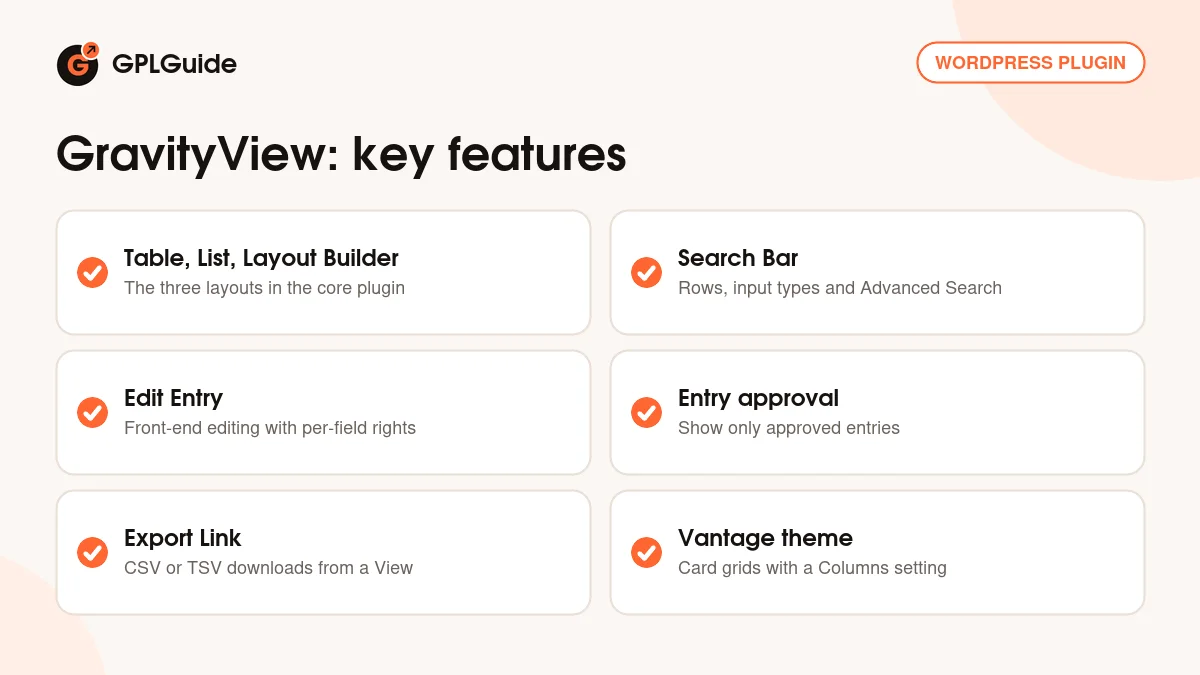
The core plugin also handles entry approval, a Search Bar, CSV and TSV export and the Vantage theme. It also installs Foundation, a framework shared by all of the developer's plugins, which adds its own dashboard menu with Manage Your Kit, one Settings screen for all of them and a Grant Support Access page.
Building a View: layouts, fields and widgets
Go to Views, New View, give it a name and pick a Data Source. That can be one of your existing forms or one of the developer's form presets. Next you choose a layout. The core plugin includes three: Table, List and Layout Builder. The picker also shows DataTables Table and Map, but those come with GravityView Pro and the All Access Pass, as does the DIY layout.
On the Multiple Entries Layout you work with three areas: Top Widgets, Entries Fields and Bottom Widgets. Add form fields to Entries Fields and drag them into order. The List layout has zones for a title, subheading, image and footer, which suits directory cards. A Custom Content field lets you mix in your own HTML and shortcodes. Widgets such as the Search Bar, pagination links and the Export Link only work on Multiple Entries.
For a Search Bar, click Add Widget, choose Search Bar and open its gear icon. Use Add Row for up to four columns, then Add Search Field. Each field has an Input type, so a choice field can be a dropdown, radio buttons or links, and date or number fields can be searched by range. Search Mode decides whether results must Match Any Fields or Match All Fields. Fields in the Advanced Search area stay hidden until the visitor clicks the Advanced Search link.
The View Settings box has tabs for View Settings, Multiple Entries, Single Entry, Edit Entry, Delete Entry, Filter & Sort, Permissions and Custom Code. Here you set entries per page, the sort order, an image lightbox and CSS or JavaScript for that one View.
Front-end editing, approval and export
To let people manage their own submissions, open the Edit Entry tab and tick Allow User Edit. Then add a Link to Edit Entry field to the Multiple Entries or Single Entry layout. If the Edit Entry Layout is empty, every form field is editable. Add fields to it and only those appear. Each field also has a Make field editable to setting with Entry Creator, Can Edit Gravity Forms Entries and Administrator, so an internal field can stay admin only.
Allow User Delete puts a Delete button on the Edit Entry screen, and a Delete Entry field adds a delete link to your list or table.
Tick Show only approved entries and nothing appears until it has been approved. You can approve from the Gravity Forms Entries screen, from the front end of a View or from notification emails. An Approve/Reject field on the form starts every entry as Disapproved, while a User Opt-In field lets the person submitting decide.
For exports, enable Allow Export and Show All In File on the Permissions tab, then add the Export Link widget. People with access get a Download CSV button. The file only holds the fields configured in the View, and the format is CSV or TSV, not Excel.
Styling with Vantage and placing Views on your pages
Vantage is the theme added in version 3.0. It picks up your site's fonts and colors, and new Views use it by default while older Views keep their look until you switch. To build a card grid, open the Styles tab, set Theme to Vantage and set Columns to 2 or more. A site-wide default sits in the developer's dashboard menu under Settings, GravityView, Appearance.
To embed a View, use the GravityView View block or the shortcode [gravityview id="24"] with your own View ID. Other blocks show a single entry, a field, an entry link or View details such as the entry count. The shortcode accepts page_size, sort_field with sort_direction, and search_field with search_value to pre-filter results. With Enhanced Security on, it also needs the View's secret attribute.
Setups you can copy
- Member directory: List layout, Vantage with Columns set to 3, Show only approved entries ticked, and a User Opt-In field on the form so members choose whether they appear.
- Searchable staff list: Table layout with a Search Bar in Top Widgets, a text field for names, a dropdown for department and Search Mode set to Match All Fields.
- Self-service profile updates: Allow User Edit, a Link to Edit Entry field, and Make field editable to Administrator on internal fields such as status or notes.
- Moderated testimonials: an Approve/Reject field on the form, Show only approved entries on the public View, and approvals done from the Gravity Forms Entries screen.
- Latest five entries on your home page: [gravityview id="24" page_size="5" sort_field="4" sort_direction="DESC"], using your own View ID and the field ID to sort by.
What's new in GravityView 3.8.0
Version 3.8.0 came out on October 1, 2026, and raises the minimum to Gravity Forms 2.9.4. In Edit Entry, removing an uploaded file now only takes effect when you click Update, so leaving the page keeps the file. The release improves security when deleting uploaded files and fixes a data disclosure issue in Edit Entry that was limited to users already allowed to edit that entry.
The Hide View data until search is performed setting now also hides entries from the REST API, CSV and TSV exports and entry counts. Choice fields filled by Populate Anything no longer lose choices beyond the first 501 when saved in Edit Entry. List and Layout Builder Views with several columns no longer stack every entry in the first column. Foundation moved to 1.35.0.
Before that, 3.5.0 (September 24, 2026) raised the WordPress minimum to 6.5 and added a Default Value setting for Search Bar fields. Version 3.4.0 (September 17, 2026) made Views with Prevent Direct Access return a not found page at their own URL.
Good to know before you buy
Gravity Forms is required and is not part of this download. You need your own copy, and any license level works.
The core file covers the Table, List and Layout Builder layouts. DataTables, Maps and DIY, plus Multiple Forms, Magic Links, Advanced Filters, Dashboard Views, Ratings & Reviews, A-Z Filters, Featured Entries and Social Sharing & SEO, belong to GravityView Pro. Calendars, charts, calculations, imports and inline editing are separate products from the developer: GravityCalendar, GravityCharts, GravityMath, GravityImport and GravityEdit. None of these are in this file.
The GravityView file from GPLGuide comes with the license key already activated, so there is no key to enter under Manage Your Kit. Support from the developer comes with their own license. Building Views with an AI assistant uses a separate, free MCP plugin from the developer, which needs WordPress 6.9.
Two newer versions exist. 3.7.0 (October 8, 2026) and 3.8.0 (October 15, 2026) contain security fixes for entry visibility, exports and front-end actions that are not in 3.8.0. 3.8.0 also fixed a serious issue: before it, deleting the plugin from the Plugins page permanently removed all Views, approval statuses and entry notes. Never delete it to reinstall.
GravityView from GPLGuide vs the official subscription
From GPLGuide you get the original GravityView 3.8.0 plugin file, released under the GPL, to use on your own websites. Everything in the file works the same way: the three core layouts, the View editor, Search Bar, Edit Entry, entry approval, CSV export, Vantage and the blocks.
What the developer sells on top is the license: updates through Manage Your Kit, expert email support, installs of their other products and a 30-day money-back guarantee. The GravityView plan is listed at $119 a year, GravityView Pro at $199 a year and the All Access Pass at $396 a year, and lifetime licenses are offered too. If you rely on vendor support, buy from the developer. If you need the plugin itself, GPLGuide has the same file on its own or as part of a membership.
How to install GravityView
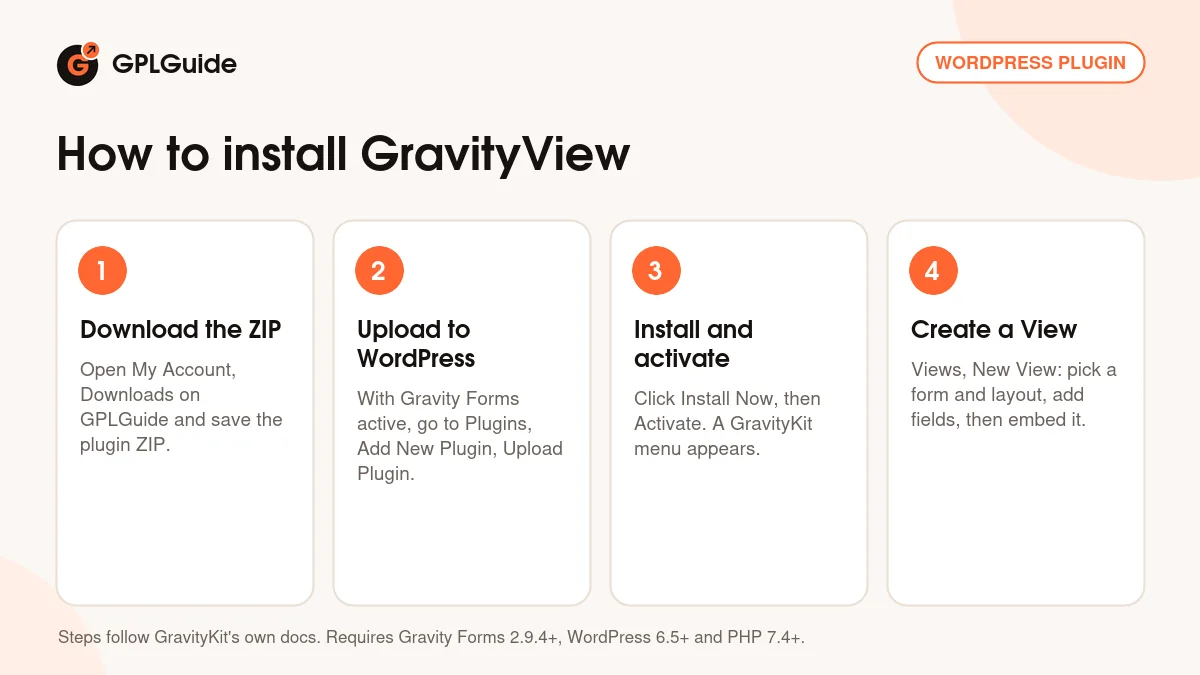
- Sign in to GPLGuide, open My Account, Downloads and save the GravityView ZIP.
- Check that Gravity Forms 2.9.4 or newer is active, then go to Plugins, Add New Plugin, Upload Plugin and choose the ZIP.
- Click Install Now, then Activate. A new menu with Manage Your Kit appears in your dashboard.
- Go to Views, New View, pick your form and a layout, add fields, save, and embed it with the GravityView View block.
A good first View is a plain Table built from a form you already use. Add three or four fields to Entries Fields, put a Search Bar with one text field in Top Widgets and tick Show only approved entries. Approve a few test entries, embed the View on a draft page and check it while logged out. Then try Vantage with two columns.
Keeping it up to date
Updates from GPLGuide are manual. When a new version is listed here, download it from your account and upload it under Plugins, Add New Plugin, Upload Plugin. WordPress offers to replace the installed copy, and your Views stay in place. Do not delete the plugin first, because in 3.8.0 deleting it from the Plugins page removes your Views. If you spot a newer version we haven't added yet, let us know on the Request Item/Update page.
Questions about GravityView
Do I need Gravity Forms? Yes. It is a separate paid plugin and is not included. Version 3.8.0 needs Gravity Forms 2.9.4 or newer, with any license level.
Are the DataTables and Map layouts included? No. The core plugin has Table, List and Layout Builder. DataTables, Maps and DIY come with GravityView Pro or the All Access Pass.
Can users edit their own entries? Yes. Tick Allow User Edit on the Edit Entry tab and add a Link to Edit Entry field.
Can I hide entries until I approve them? Yes. Tick Show only approved entries, then approve entries from the Entries screen, the front end or notification emails.
Can visitors search the entries? Yes. Add the Search Bar widget, add fields in rows and choose an Input type for each.
Can people download entries from the front end? Yes, as CSV or TSV, with Allow Export and the Export Link widget. Only fields in the View are exported.
Can each user see only their own entries? The developer offers that through the Advanced Filters extension in GravityView Pro, which is not in this file.
Do I need to enter a license key? No. The file from GPLGuide comes with the license key already activated. Support from the developer comes with their own license.
Building something with your forms? Browse more WordPress plugins on GPLGuide, or see what a GPLGuide membership includes if you use several premium plugins.
Features & capabilities
- Table, List and Layout Builder layouts for Gravity Forms entries
- Separate Multiple Entries, Single Entry and Edit Entry screens
- Search Bar widget with rows, input types, Search Mode and Advanced Search
- Front-end editing with Allow User Edit and per-field edit rights
- Entry approval with Show only approved entries and an Approve/Reject field
- CSV and TSV downloads through the Export Link widget
- Vantage theme with a Columns setting for card grids
- Five blocks plus the [gravityview] shortcode with sort and filter options