
Themify Minshop WooCommerce Theme
100% Original fileUnmodified copy of the developer's release
DeveloperThemify
Up to dateOriginal released Oct 20, 2026 · File last updated Nov 25, 2026
About this product
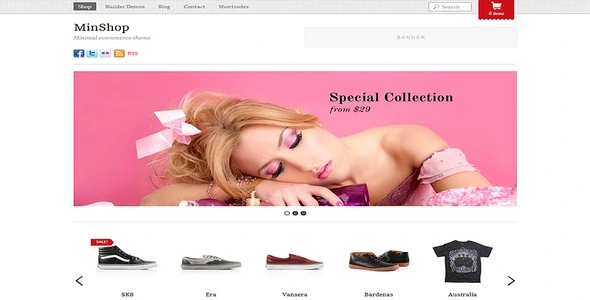
Minshop Theme 7.7.8 is a WooCommerce theme for general online shops. It suits small and mid-sized stores that sell a mix of products and want a clean storefront, a product slider on the homepage and a blog running next to the catalog. It's a good pick if you'd rather start from a ready demo and swap in your own products, images and text than design every page from nothing. The developer ships it with child theme support, a built-in demo import and a set of colour skins, so you can copy the demo shop first and change it step by step.
How to install Minshop Theme
- Install and activate WooCommerce under Plugins, Add New Plugin, because the theme needs it. The developer also lists WordPress 5 or later as the minimum version for this theme.
- Log in to GPLGuide, open this product and click Download under Your downloads.
- If the download holds more than one ZIP, unzip it on your computer first and upload the theme's own ZIP, theme.zip, not the one meant for design files.
- In WordPress go to Appearance, Themes, Add New Theme, Upload Theme, choose the ZIP and click Install Now.
- Click Activate once the upload has finished. The shop and blog layouts of the theme are used from this point on.
- Open the developer's menu in the admin sidebar, then Settings, then the Demo Import tab, and click Import Demo to copy the demo shop. Featured images come in as placeholders. Erase Demo on the same tab removes it again.
- Under WooCommerce, Settings, Catalog set the image sizes to 200 x 200 for catalog images, 300 x 300 for single products and 60 x 60 for thumbnails. Under Product, untick the redirect to the basket page after adding, or the Ajax cart can't work.
Features & capabilities
- Ajax shopping cart that adds and removes items without reloading the page
- Homepage product slider with settings for visible slides, autoplay, scroll count and speed
- Shop Settings for the shop page, the single product page and the slider
- Large panel slider for the front page and a post slider with several layouts
- Header widget area for a banner ad or ad code
- Blog with list and grid layout options
- Up to four footer widget columns, plus footer text and a footer logo
- Seven colour skins you can pick from the skins screen
- Responsive layout for desktop and mobile screens
- Social media icons, an animated back-to-top button and custom header and footer menus
Frequently asked questions
Is this the original file?
Yes. Every product on GPLGuide is the developer’s own release, unchanged. The license key comes already activated. If a product does ask for a key, the activation steps appear on its page once you have it.
Is it legal to use a GPL plugin or theme from GPLGuide?
Yes. WordPress plugins and themes are released under the GPL, which lets anyone use, share and change the code. The developer’s support desk and the developer’s own update service are not part of the file; those stay with the developer.
How do I install it?
Log in, open the product page and click Download under Your downloads. For a plugin go to Plugins, Add New Plugin, Upload Plugin, choose the ZIP, then Install Now and Activate. For a theme go to Appearance, Themes, Add New Theme, Upload Theme.
How do updates work?
When a newer version is listed on GPLGuide, download it from the product page and upload it over the installed copy; WordPress offers to replace the old version. Updates are manual.
Can I use it on more than one site?
Yes. The GPL lets you use it on as many of your own sites as you like.
What if the file does not work or a newer version is out?
Tell us on the Request Item page or through Support. We check the file and add the newer version when we have it.