Venezia – Digital Marketing WordPress Theme

100% Original fileUnmodified copy of the developer's release
DeveloperTemplate Path
Up to dateOriginal released Jun 4, 2024 · File last updated Oct 17, 2026
About this product
The Venezia theme is a digital marketing WordPress theme by Template Path, sold on ThemeForest under the author name template_path. It is made for SEO, advertising and digital agencies, with two landing pages, service and project sections, pricing tables, a header with opening hours and an appointment button, and the King Composer page builder. This page is for Venezia 2.5, released on June 4, 2024, the newest version in the developer's changelog. On GPLGuide you download the original theme file to install on your own websites.
Good for: digital marketing agencies, SEO and PPC specialists, social media consultants and small marketing teams who want visitors to book a call, see past campaigns and compare service packages.
Requirements: the item page lists WordPress 6.0.x up to 7.0.x. The docs do not give a PHP minimum, but the changelog says version 2.2 made the theme compatible with PHP 8.0 and higher. King Composer and Revolution Slider come with the theme, according to the docs, and Contact Form 7 is supported for forms.
What the Venezia theme does
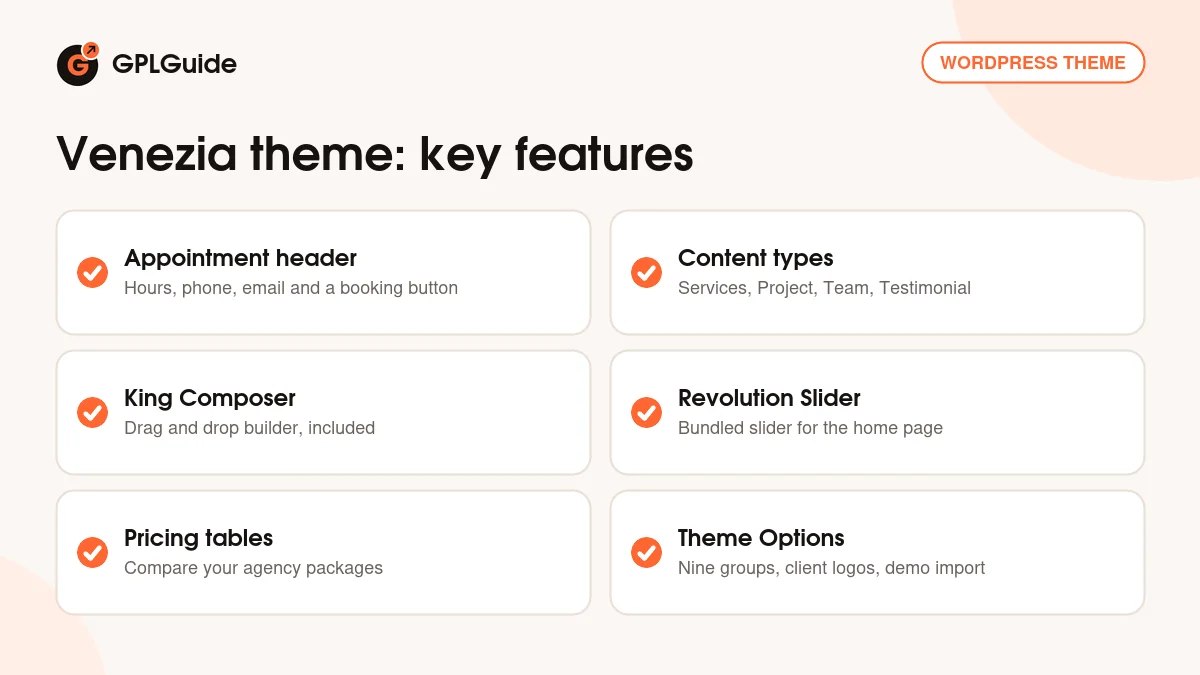
The Venezia theme turns a marketing agency's offer into a website that asks for action. The header carries your opening hours, email, phone and a button that links to your appointment page. Below it, the theme has sections for services, projects, the team, client logos, testimonials and pricing tables. The item page mentions two landing pages and layouts for blog, service and gallery pages.
Content is stored in four custom post types: Services, Project, Team and Testimonial. You add each service or case study once, and King Composer elements show them on any page. Revolution Slider handles the large slides at the top of the home page, and a full screen background slider is listed as well.
The options panel is built on the Vafpress framework. The Venezia theme is WPML compatible, comes with .pot translation files and offers more than 600 Google Fonts plus custom font support. The item page marks it as not Gutenberg optimized, so pages are built in King Composer.
For content marketing, the Venezia theme offers several blog layouts and post formats, bottom footer widgets and social links. A Google Map API key in General Settings lets you show your office location on a map, which helps local clients find you.
The Venezia theme header: hours, contact and appointments
The part of the Venezia theme that suits agencies best is the Header Settings tab. Besides the favicon and logo, it has fields for opening hours, email, phone and an appointment link, plus switches for the social icons and the appointment button. There is also a custom CSS box in the same tab for small style fixes.
The appointment button can point to any page or URL. Link it to a contact page with a Contact Form 7 booking form, or to a scheduling page if you use an outside booking service. Keep the label short and specific, such as "Book a free audit", so visitors know what happens when they click.
Opening hours in the header help local agencies that take phone calls. If you work by appointment only, leave the hours empty, keep the email and phone, and let the button do the work.
Theme options and content types in the Venezia theme
All global settings sit under Appearance, Theme Options, in nine groups. General Settings has the preloader switch and a Google Map API key field. Header Settings is covered above. Footer Settings sets a footer background image, the copyright text and a box for analytics or other scripts.
Page Settings controls page layouts and sidebars, and the layouts for search, archive, author and not found pages. Sidebar Settings creates unlimited widget areas. Social Media Settings holds your profile links and icons, Font Settings covers body and heading fonts and sizes, and Client Settings stores client logos with links. Utility Settings handles import and export and the demo import.
The Project post type is the one to fill first. Use each project as a case study, with a clear title, a short story of the campaign and a featured image of the result. Services describe what you sell, Team shows who does the work and Testimonial adds quotes from happy clients. These four types give a marketing site its proof.
Pricing tables are the other big part of an agency site. The item page lists them next to the service and blog layouts. A common pattern is three columns, such as Starter, Growth and Enterprise, with each button linking to your appointment page.
Agency setups you can copy with the Venezia theme
- SEO agency: set the appointment button to "Book a free SEO audit", list each service under Services, and add a pricing table with your monthly retainers.
- PPC and paid social studio: publish each campaign as a Project with the result in the title, such as a lower cost per lead, and show them on the home page.
- Local marketing consultant: fill in opening hours and phone in Header Settings, add a Google Map API key and show your office on the contact page.
- Content marketing team: use the blog layouts and post formats for articles, and place the latest posts on the home page.
- Agency with big-name clients: upload their logos in Client Settings and place the logo row just below the slider.
- Two audiences: use one landing page for small businesses and the other for enterprise clients, each with its own pricing table.
Write your services and projects before you design pages. The Venezia theme elements pull from those post types, so once the content is in, building the home page is mostly arranging blocks and choosing how many items to show.
Keep one clear call to action across the whole site. If the header button says "Book a free audit", use the same words on the pricing tables and at the end of each service page, so visitors always know the next step.
What's new in the Venezia theme 2.5
Venezia 2.5 is dated June 4, 2024 in the developer's changelog. Its one entry says that all plugins are up to date. It is a maintenance release with no new layouts or settings.
The releases before it follow the same pattern. Versions 2.4 (September 9, 2023), 2.3 (January 8, 2023) and 2.1 (June 15, 2022) updated the plugins. Version 2.2 (October 31, 2022) added compatibility with PHP 8.0 and higher. Earlier, version 1.9 (March 14, 2022) fixed a King Composer installation issue and 1.6 (September 3, 2021) added WordPress 5.8 compatibility.
The item page shows a last update of November 26, 2025 without a matching changelog entry. This page describes version 2.5.
Good to know before you buy
The demo import in the docs comes with an odd step. Before importing, the docs tell you to set the PHP time limit to zero by editing a line in a WordPress core file. We would not do that, because a WordPress update overwrites core files. Ask your host to raise the PHP time limit for you instead, then run the import.
The Venezia theme depends on King Composer; the developer does not mention Elementor or WPBakery. Revolution Slider is described as a premium plugin included with the theme. Its maker sells its own separate licence, and the theme docs do not say you need one. Map sections use a Google Maps API key, a Google service with its own account.
The docs credit the demo photos to Photodune and Nothing to Change and do not say they are in the download, so plan to use your own images. The docs are version 1 and do not mention a child theme or a PHP minimum. WooCommerce only appears in the changelog, where versions 1.3 and 1.5 updated it, and not in the feature list, so the Venezia theme is not sold as a shop theme.
Venezia from GPLGuide vs the official subscription
The Venezia theme is sold by template_path on ThemeForest. The Regular licence costs $49 there. It includes future updates through the marketplace and six months of item support from the author, which can be extended to 12 months. Under Envato's licence for this item, its PHP code is licensed under the GPL.
From GPLGuide you get the original Venezia theme file, version 2.5. This file comes with the license key already activated, so there is no key to enter. The header options, post types, King Composer elements and demo import are the ones in the developer's package.
Only the author gives you their help desk at templatepath.ticksy.com, refunds under Envato's rules and updates through your own Envato account. If you need the author's help with your setup, buy the licence on ThemeForest.
How to install the Venezia theme
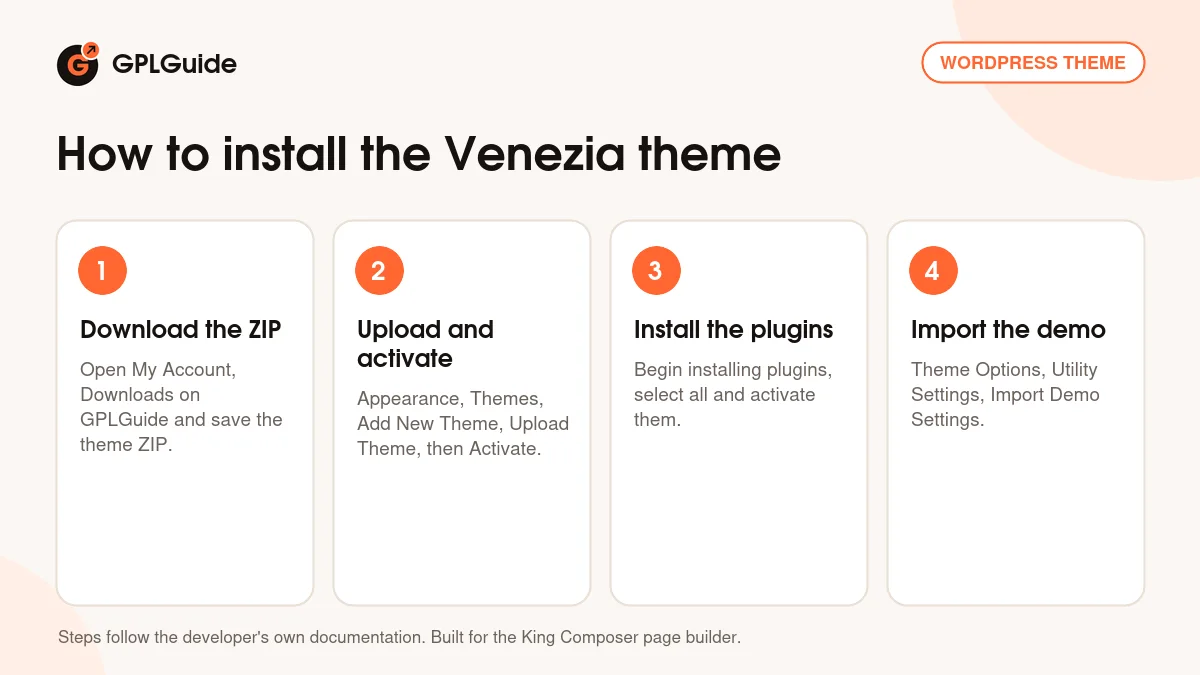
- Sign in to GPLGuide, open My Account, Downloads and save the Venezia ZIP.
- In WordPress go to Appearance, Themes, Add New Theme, Upload Theme, choose the ZIP, click Install Now and then Activate.
- Click Begin installing plugins, select all of them, install and activate them.
- Go to Appearance, Theme Options, Utility Settings, click Import Demo Settings and wait for the Have Fun message.
After the import, assign your main menu to its theme location under Appearance, Menus. Then open Settings, Reading, choose A static page, set the front page to Homepage 01 and the posts page to Blog, as the docs describe. For a good first setup, fill in Header Settings with your real hours, phone and appointment link, then replace the demo projects with two or three of your own case studies.
Keeping it up to date
Updates from GPLGuide are manual. When a new version of the Venezia theme is listed here, download it from your account and upload it under Appearance, Themes, Add New Theme, Upload Theme. WordPress offers to replace the installed copy, and your services, projects and theme options stay in the database. Keep a backup before you update. If you know of a newer version that we have not added, tell us on the Request Item/Update page.
Questions about the Venezia theme
Can visitors book a meeting from the header? Yes. Header Settings has an appointment link and a switch for the appointment button, so you can send visitors to a booking or contact page.
What content types does the Venezia theme add? Services, Project, Team and Testimonial, each shown on pages through King Composer elements.
Which page should be my front page? The docs set Homepage 01 as the front page and Blog as the posts page under Settings, Reading.
Does the Venezia theme run on PHP 8? Yes. Version 2.2 added compatibility with PHP 8.0 and higher.
Can I show client logos? Yes. Client Settings in the theme options stores logos with links for a client row.
Is Revolution Slider included? The docs describe it as a premium plugin that comes with the theme and is installed with the other plugins after activation.
Can I build the site in another language? Yes. The Venezia theme is WPML compatible and ships with .pot files for translation.
Do I need a purchase code to use it? No. The license key is already activated in the file.
How is the Venezia theme different from Specta? Both are by the same author and use King Composer. Venezia is aimed at marketing agencies, with the appointment header and a Project post type, while Specta leans towards portfolios and galleries.
Comparing agency themes? Browse the WordPress themes on GPLGuide, or see what a GPLGuide membership includes if you run several sites. The Venezia theme's booking and contact forms work with the free Contact Form 7 plugin on WordPress.org.
Features & capabilities
- Header with opening hours, email, phone and an appointment button
- Services, Project, Team and Testimonial post types
- King Composer page builder and bundled Revolution Slider
- Two landing pages plus blog, service, gallery and pricing layouts
- Nine groups of theme options, including Client Settings for logos
- More than 600 Google Fonts, custom fonts and unlimited sidebars
- One-click demo import from Utility Settings
- WPML support, .pot files and PHP 8 compatibility