Toggle Collapse Section Elementor Addon

100% Original fileUnmodified copy of the developer's release
DeveloperTemeGUM
Up to dateFile last updated Oct 23, 2026
About this product
Toggle Collapse Section Elementor 1.1.0 lets you hide an Elementor section and show it again when a visitor clicks a toggle button. It's for pages that hold more than you want on screen at once, such as a long services list, extra product details, a gallery or a block of links, where the content should stay folded away until someone asks for it and you'd rather not build that behaviour by hand with custom code.
What's in the Toggle Collapse Section Elementor download
Our download is the original Toggle Collapse Section Elementor ZIP for version 1.1.0, with the license key already activated. It holds the add-on that puts the toggle button widget into the Elementor panel. Elementor itself is not in the file. The developer lists the add-on as working with both the free Elementor and Elementor Pro, so you don't need the Pro version to use it.
Good to know
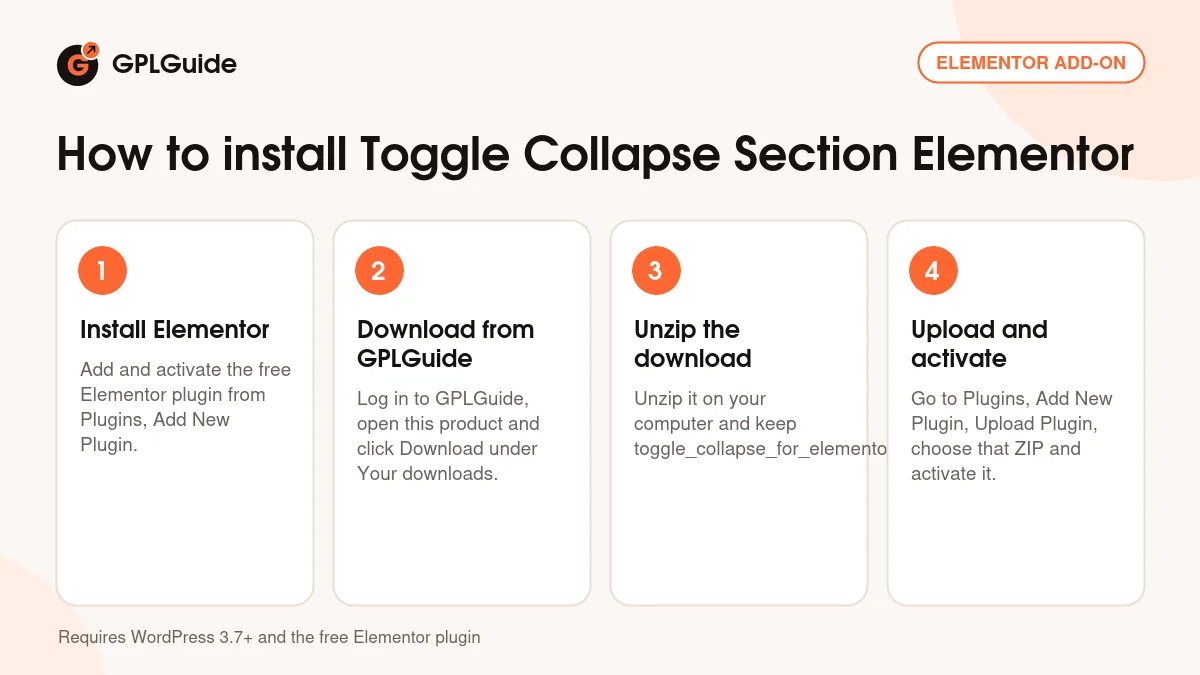
The add-on needs WordPress 3.7 or newer and the free Elementor plugin, so install Elementor before you upload it. Unzip the download on your computer first and upload toggle_collapse_for_elementor.zip, not the whole package. If one button should open several sections, give them a shared CSS class and point the button at that class: the developer says two sections with the same ID do not work. Elementor popups keep their own triggers, so this toggle won't open them.
How to install Toggle Collapse Section Elementor
Features & capabilities
- A toggle button widget that collapses or shows a section on click
- Hidden links, images and any other section content come back with one click
- A toggle icon on the button that you can change
- Typography settings for the toggle text
- Responsive behaviour on desktop, tablet and phone screens
- Set up in the Elementor editor without writing code
- One button can open and close several sections through a shared CSS class
- The section you collapse can sit anywhere on the page, away from its button
Frequently asked questions
Is this the original file?
Yes. Every product on GPLGuide is the developer’s own release, unchanged. The license key comes already activated. If a product does ask for a key, the activation steps appear on its page once you have it.
Is it legal to use a GPL plugin or theme from GPLGuide?
Yes. WordPress plugins and themes are released under the GPL, which lets anyone use, share and change the code. The developer’s support desk and the developer’s own update service are not part of the file; those stay with the developer.
How do I install it?
Log in, open the product page and click Download under Your downloads. For a plugin go to Plugins, Add New Plugin, Upload Plugin, choose the ZIP, then Install Now and Activate. For a theme go to Appearance, Themes, Add New Theme, Upload Theme.
How do updates work?
When a newer version is listed on GPLGuide, download it from the product page and upload it over the installed copy; WordPress offers to replace the old version. Updates are manual.
Can I use it on more than one site?
Yes. The GPL lets you use it on as many of your own sites as you like.
What if the file does not work or a newer version is out?
Tell us on the Request Item page or through Support. We check the file and add the newer version when we have it.