WooCommerce Cart Notices
100% Original fileUnmodified copy of the developer's release
DeveloperSkyVerge
Up to dateOriginal released Oct 8, 2026 · File last updated Oct 16, 2026
About this product
WooCommerce Cart Notices is a plugin by SkyVerge that shows custom messages on your cart and checkout pages, based on what the customer is buying. Tell shoppers how much more they need to spend for free shipping, how long they have left to get same-day dispatch, or which product goes well with the one already in their cart. This page is for WooCommerce Cart Notices 1.16.6, released on October 8, 2026. On GPLGuide you download the original plugin file to install on your own WooCommerce stores.
Good for: WooCommerce store owners who want to raise their average order value, nudge buyers past a free shipping threshold, promote related products at the right moment, or create a little urgency before a dispatch cut-off.
Requirements: WordPress 5.6 or newer, WooCommerce 3.9.4 or newer and PHP 7.4 or newer. The developer lists it as compatible with the WooCommerce Cart and Checkout blocks and with High-Performance Order Storage (HPOS). It also works with the classic shortcode cart and checkout pages.
What WooCommerce Cart Notices does
Every notice you create has a type, a message and an optional button. The type decides when the notice appears. The message can contain HTML and variables, small placeholders that the plugin swaps for live values such as the amount still missing from the cart or the time left until your cut-off. The button, called a Call to Action, takes the shopper to any URL you choose.
By default the notices show on the cart and checkout pages. You can also place them on any page or post that accepts shortcodes, for example your shop page or a landing page. All notices live in one list under WooCommerce, Cart Notices, where you can view, edit, switch on, switch off or delete them.
The notices use your theme's own WooCommerce notice styles. That means they blend in with the rest of your store without extra CSS, and they will look a little different from one theme to the next. The developer's docs show them in Storefront, Twenty Twenty-Five and Twenty Twelve.
The five notice types and when to use each one
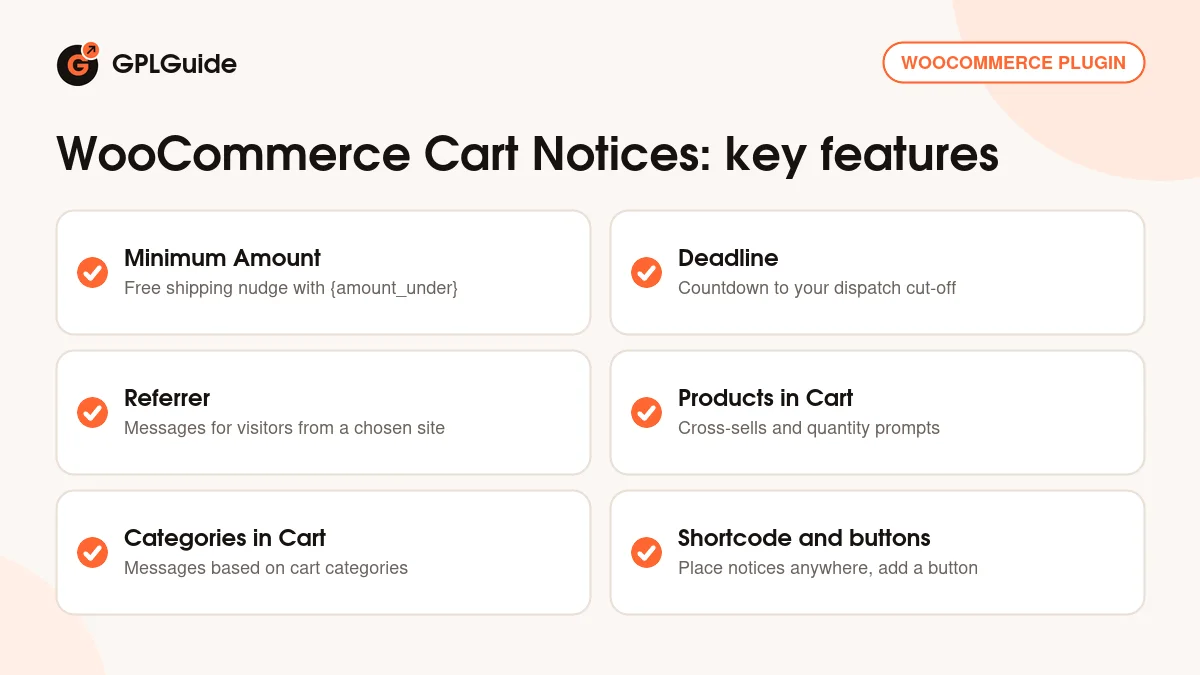
Minimum Amount. This is the free shipping nudge most stores start with. Set a Target Amount and the plugin works out how far the cart is from it, then shows the difference through the {amount_under} variable. Leave the target empty and WooCommerce Cart Notices uses the Minimum Order Amount from your Free Shipping method. An optional Threshold Amount keeps the notice hidden until the cart reaches a certain total, so it only appears when the goal is within reach.
Deadline. Pick a Deadline Hour in 24-hour format and the days the notice should run, and the {time} variable counts down to it, for example "1 hour 15 minutes". A message such as "Order in the next {time} and we ship today" gives customers a clear reason to finish checking out now.
Referrer. Show a notice only to people who arrived from a particular site. Enter the referring server, such as www.google.com, and visitors from that source see their own message. It suits a thank-you note for visitors from a partner site or a code mentioned in a newsletter.
Products in Cart. Choose products that make the notice appear and others that hide it, and optionally a minimum or maximum quantity. Variables such as {products}, {quantity} and {quantity_under} let you write messages like "Add {quantity_under} more units and get 25% off!", one of the developer's own examples. It works well for cross-sells and quantity breaks.
Categories in Cart. The same idea, based on product categories. Pick categories that show or hide the notice and use {products} and {categories} in the message. Note that the match is exact, so a product in a child category does not trigger a notice set on its parent.
Showing notices anywhere with the shortcode
The shortcode [woocommerce_cart_notice] places notices outside the cart and checkout. On its own it shows all of your notices. Add name="free-shipping" (or whatever you named the notice) to show a single one, or add a type to show every notice of that kind. The type values are minimum_amount, deadline, referer, products and categories.
If you only want notices on the cart page and not at checkout, the developer's docs link to a short code snippet that removes them from checkout.
Message ideas you can copy into WooCommerce Cart Notices
The hardest part of any notice is the wording. These examples use only the variables that the developer documents for each type, so you can paste them in and change the details to suit your store.
- Minimum Amount: "You're {amount_under} away from free shipping." Add a Call to Action called "Keep shopping" that links to your shop page.
- Deadline: "Order within {time} and your parcel leaves today." Set the Deadline Hour to your real dispatch cut-off and tick only the days you ship.
- Referrer: "Welcome, newsletter readers! Your discount code is waiting in the email we sent you." Enter the site your visitors come from as the Referring Site.
- Products in Cart: "Buying {products}? Add {quantity_under} more for a bulk discount." Set the Minimum Quantity so the notice only shows to people already buying several.
- Categories in Cart: "Shopping for {categories}? Don't forget the matching accessories." Link the button to that accessories category.
Keep each message short and specific. One clear number or deadline works better than a paragraph, and a single button gives the shopper one obvious next step. You can create several notices and switch each one on or off from the list, which makes seasonal messages easy to prepare in advance.
Because WooCommerce Cart Notices only shows a message when its conditions are met, different shoppers see different notices. A shopper with a small order sees the free shipping nudge, while someone buying a specific product sees the cross-sell meant for them.
What's new in WooCommerce Cart Notices 1.16.6
Version 1.16.6 came out on October 8, 2026. It is a security release with one change: the plugin now handles stored admin form data more securely. Updating is recommended for every store running an older version.
Recent releases before it focused on compatibility and safety. Version 1.16.5 (August 10, 2026) was tested with WooCommerce 11.0.1 and WordPress 7.0.3. Version 1.16.4 (June 17, 2026) fixed deprecation notices from newer WooCommerce versions, and 1.16.3 (December 17, 2025) added nonce checks and stopped HTML from being stripped out of notice messages when you saved them.
The two big milestones came earlier. Version 1.16.0 (January 29, 2024) added support for the Cart and Checkout blocks, which have been WooCommerce's default since version 8.3. Version 1.15.0 (June 28, 2023) added HPOS compatibility.
Good to know before you buy
If your store uses the block-based cart and checkout, there is one known issue. In September 2026 SkyVerge confirmed that notices in the block cart and checkout may not refresh when the cart changes until the page is reloaded, and said it has been reported for a permanent fix. Version 1.16.6 does not mention a fix yet. On the classic shortcode cart and checkout this does not apply.
WooCommerce Cart Notices shows messages. The developer's docs don't describe any discount or free gift feature, so a notice that promises 25% off needs a matching coupon or pricing rule set up elsewhere in your store.
WooCommerce Cart Notices from GPLGuide vs the official subscription
From GPLGuide you get the original WooCommerce Cart Notices 1.16.6 plugin file, released under the GPL, to use on your own WooCommerce stores. The plugin's features work the same way: all five notice types, the variables, the buttons and the shortcode.
A subscription bought on WooCommerce.com adds three things we can't pass on: updates through your WooCommerce.com account, help from SkyVerge's support team and their 30-day money-back guarantee. If you rely on vendor support, buy it there. If you need the plugin itself, GPLGuide gives you the same file at a lower price, on its own or as part of a GPLGuide membership.
How to install WooCommerce Cart Notices
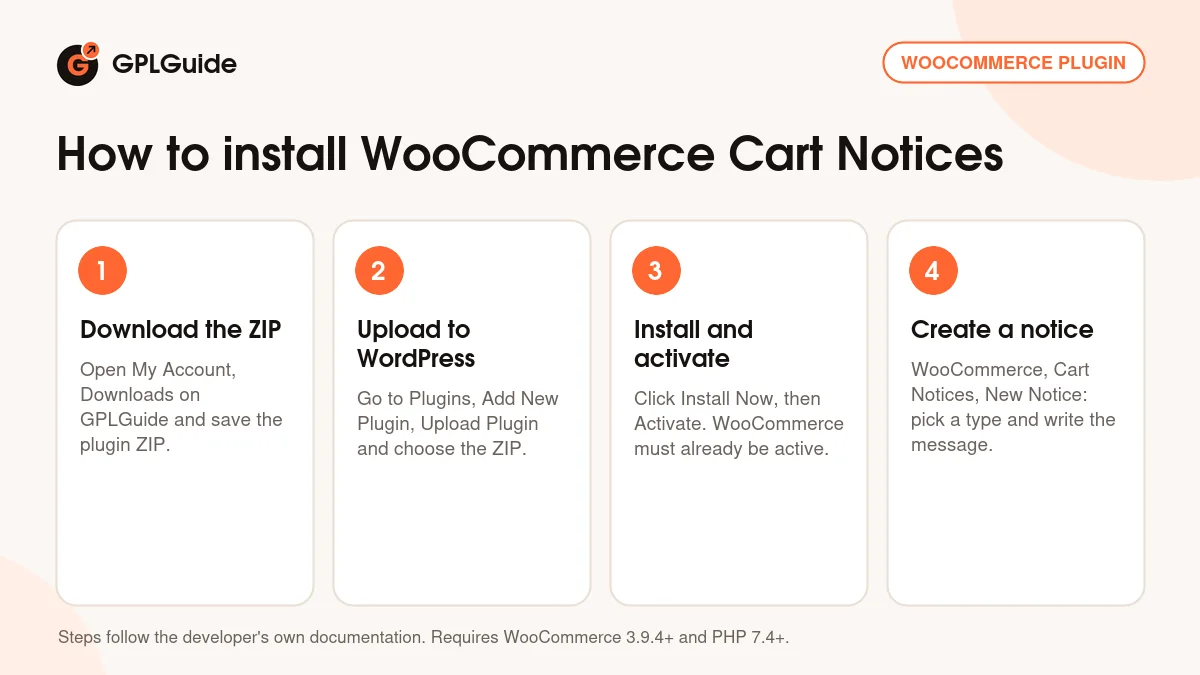
- Sign in to GPLGuide, open My Account, Downloads and save the WooCommerce Cart Notices ZIP.
- In WordPress go to Plugins, Add New Plugin, Upload Plugin and choose the ZIP.
- Click Install Now, then Activate. WooCommerce must already be active.
- Go to WooCommerce, Cart Notices, open the New Notice tab, choose a type and fill in the name, message and settings for that type.
A good first notice is a Minimum Amount notice with the target left empty, so it follows your free shipping minimum. Write a message such as "Spend {amount_under} more and shipping is free", add a Call to Action that points back to your shop, save it and add a product to your cart to see it in action. Once that works, try a Products in Cart notice for your best-selling item with WooCommerce Cart Notices and compare how often shoppers add the suggested extra.
Keeping it up to date
Updates from GPLGuide are manual. When a new version of WooCommerce Cart Notices is listed here, download it from your account and upload it under Plugins, Add New Plugin, Upload Plugin. WordPress offers to replace the installed copy, and your notices stay in place because they are saved in your database. If you see a newer version that we haven't added, let us know on the Request Item/Update page.
Questions about WooCommerce Cart Notices
Can I show notices outside the cart and checkout? Yes. Put the [woocommerce_cart_notice] shortcode on any page or post that runs shortcodes, and narrow it down with the name or type attribute if you only want certain notices there.
Does it work with the WooCommerce Cart and Checkout blocks? Yes, since version 1.16.0, and the classic shortcode pages still work too. In the blocks, notices may not update until the page reloads, as explained above.
What happens if I leave the Target Amount empty? The Minimum Amount notice uses the Minimum Order Amount from your Free Shipping method, so you only have to set the figure in one place.
Can I use HTML in my messages? Yes. Messages accept HTML as well as the variables for each notice type, so you can add bold text or links.
Can I show a notice on the cart but not at checkout? Yes, with the small code snippet linked from the developer's docs.
Can I add a button to a notice? Yes. Every notice has an optional Call to Action with its own button text and link, for example "View accessories" pointing to a category page.
Which message variables does WooCommerce Cart Notices offer? Minimum Amount notices use {amount_under}, Deadline notices use {time}, Products in Cart notices use {products}, {quantity}, {quantity_under} and {quantity_over}, and Categories in Cart notices use {products} and {categories}. Referrer notices have no variables.
Do I need to know code to use it? No. Notices are created in a normal settings screen with fields for each option. Code is only needed for extras such as hiding notices at checkout, and the developer's docs link to a ready snippet for that.
Will the notices match my theme? Yes. They use your theme's normal WooCommerce notice style, so they look like the other messages in your store.
Running a WooCommerce store? Browse more WooCommerce plugins on GPLGuide, or see what a GPLGuide membership includes if you need several premium extensions. WooCommerce itself is free on WordPress.org.
Features & capabilities
- Five notice types: Minimum Amount, Deadline, Referrer, Products in Cart and Categories in Cart
- Live message variables such as {amount_under}, {time}, {products} and {quantity_under}
- Optional Call to Action button with your own text and link
- Free shipping nudge that can follow your Free Shipping minimum automatically
- Show or hide notices by product, category, quantity or referring site
- [woocommerce_cart_notice] shortcode to place notices on any page
- HTML allowed in messages, styled by your theme's notice design
- Compatible with the Cart and Checkout blocks and with HPOS