
WooCommerce Order Tracker
100% Original fileUnmodified copy of the developer's release
DeveloperWP Swings
Up to dateOriginal released Mar 27, 2026 · File last updated Oct 23, 2026
About this product
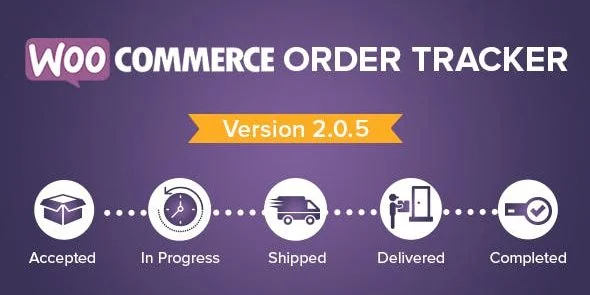
WooCommerce Order Tracker 2.3.5 gives your customers a tracking page where they can follow an order through stages such as approval, processing and shipping, instead of writing to you to ask where it is. It is meant for stores that ship physical goods and get a steady stream of order status questions: shops that send parcels with FedEx, USPS, Canada Post or DHL, and stores that run their own steps such as Packed or Dispatched. Customers with an account check orders from My Account, and guests can look one up with the order ID.
What's in the WooCommerce Order Tracker download
Our download is the original WooCommerce Order Tracker ZIP for version 2.3.5, with the license key already activated. The plugin ships with six tracking page templates, a custom order status builder, status emails and shortcodes for a tracking page and a tracking form. Live carrier tracking runs through each carrier's own service, so the FedEx, Canada Post and DHL connections need your own account details or API key from that carrier, and the map view needs your own Google Maps API key.
Good to know
You need WooCommerce on the site. For this release the developer lists compatibility with WordPress 6.9.4 and WooCommerce 10.6.1, and the plugin supports High-Performance Order Storage and the Cart and Checkout blocks. Order statuses don't change on their own by default: you update them by hand unless a carrier integration does it. To show tracking details to a customer, open the order, set the delivery date and time, pick the shipping service, enter the tracking number and click Update.
How to install WooCommerce Order Tracker
- If your site doesn't run WooCommerce yet, install and activate it first under Plugins, Add New Plugin.
- Log in to GPLGuide, open this product and click Download under Your downloads.
- In your WordPress dashboard go to Plugins, Add New Plugin, Upload Plugin and choose the ZIP you downloaded.
- Click Install Now, wait for the upload to finish, then click Activate Plugin.
- Go to WooCommerce, Settings, Track Your Order, turn on order tracking, choose a template and the statuses to show, then save your changes.
Features & capabilities
- Six tracking page layouts, with room for your own CSS and JavaScript.
- Custom order statuses with their own name and image, mapped to approval, processing and shipping.
- Custom statuses offered as bulk actions on the WooCommerce Orders screen.
- An email to the customer each time the order status changes, with the shipping price included.
- Estimated delivery date and tracking number shown in the customer's order details.
- Carrier tracking through FedEx, USPS, Canada Post, DHL and 17Track, covering more than 400 carriers.
- Order tracking on Google Maps, using your Google API key and the address the order has reached.
- Order export for customers and guests, plus payment link emails for orders still waiting for payment.
Frequently asked questions
Is this the original file?
Yes. Every product on GPLGuide is the developer’s own release, unchanged. The license key comes already activated. If a product does ask for a key, the activation steps appear on its page once you have it.
Is it legal to use a GPL plugin or theme from GPLGuide?
Yes. WordPress plugins and themes are released under the GPL, which lets anyone use, share and change the code. The developer’s support desk and the developer’s own update service are not part of the file; those stay with the developer.
How do I install it?
Log in, open the product page and click Download under Your downloads. For a plugin go to Plugins, Add New Plugin, Upload Plugin, choose the ZIP, then Install Now and Activate. For a theme go to Appearance, Themes, Add New Theme, Upload Theme.
How do updates work?
When a newer version is listed on GPLGuide, download it from the product page and upload it over the installed copy; WordPress offers to replace the old version. Updates are manual.
Can I use it on more than one site?
Yes. The GPL lets you use it on as many of your own sites as you like.
What if the file does not work or a newer version is out?
Tell us on the Request Item page or through Support. We check the file and add the newer version when we have it.