WooCommerce Password Protected Categories
100% Original fileUnmodified copy of the developer's release
DeveloperBarn2 Plugins
Up to dateOriginal released Oct 7, 2026 · File last updated Oct 23, 2026
About this product
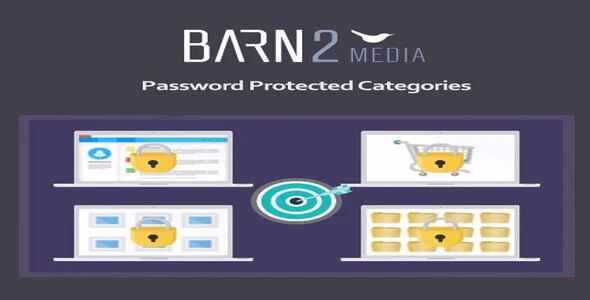
WooCommerce Password Protected Categories 2.8.3 lets you lock chosen product categories so only the right people can see and buy what's inside them. The developer now sells it under the name WooCommerce Protected Categories. It's made for wholesale and trade stores, VIP or members-only shops that sell to a closed group of customers, and stores that keep a private category for one customer next to a normal public catalogue. Visitors without access get a password form or are sent elsewhere, while everyone else shops as usual.
What's in the WooCommerce Password Protected Categories download
Our download is the original WooCommerce Password Protected Categories ZIP for version 2.8.3, with the license key already activated. It's one plugin that adds its protection options to WooCommerce's own category screens, and a setup wizard opens the first time you activate it. WooCommerce Private Store, which hides a whole shop, WooCommerce Product Table and WooCommerce Wholesale Pro are separate plugins from the same developer and are not part of this product.
Good to know
The plugin needs WooCommerce 7.2 or newer, WordPress 6.1 or newer and PHP 7.4 or newer, and a database on MySQL 5.7.8 or MariaDB 10.3 or newer. A product can sit in only one protected category, and a product placed in both a public and a protected category stays protected, so duplicate it if two groups need it. Protection doesn't hide anything from search engines: set those categories to noindex in your SEO plugin. Sub-categories under a protected parent should stay Public, since they take on the parent's protection.
How to install WooCommerce Password Protected Categories
- If your site doesn't run WooCommerce yet, install and activate it first from Plugins, Add New Plugin.
- Log in to GPLGuide, open this product and click Download under Your downloads.
- Go to Plugins, Add New Plugin, Upload Plugin, choose the ZIP, click Install Now, then Activate.
- Work through the setup wizard that opens after activation to pick your main visibility options.
- Find all settings later under WooCommerce, Settings, Products, Protected Categories, and lock a category from Products, Product Categories by choosing Protected under Visibility.
Features & capabilities
- One or more passwords per category, and one password can open several categories
- Limit a category to user roles such as a wholesale role, or to named customer accounts
- Protecting a parent category also covers its sub-categories and their products
- Hide protected categories and products from the shop, related products, cross-sells, upsells, menus and widgets
- Links in menus and widgets show up once a customer logs in or enters the right password
- A central login page where one form sends each customer to the category their password opens
- Choose what logged-out visitors see for role or user categories: a 404, the WordPress login page or a page you pick
- Optional Protected prefix on category names, and translation support with WPML, TranslatePress and Weglot
Frequently asked questions
Is this the original file?
Yes. Every product on GPLGuide is the developer’s own release, unchanged. The license key comes already activated. If a product does ask for a key, the activation steps appear on its page once you have it.
Is it legal to use a GPL plugin or theme from GPLGuide?
Yes. WordPress plugins and themes are released under the GPL, which lets anyone use, share and change the code. The developer’s support desk and the developer’s own update service are not part of the file; those stay with the developer.
How do I install it?
Log in, open the product page and click Download under Your downloads. For a plugin go to Plugins, Add New Plugin, Upload Plugin, choose the ZIP, then Install Now and Activate. For a theme go to Appearance, Themes, Add New Theme, Upload Theme.
How do updates work?
When a newer version is listed on GPLGuide, download it from the product page and upload it over the installed copy; WordPress offers to replace the old version. Updates are manual.
Can I use it on more than one site?
Yes. The GPL lets you use it on as many of your own sites as you like.
What if the file does not work or a newer version is out?
Tell us on the Request Item page or through Support. We check the file and add the newer version when we have it.