
WooCommerce Restaurant Ordering – by Barn2
100% Original fileUnmodified copy of the developer's release
DeveloperBarn2 Plugins
Up to dateOriginal released Oct 19, 2026 · File last updated Oct 29, 2026
About this product
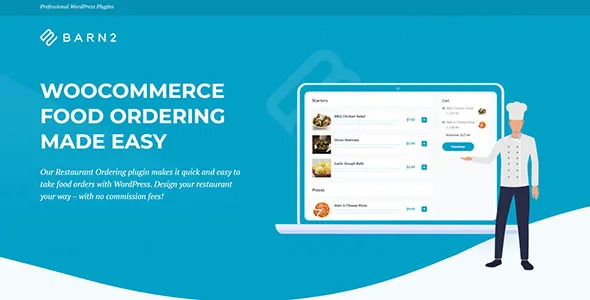
WooCommerce Restaurant Ordering 2.1.13 turns a WooCommerce shop into an online food ordering system for restaurants, takeaways, cafes and pizza shops that want customers to order from a menu page instead of a standard product grid. It suits places that take orders for delivery or collection and need ordering to stop outside their opening hours. Your dishes stay ordinary WooCommerce products, sorted into categories, and checkout, payment and delivery fees all run through WooCommerce as usual. On activation the plugin creates a Restaurant Ordering page with a one-page order form, and you control it from a Restaurant tab under WooCommerce, Settings, where a setup wizard walks you through the first choices.
How to install WooCommerce Restaurant Ordering
- Install and activate WooCommerce under Plugins, Add New Plugin; the developer lists WooCommerce 7.2, WordPress 6.1 and PHP 7.4 as the minimum versions.
- Add your dishes as WooCommerce products and put them in categories such as starters, mains and drinks, because the order form groups the menu by category.
- Log in to GPLGuide, open this product and click Download under Your downloads.
- In your WordPress dashboard go to Plugins, Add New Plugin, Upload Plugin, choose the ZIP, click Install Now, then Activate.
- Follow the setup wizard that opens after activation, then check the new Restaurant Ordering page in your Pages list.
- Go to WooCommerce, Settings, Restaurant to pick the order page, the categories it shows, the layout and your opening hours.
Features & capabilities
- A one-page order form listing your menu by category, with an optional category navigation bar.
- Order forms on WooCommerce category pages in place of your theme's normal layout.
- Layouts in one column, two columns or two-column tiles, with image position and size settings.
- Quick ordering that adds simple products straight to the cart, or a lightbox for every product.
- A lightbox with variation dropdowns, quantity controls, stock status and the updated price.
- Opening hours with up to two sessions a day, blocking orders while you are closed.
- Open and closed messages that can show when you next close or open.
- A restaurant info block with your name, address and delivery or collection details.
- Sorting by name, price, popularity, date or the WooCommerce default order.
- Delivery and collection through WooCommerce shipping zones and fees.
Frequently asked questions
Is this the original file?
Yes. Every product on GPLGuide is the developer’s own release, unchanged. The license key comes already activated. If a product does ask for a key, the activation steps appear on its page once you have it.
Is it legal to use a GPL plugin or theme from GPLGuide?
Yes. WordPress plugins and themes are released under the GPL, which lets anyone use, share and change the code. The developer’s support desk and the developer’s own update service are not part of the file; those stay with the developer.
How do I install it?
Log in, open the product page and click Download under Your downloads. For a plugin go to Plugins, Add New Plugin, Upload Plugin, choose the ZIP, then Install Now and Activate. For a theme go to Appearance, Themes, Add New Theme, Upload Theme.
How do updates work?
When a newer version is listed on GPLGuide, download it from the product page and upload it over the installed copy; WordPress offers to replace the old version. Updates are manual.
Can I use it on more than one site?
Yes. The GPL lets you use it on as many of your own sites as you like.
What if the file does not work or a newer version is out?
Tell us on the Request Item page or through Support. We check the file and add the newer version when we have it.