WP File Manager Pro Plugin For WordPress
100% Original fileUnmodified copy of the developer's release
DeveloperFile Manager Pro
Up to dateFile last updated Oct 16, 2026
About this product
WP File Manager Pro is the paid edition of File Manager, the WordPress plugin for browsing, uploading, editing, zipping and deleting your site's files from the dashboard instead of FTP or cPanel. It comes from the File Manager Pro team at filemanagerpro.io, who also make the free File Manager plugin on WordPress.org. Pro adds the access controls the free version lacks: rules per user and per role, private folders, hidden and locked files, and front end shortcodes. This page is for WP File Manager Pro version 8.4.3. On GPLGuide you download the original plugin file to install on your own websites.
Good for: site owners and agencies who share file access with care: a client who uploads to one folder, a designer limited to the theme folder, a team that wants an email when a file is edited, or a simple download area for visitors.
Requirements: the developer doesn't publish separate WordPress or PHP requirements for WP File Manager Pro. The free File Manager lists WordPress 4.0 or higher and PHP 5.2.4 or higher, and is tested up to WordPress 7.1.3. Large uploads also depend on your host: the developer notes that Maximum Upload Size can't pass your server's limit, which you may need to raise in php.ini.
What WP File Manager Pro does
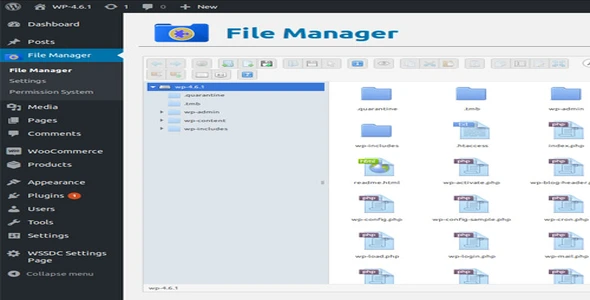
Once active, WP File Manager Pro adds a WP File Manager menu to your dashboard. It opens a file browser at your site's root, where you can create folders and files, upload, download, rename, copy, cut, paste, edit and delete, and make or extract archives. A built-in code editor with a syntax checker lets you change a theme file or wp-config.php without leaving WordPress.
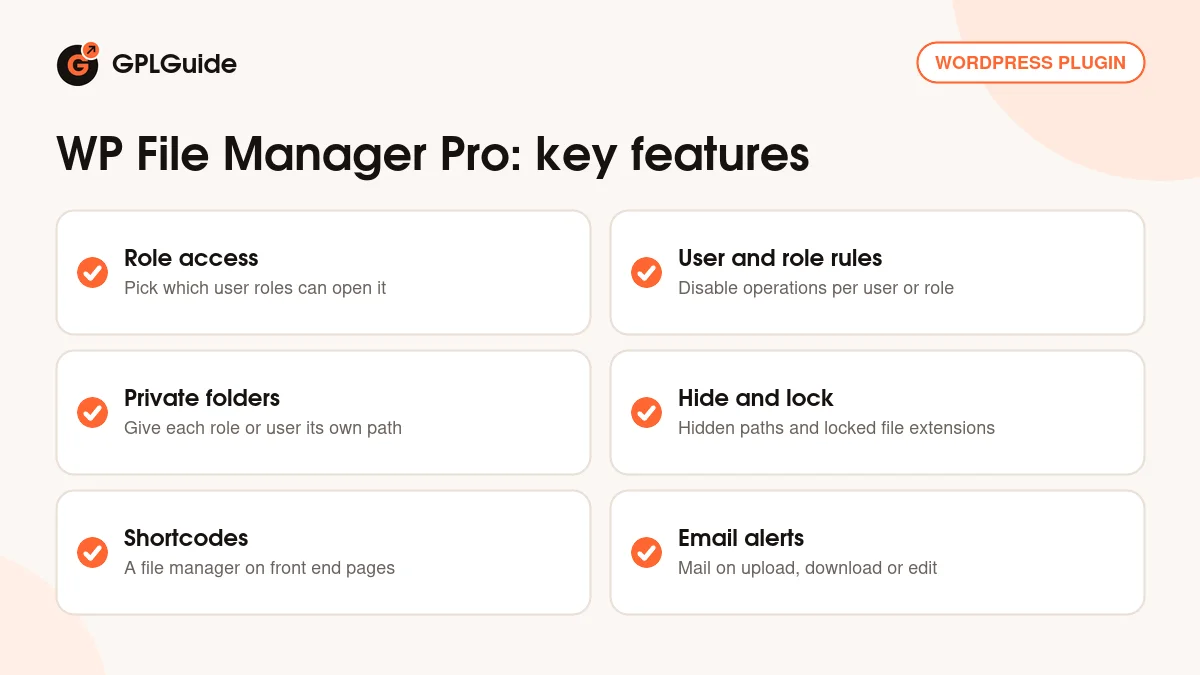
Most of that already exists in the free plugin. WP File Manager Pro adds control over who sees what. You decide which user roles can open the file manager, which folder each role or user starts in, which operations they are allowed, which paths stay hidden and which file extensions are locked. Email alerts for uploads, downloads and edits are there too.
Pro also reaches the front end. Shortcodes put a file manager on any page, for logged-in users or for visitors, each with its own folder and permissions. The developer also lists a database manager, shareable file links and developer hooks among the Pro tools.
Settings in WP File Manager Pro: roles, folders and alerts
In WP File Manager Pro, everything starts under WP File Manager, Settings. On the General tab the first option is a list of user roles: tick the roles allowed to open the file manager and save. The developer's example ticks only Author, so only authors can use the plugin. The second option, Separate or Private Folder Access, sets the path those roles can reach, such as wp-content/themes or wp-content/plugins. Leave it empty and they get the whole root directory.
The third option, Maximum Upload Size, sets the upload limit for users, for example 2MB. Further down, Send Notification has checkboxes for Download, Upload and Edit. The alerts go to the site's admin email unless you enter another address in Notification Email.
Root Directory changes the folder the file manager opens at. The developer warns that a wrong path can stop the file manager working, so change it carefully and correct it if the file manager stops loading. On the Code Editor tab, the "Code editor allow fullscreen?" checkbox gives you a full screen editor, and Pro also lets you pick a theme for the editor.
User Restriction and User Role Restriction rules in WP File Manager Pro
The Settings screen has two rule tabs. User Role Restriction holds rules for a whole role, and User Restriction holds rules for one person. On either tab, click Add Rules, then choose the role or user the rule set applies to. Add as many rule sets as you need and delete the ones you no longer use.
Inside a rule set, Disable Operations has checkboxes for actions such as rename, archive or cut. Tick the ones that role or user should not have. The rule's own Separate or Private Folder Access field overrides the folder from the General tab, but only for that role or user. Everyone else keeps the general setting.
You can also hide paths and lock extensions. Enter paths relative to the WordPress root, for example wp-content/themes/css, and separate several with a pipe (|). Hidden items simply don't appear for that role or user. Locked extensions are written with the dot, such as .js, and block every action on matching files, including edit, delete and cut.
Front end shortcodes and the Shortcode Generator
WP File Manager Pro has shortcodes for three situations. [wp_file_manager_admin] shows the same file manager as the backend on a page, and your backend settings apply to it. [wp_file_manager] is for logged-in users, and [wp_file_manager_without_login] is for visitors who aren't logged in.
The developer documents these attributes for shortcodes up to 8.0: allowed_roles (administrator by default, or * for all roles), access_folder (the folder it opens, the root if empty), write (false by default), read (true by default), hide_files, lock_extensions and allowed_operations (* by default). Operation names include mkdir, rename, copy, cut, edit, rm (delete), download and upload.
Newer versions build shortcodes for you. The Shortcode Generator, added in 8.1 and improved in 8.4.1, lets you set a title, allowed roles, theme, hidden files and locked extensions without typing the shortcode. Under WP File Manager, Shortcode Generator, All Shortcodes, the Customize Shortcode button gives you code for the fm_shortcode_attr_{shortcode_key} filter, which you can paste into your theme's functions.php to override a shortcode's defaults.
Setups you can copy with WP File Manager Pro
Each setup uses settings from the developer's docs for WP File Manager Pro. Folder names are examples. Test with a test account first.
- Client upload folder: a User Restriction rule for the client's account, with their own folder in Separate or Private Folder Access and the operations you don't want them to have ticked under Disable Operations.
- Designer on stylesheets only: a User Role Restriction rule for the Editor role with access to wp-content/themes and .php locked, so stylesheets can be edited but PHP template files can't.
- Keep wp-config.php out of sight: add wp-config.php to the hidden paths in every rule for a role other than Administrator.
- Public download page: [wp_file_manager_without_login access_folder="wp-content/uploads/downloads" write="false" allowed_operations="download"] on a page anyone can visit.
- Members upload area: [wp_file_manager allowed_roles="subscriber" access_folder="wp-content/uploads/members" write="true" allowed_operations="upload,download"] on a page for logged-in members.
- Change alerts: tick Edit under Send Notification and put your web developer's address in Notification Email, so you hear about every file edit.
What's new in WP File Manager Pro 8.4.3
The developer's public changelog stops at version 8.3 (December 24, 2021), and we couldn't find release notes or a release date for 8.4.3 on the developer's site, so we won't guess at what changed in it.
The latest published notes are for 8.4.1, on the developer's shortcodes page: an improved Shortcode Generator, a security patch, fixes for the download button, preferences and language bugs, and faster performance. Before that, 8.3 (December 24, 2021) added DigitalOcean integration, fixed warnings and improved security. Version 8.2 (July 12, 2021) added Google Cloud integration, plus security and performance work.
Good to know before you buy
Cloud connections are sold as add-ons. The developer's store lists Google Drive, Dropbox, Box, OneDrive, Amazon S3, Google Cloud, DigitalOcean, Cloudflare R2, GitHub and Slack at $29 each, and its Premium plan bundles them. The free plugin's page names Google Drive and Dropbox among Pro tools, but since the store sells both separately, we don't promise any cloud connection in this WP File Manager Pro file. The developer's pricing also calls the Database Manager an add-on included with every plan, so check for it after installing if you need it.
The developer says no data is lost when you upgrade from the free File Manager to Pro, but its pages don't say whether the free plugin must stay installed next to Pro. Try the switch on a staging copy first.
WP File Manager Pro can read and change any file it can reach, including wp-config.php. In a past security notice the developer urged users to update straight away, and it describes the role setting as a way to keep the site secure. Our own advice: allow only administrators unless you have a clear reason, give other roles a private folder and locked .php files, keep public shortcodes read-only, and deactivate the plugin when nobody needs it.
WP File Manager Pro from GPLGuide vs the official subscription
From GPLGuide you get the original WP File Manager Pro 8.4.3 plugin file, released under the GPL, to use on your own websites. The tools inside the file work the same way: the role and user rules, private folders, hidden and locked files, notifications, the code editor and the shortcodes.
Buying from the developer gets you things we can't pass on: one-click updates on your licensed sites, their support tickets and a 14-day money-back guarantee. Plans are Basic at $39 for 1 site, Developer at $199 for 10 sites and Premium at $399 for 25 sites, which adds all add-ons and priority support. Each plan includes lifetime updates for its sites. If you only need the plugin file, you can get it here on its own or with a membership.
How to install WP File Manager Pro
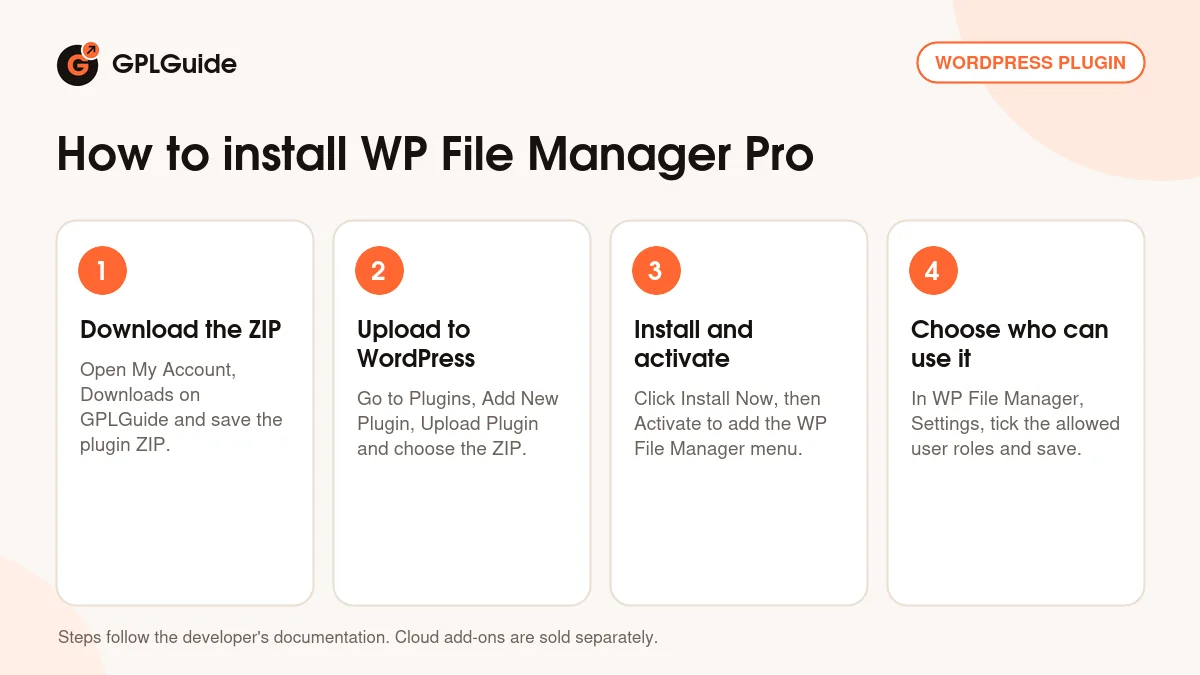
- Sign in to GPLGuide, open My Account, Downloads and save the WP File Manager Pro ZIP.
- In WordPress go to Plugins, Add New Plugin, Upload Plugin and choose the ZIP.
- Click Install Now, then Activate. A WP File Manager menu appears in your dashboard.
- Open WP File Manager, Settings, tick the user roles that may use it and save.
Start carefully. Allow only the Administrator role, tick Edit under Send Notification so every file change sends you an email, and leave Root Directory alone. Then create one User Role Restriction rule for the role you want to open up, with a private folder, risky operations ticked under Disable Operations and .php locked. Log in as a test user in that role and check what WP File Manager Pro shows before giving anyone real access.
Keeping it up to date
Updates from GPLGuide are manual. When a new version of WP File Manager Pro is listed here, download it from your account and upload it under Plugins, Add New Plugin, Upload Plugin. WordPress offers to replace the installed copy. If you see a newer version that we haven't added, tell us on the Request Item/Update page.
Questions about WP File Manager Pro
Is WP File Manager Pro different from the free File Manager? Yes. The free plugin on WordPress.org covers file browsing, editing, archives and backups. Pro adds user and role rules, private folders, hidden and locked files, front end shortcodes and the Shortcode Generator.
Do I need to keep the free plugin installed? The developer doesn't say on its site. It does say no data is lost when you upgrade from free to Pro. Test the change on a staging site first.
Can I limit WP File Manager Pro to certain user roles? Yes. Tick the allowed roles in the first option on the General tab, and add User Role Restriction rules for finer control.
Can each user get their own folder? Yes. Add a User Restriction rule for that user and set a path in Separate or Private Folder Access. It overrides the general folder setting for that user only.
Can visitors use it without logging in? Yes, with [wp_file_manager_without_login]. Set access_folder and keep write set to false unless you really want visitors changing files.
Does WP File Manager Pro connect to Google Drive or Dropbox? The developer sells those connections as add-ons at $29 each, or in its Premium plan. We don't promise them in this file.
What if the file manager stops working after I change Root Directory? The developer says a wrong path can cause that. Set the path back to the correct folder and it works again.
Can I get emails when files change? Yes. Tick Download, Upload or Edit under Send Notification. Mail goes to the admin email or to the address in Notification Email.
Looking for more tools for your site? Browse all WordPress plugins on GPLGuide, or see what a GPLGuide membership includes if you use several premium plugins. The free File Manager is on WordPress.org.
Features & capabilities
- Allow only chosen user roles to open the file manager
- User Restriction and User Role Restriction rule sets
- Private folders per role or per user with Separate or Private Folder Access
- Disable Operations, hidden paths and locked file extensions
- Front end shortcodes for logged-in users and for visitors
- Shortcode Generator with a filter for custom defaults
- Email alerts for downloads, uploads and edits
- Code editor with syntax checker, full screen mode and editor themes