WP Rocket – WordPress Speed Plugin

100% Original fileUnmodified copy of the developer's release
DeveloperWP Media
Up to dateOriginal released Oct 2, 2026 · File last updated Oct 16, 2026
About this product
WP Rocket is a caching and speed plugin for WordPress, made by WP Media, a French company based in Lyon. Turn it on and it caches your pages, compresses files for the browser and starts preloading the cache Instantly, with no settings to touch first. This page is for WP Rocket 3.23.5.1, the latest version on the developer's changelog, released on October 2, 2026. On GPLGuide you download the original WP Rocket plugin file to install on your own WordPress sites.
Good for: bloggers, small businesses, agencies and WooCommerce store owners who want a faster site without learning server caching, and anyone working on their Core Web Vitals scores.
Requirements: WordPress 5.8 or newer, PHP 7.3 or newer and Action Scheduler 3.0 or newer, the library WP Rocket uses for background jobs. Your site needs "pretty" permalinks, and the server can be Apache, NGINX, LiteSpeed or Windows.
What WP Rocket does as soon as you activate it
Most speed plugins hand you a long settings page on day one. WP Rocket works the other way around. The developer says it applies about 80% of web performance best practices the moment it is activated, so a fresh install already makes a difference before you change anything.
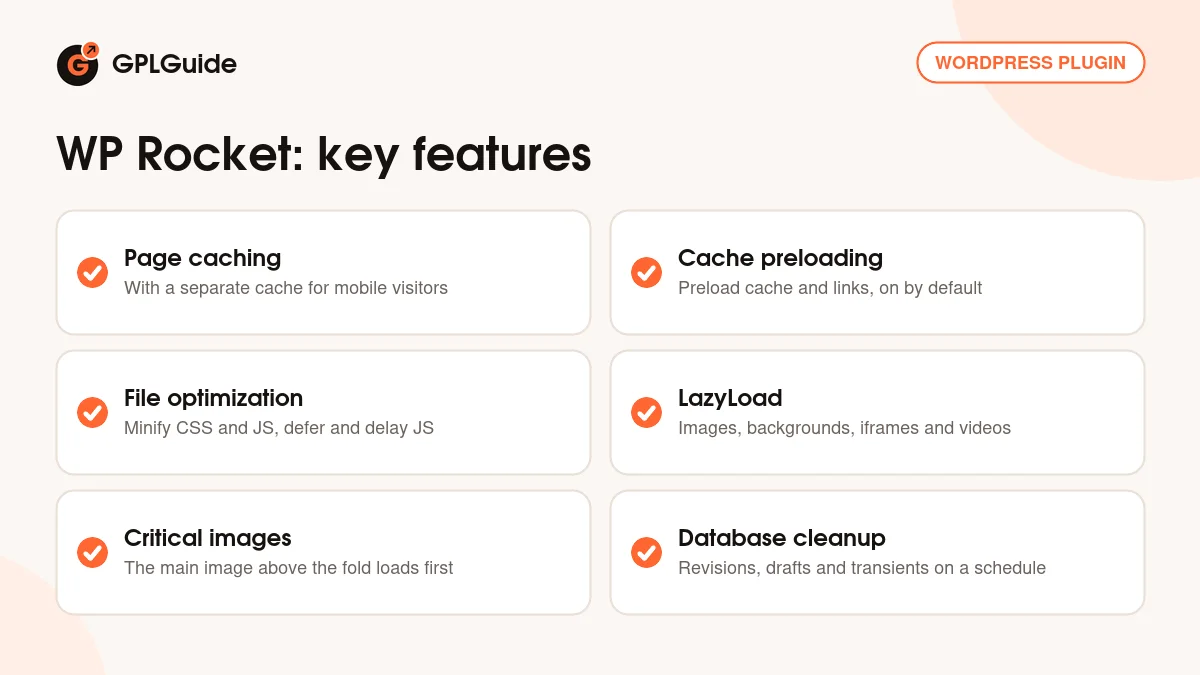
These parts run on their own and have no switch on the settings page: page caching (with a separate cache for mobile visitors), browser caching, GZIP compression, cross-origin support for web fonts, Google Fonts optimization and turning off the WordPress emoji script.
Newer automatic parts look at how your pages load for real visitors. Optimize Critical Images finds the main image above the fold, the one that decides your Largest Contentful Paint, and loads it first. Automatic Lazy Rendering only renders the parts of a long page that the visitor can see. Preconnect to external domains, added in version 3.19, opens connections early to outside services your pages use.
WP Rocket also turns a few settings on for you at first activation. CSS and JavaScript files are minified, cache preloading and link preloading are on, the WordPress Heartbeat API is set to reduce activity, and the cache lifespan is 10 hours. You can switch any of these off later.
Settings you can switch on when you are ready
The extra options are where a site gets its biggest gains, and also where things can break, so WP Rocket leaves them off until you choose. The developer's advice is to turn them on one at a time and check your key pages in a logged-out private window after each change.
Under File Optimization you can load JavaScript deferred, delay JavaScript until the visitor interacts with the page, and optimize CSS delivery with either Remove Unused CSS or Load CSS Asynchronously. Under Media you get LazyLoad for images, CSS background images, iframes and videos, an option to replace YouTube embeds with a preview image, Add missing image dimensions, self-hosted Google Fonts and font preloading.
A sensible way to work is to change one option, then open your home page, a blog post and, on a shop, a product page in a logged-out private window. The docs put it plainly: "the additional optimizations can also break a website!" If something looks wrong, switch the last option off again, or exclude the script or file that causes the problem and try once more.
The Advanced Rules tab lets you keep certain URLs, cookies or user agents out of the cache, purge extra URLs whenever a post is updated and cache pages with query strings. The Database tab clears out old revisions, auto drafts, trashed posts, comments you no longer need and transients, and it can run that cleanup on a schedule.
The Add-ons tab covers User Cache for logged-in visitors, Varnish, WebP Compatibility, Cloudflare and Sucuri. The Tools tab lets you export and import your settings and roll back to the previous WP Rocket version if an update causes trouble.
What's new in WP Rocket 3.23.5.1
Version 3.23.5.1 came out on October 2, 2026. It is a small bugfix release with two changes: the COOKIE_DOMAIN value is now treated as text in the user cache key, and the Elementor integration stays registered as it should.
It follows 3.23.5 from October 1, 2026, a security release with five hardening fixes, including stricter checks on the per-user cache key and on data collected for image optimization. If your site runs an older 3.23 version, updating is a good idea. Version 3.23.3.3 had already closed a problem where backups of the configuration file could be reached from the web on some servers.
A few bigger changes landed earlier in 2026. Version 3.23.4 (September 24) split the Content Delivery page into three modes: RocketCDN Free, RocketCDN Pro and your own CDN. Version 3.23 (July 9) added MCP server support so AI assistants can read reports, change settings and clear the cache, with every change approved by you. Version 3.22 (June 11) brought a free RocketCDN tier, and 3.21 (March 19) made Rocket Insights, the built-in speed reports, free for all licence holders. The Changelog tab on this page lists the latest release notes as well.
Things to know before you install WP Rocket
Run only one caching plugin. The developer's docs list W3 Total Cache, WP Super Cache, WP Fastest Cache, the LiteSpeed Cache plugin, WP-Optimize and others as incompatible, so turn your old cache plugin off before you activate WP Rocket. The same goes for features doubled up by other plugins, such as a second lazy load or a second "remove unused CSS" tool.
Some managed hosts run their own server cache. On WP Engine, Kinsta, WordPress.com, Flywheel, Pressable and a few others, WP Rocket switches its own page cache off by itself and keeps the other optimizations working. That is expected behaviour, not a fault.
WP Rocket does not compress images or create WebP or AVIF files. It lazy-loads images, adds missing sizes and serves WebP files that another plugin already made. For compression the developer points you to its free sister plugin, Imagify on WordPress.org.
Hosting notes from the WP Rocket docs
The developer says WP Rocket works with 99% of hosts, and its docs list a few that need an extra step. On GoDaddy, WP Rocket can't write to the .htaccess file, so some server rules have to be added by hand. On Nexcess, turn off the host's own cache plugin first. On Hostinger, purge the host's cache manually after changes and keep its CDN switched off.
On SiteGround and o2switch, the host's firewall can block the servers that Remove Unused CSS talks to, and Pantheon needs a permissions workaround. For most other hosts the docs list no special steps. When in doubt, test on a staging copy of your site first.
WP Rocket from GPLGuide vs the official licence
From GPLGuide you get the original WP Rocket 3.23.5.1 plugin file, released under the GPL, to use on your own websites. Page caching, preloading, minification, lazy loading, the database cleanup and the other features that run inside the plugin work on your server.
Some parts depend on WP Media's own servers and an official licence bought from them. These are Remove Unused CSS, Load CSS Asynchronously, Rocket Insights, the free RocketCDN plan, one-click updates from the WordPress dashboard and the developer's support team. If you need those, buy a licence from WP Media. If you need the plugin itself on your sites, GPLGuide gives you the same file at a lower price, either on its own or with a GPLGuide membership.
How to install WP Rocket
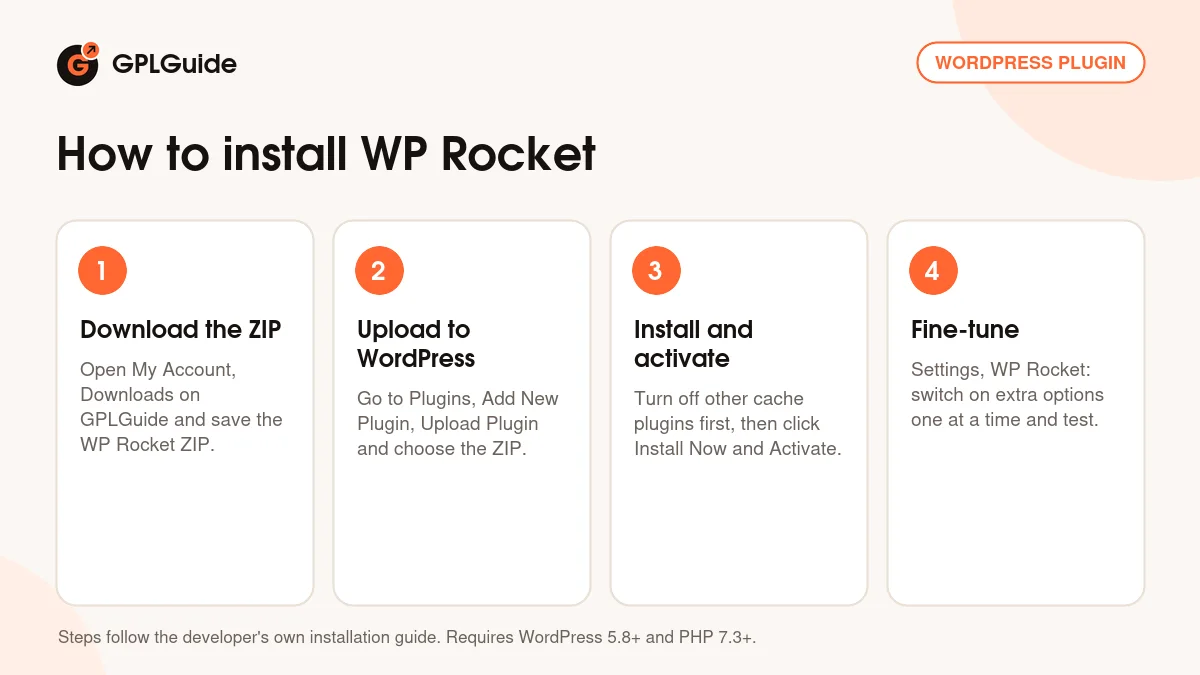
- Sign in to GPLGuide, open My Account, Downloads and save the WP Rocket ZIP. On a Mac, Safari can unzip downloads by itself, so make sure you keep the .zip file.
- In WordPress go to Plugins, Add New Plugin, Upload Plugin and choose the ZIP.
- Click Install Now, then Activate. Turn off any other caching plugin first.
- Open Settings, WP Rocket. The automatic features are already working. Switch on the extra options one at a time and test your site after each one.
The developer suggests this order for the extra options: Remove Unused CSS, Load JavaScript deferred and Delay JavaScript execution first, then LazyLoad, Add missing image dimensions, Preload fonts and Self-host Google Fonts, then link preloading and a CDN. Some optimizations finish in the background, so give them a little time before you measure with Google PageSpeed.
Keeping WP Rocket up to date
Updates from GPLGuide are manual. When a new WP Rocket version is listed here, download it from your account and upload it under Plugins, Add New Plugin, Upload Plugin. WordPress asks whether to replace the installed version, and your settings stay in place. Since version 3.23.1, WP Rocket also backs up its options on every plugin update. If you spot a version we haven't added yet, send it through the Request Item/Update page.
Questions about WP Rocket
Does WP Rocket work with WooCommerce? Yes. The developer calls it fully compatible. The Cart, Checkout and My Account pages are kept out of the cache automatically, and WooCommerce cart fragments are handled for you. If your theme builds its cart widget in PHP, add its cookie (for example woocommerce_items_in_cart) under Never Cache Cookies.
Can I use WP Rocket together with LiteSpeed Cache or another cache plugin? No. Use one caching plugin at a time. Disable the old one before you activate WP Rocket, or the two will fight over the same files.
Does WP Rocket work on WordPress Multisite? Yes, but it cannot be network-activated. Activate it on each sub-site where you want it, and set up its options separately on each one, since every sub-site keeps its own settings.
Will WP Rocket speed up my images? It loads them smarter: lazy loading, missing width and height added, and the main image above the fold loaded first. It does not shrink the files themselves, so pair it with an image optimizer. If that optimizer creates WebP copies, the WebP Compatibility add-on helps serve them.
My host already has a cache. Do I still need WP Rocket? On hosts such as WP Engine or Kinsta, WP Rocket turns its page cache off and keeps the rest: file optimization, lazy loading, preloading and database cleanup. WP Engine and WordPress.com both allow WP Rocket as the one optimization plugin on their platforms.
What is the cache lifespan? It is how long WP Rocket keeps a cached page before clearing it and building a fresh copy. The default is 10 hours, and you can change it under Advanced Rules. On hosts that run their own page cache, this setting has no effect.
How do I go back if a WP Rocket update causes problems? Open the Tools tab and use the rollback option to reinstall the previous version. Export your settings there too before big changes, so you can import them again later.
Where are the WP Rocket settings? Under Settings, WP Rocket in your WordPress admin, split into tabs such as Dashboard, File Optimization, Media, Preload, Advanced Rules, Database, Heartbeat, Add-ons and Tools.
Looking for more speed and performance tools? Browse all WordPress plugins on GPLGuide, or see what a GPLGuide membership includes if you need several premium plugins and themes.
Features & capabilities
- Page caching with a separate mobile cache, switched on automatically
- Cache preloading and link preloading, on by default
- CSS and JavaScript minification, deferred and delayed JavaScript
- Remove Unused CSS or Load CSS Asynchronously (official licence needed)
- Critical image optimization and Automatic Lazy Rendering
- LazyLoad for images, background images, iframes and videos
- Self-hosted Google Fonts, font preloading and missing image dimensions
- Database cleanup with an optional schedule, plus Heartbeat control
- WooCommerce cart, checkout and account pages excluded automatically
- Add-ons for Cloudflare, Sucuri, Varnish, WebP and logged-in user cache