
WooSheets (WPSyncSheet) - WooCommerce Google Spreadsheet Addon
100% Original fileUnmodified copy of the developer's release
DeveloperCreative Werk Designs
Up to dateOriginal released Nov 18, 2024 · File last updated Oct 23, 2026
About this product
WPSyncSheets For WooCommerce 9.2.0 connects your WooCommerce store to Google Sheets, so orders, products, customers and coupons sit in spreadsheets you can share, sort and report on. It was called WooSheets before the developer renamed it. It is for store owners, bookkeepers and fulfilment teams who already work in spreadsheets: shops that hand orders to a warehouse or packing team, stores that change prices and stock in bulk, and anyone tired of exporting CSV files by hand for a weekly sales report.
What's in the WPSyncSheets For WooCommerce download
Our download is the original WPSyncSheets For WooCommerce ZIP for version 9.2.0, with the license key already activated. This is the Pro plugin: the developer's edition on the WordPress plugin directory can't import from Google Sheets, while this one also reads changes from your sheets back into the store. The developer makes separate WPSyncSheets plugins for WPForms, Elementor forms and WordPress posts, which are not part of this product.
Good to know
Install and activate WooCommerce first; the developer's page lists PHP 7.4 or newer. The setup catch is Google: this version connects through your own Google Cloud project, so you enable the Google Drive API and Google Sheets API, create an OAuth client for a web application and paste the redirect URI the plugin shows. Then you save the Client ID and Client Secret and generate the authentication token. Google warns that the app is unsafe at that step; the docs say to continue with the same Google account.
How to install WPSyncSheets For WooCommerce
- If your site doesn't run WooCommerce yet, install and activate it first under Plugins, Add New Plugin.
- Log in to GPLGuide, open this product and click Download under Your downloads.
- In your WordPress dashboard go to Plugins, Add New Plugin, Upload Plugin and choose the ZIP you downloaded.
- Click Install Now, wait for the upload to finish, then click Activate Plugin.
- In Google Cloud Console, create a project, enable the Google Drive API and Google Sheets API, and create an OAuth client ID for a web application.
- Open WPSyncSheets, For WooCommerce, API Integration, enter the Client ID and Client Secret, save, generate the authentication token, then pick your spreadsheet in Order Settings.
Features & capabilities
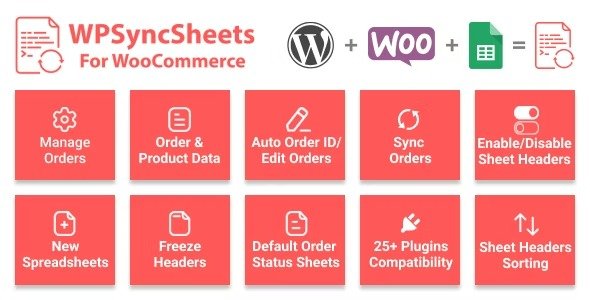
- New and edited orders written to your spreadsheet as they happen, matched by order ID.
- One sheet per order status, including statuses that other plugins add.
- Order rows laid out one per order or one per product, whichever your team reads faster.
- Import from the sheet back into the store for orders, products, customers and coupons, with insert, update and delete.
- Scheduled auto sync and auto import, so sheets and store stay in step without a manual run.
- Past orders exported in full or for a date range into a new spreadsheet.
- Product sheets per category, with child categories and a sale period date filter.
- Graph sheets, frozen headers, alternating row colours and support for ACF product fields.
Frequently asked questions
Is this the original file?
Yes. Every product on GPLGuide is the developer’s own release, unchanged. The license key comes already activated. If a product does ask for a key, the activation steps appear on its page once you have it.
Is it legal to use a GPL plugin or theme from GPLGuide?
Yes. WordPress plugins and themes are released under the GPL, which lets anyone use, share and change the code. The developer’s support desk and the developer’s own update service are not part of the file; those stay with the developer.
How do I install it?
Log in, open the product page and click Download under Your downloads. For a plugin go to Plugins, Add New Plugin, Upload Plugin, choose the ZIP, then Install Now and Activate. For a theme go to Appearance, Themes, Add New Theme, Upload Theme.
How do updates work?
When a newer version is listed on GPLGuide, download it from the product page and upload it over the installed copy; WordPress offers to replace the old version. Updates are manual.
Can I use it on more than one site?
Yes. The GPL lets you use it on as many of your own sites as you like.
What if the file does not work or a newer version is out?
Tell us on the Request Item page or through Support. We check the file and add the newer version when we have it.