Cool Timeline Pro – Horizontal & Vertical Timeline Plugin For WordPress

100% Original fileUnmodified copy of the developer's release
DeveloperCode Canyon
Up to dateOriginal released Oct 14, 2026 · File last updated Oct 23, 2026
About this product
Cool Timeline Pro is a WordPress timeline plugin that turns dated or numbered stories into a vertical, horizontal, compact or one-sided timeline on any page. It's for site owners who want to show a company history, a roadmap, a step-by-step process or a blog archive without hand-coding a layout. You add each event as a story, then place it with a shortcode, a block or a Bricks element. This page is for Cool Timeline Pro 8.0.2, released on October 14, 2026. On GPLGuide you download the original plugin file to install on your own WordPress websites.
Good for: agencies building About and History pages, schools and museums with events before the year 1000, product teams publishing roadmaps, and bloggers who want posts shown in date order.
Requirements: The developer doesn't publish a minimum WordPress or PHP version for Cool Timeline Pro. Its free Cool Timeline plugin asks for WordPress 5.6 and PHP 5.6 or newer and is tested up to WordPress 7.1.3. No other plugin is required. Bricks Builder, Elementor and WPBakery are optional, and the developer's item page lists the block editor, Elementor, Visual Composer and WPML as compatible. The Cool Timeline Pro file from GPLGuide comes with the license key already activated, so every layout and design is ready once you activate it.
What Cool Timeline Pro does
Everything starts with stories. In Cool Timeline Pro a story is a small custom post with a title, a description, a featured image, a category and a few timeline settings, all under the Timeline Addons menu. Once stories exist, the plugin pulls the published ones into a timeline wherever you place it. You never paste events into the page itself.
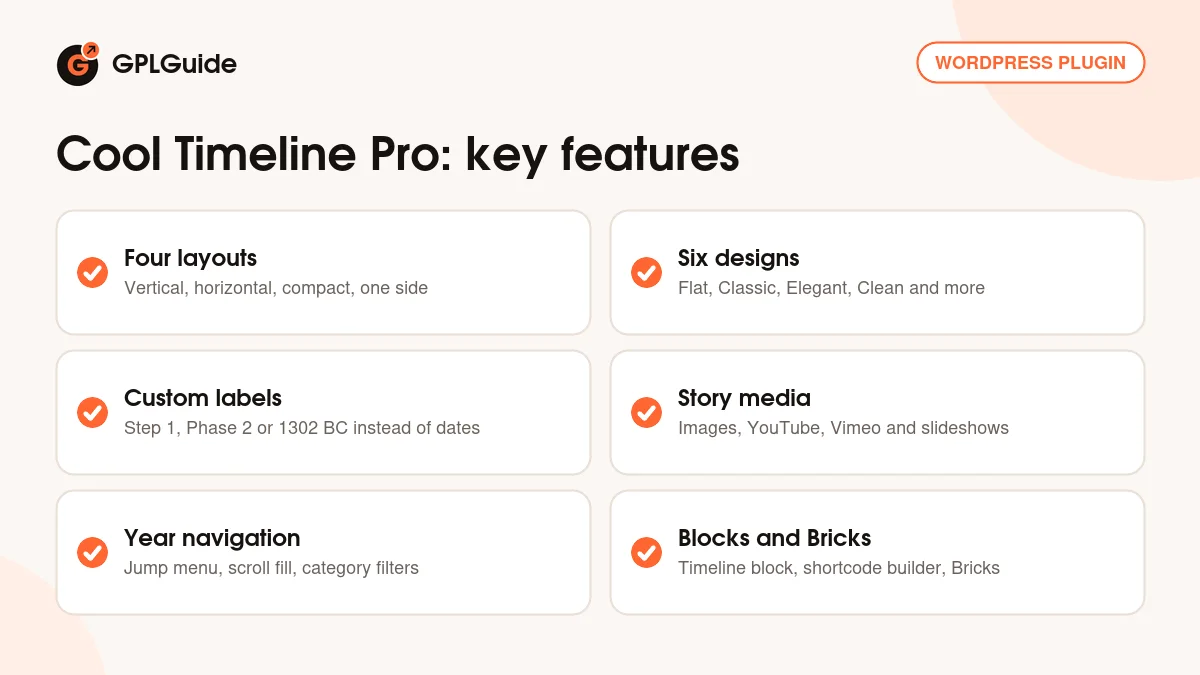
The free Cool Timeline plugin only builds vertical timelines. Cool Timeline Pro adds horizontal, compact and one-sided layouts, the Flat, Classic, Elegant, Clean, Modern and Minimal designs, Light, Dark and Colorful skins, category timelines with filters, image, video and slideshow media, custom icons, per-story colors, animations, year navigation and AJAX Load More or numbered pagination.
You show a timeline in one of three ways. The shortcode generator builds a shortcode from a form, through the Add Timeline button in the Classic Editor or the Story Timeline Shortcode block. The Cool Timeline Block lets you write each event right inside the block editor. Bricks Builder gets an element called Story Timeline. A Post Timeline option shows your blog posts instead of stories.
Stories, labels and media in Cool Timeline Pro
Go to Timeline Addons, Add New Story. Fill in the Story Title and Description, set a Featured Image and pick a Category. Planning more than one timeline? Set up the categories first. Each timeline can then show one category, and you won't have to untangle a mixed list later.
Below the editor sits the Timeline Story Settings panel, and Story Type is the choice that matters most. Date Based uses a real date, and Cool Timeline Pro covers years from 1000 to 2050. Custom Order Based swaps the date for a Custom label such as "Phase 2" or "1302 BC", plus an Order Number that fixes the story's position. That's how the developer tells you to handle events before the year 1000.
Story Media decides what sits in the card: an image, a video or a slideshow, each with a size option. YouTube and Vimeo both work, though Vimeo hides thumbnails when a video's privacy settings block previews. Story Icon sets the marker on the line, and Extra Settings holds a Custom Story Link and a Color for that one story. Handy for making a launch day stand out.
Site-wide defaults live under Timeline Addons, Timeline Settings. General Settings covers the Custom Slug of Timeline Stories, the Stories Default Icon, Timeline User Roles and what a click on a story image does: the CT Lightbox, your theme's lightbox, the Story Detail Page or nothing. Style settings hold the colors, plus a Custom Styles box for CSS.
Layouts, designs and shortcode settings
Most of your choices happen in the shortcode generator. Add the Story Timeline Shortcode block to a page and work through the settings. Layout offers Vertical, Horizontal, One Side and Compact. Design picks a preset look, Color Scheme sets the skin, and Timeline Width can be Custom with a maximum width. Connector Style and Story Marker shape the line.
Content settings pick the Categories, the Order (Oldest or Newest), Date Based or Custom Labels/Text, the Date Format and the Content Type: Short, Full or Hide. For pagination you choose numbered pages or AJAX Load More and set Stories Per Page.
Extra Settings is where a timeline starts to feel finished. Animation adds entrance effects such as fadeInUp or zoomIn. Year Navigation builds a jump menu from the years. Scroll Fill colors the center line as the visitor scrolls, and Category Filters adds buttons that switch categories. Border Radius, Story Padding and Story Spacing handle the fine spacing.
Horizontal timelines in Cool Timeline Pro get their own settings. Slide to Show sets how many stories are visible, and Autoplay with Slideshow Speed runs it as a slider. The shortcode itself uses plain attributes such as layout, skin and show-posts="10". One tip from the docs: color settings only apply to the Light and Dark skins. Switch skins before you wonder why your colors aren't showing.
The block editor, Bricks and Elementor
The Cool Timeline Block works differently. Insert it and a sample timeline appears with stories you edit in place. Choose Media adds an image, video or slideshow, + Add Story adds more, and the toolbar arrows reorder them. Each story gets a Year Label, a Primary Label, a Story Icon and a Read More Link. The General tab switches between vertical, one-sided or both-sided, and horizontal.
Bricks users get the Story Timeline element. Its Content tab holds the stories and the layout: Vertical (Right / Left), Vertical (Right Only) or Vertical (Left Only), a Preset Style, a Connector Style of arrow, line or none, and an Animation. Version 8.0.2 reworked this integration with new presets and controls. Elementor has no native widget in Cool Timeline Pro, but pasting the shortcode into Elementor's Shortcode widget works fine.
Timelines you can build with Cool Timeline Pro
These setups only use settings from the developer's documentation. Swap in your own names.
- Company history: Date Based stories in a history category, the Vertical layout with the Modern design, Year Navigation on and Scroll Fill enabled.
- How-it-works process: Custom Order Based stories labelled Step 1 to Step 5 with matching Order Numbers, in the One Side layout.
- Product roadmap: the Horizontal layout with Slide to Show set to 3 and Autoplay off.
- Ancient history lesson: Custom Order Based stories with labels such as 1302 BC in the Compact layout.
- Blog archive: the Post Timeline Shortcode block limited to one category, so new posts join as you publish them.
- Long project log: show-posts="10" with AJAX Load More and Category Filters, so the first load stays quick.
What's new in Cool Timeline Pro 8.0.2
Version 8.0.2 came out on October 14, 2026, and it's a big one. It adds modern designs for the Cool Timeline Gutenberg blocks and the Bricks element, revamps the Bricks integration with updated presets and controls, and adds support for migrating from the free plugin to Pro. Legacy blocks stay backward compatible. Three bugs are fixed: the Compact layout breaking with desktop animations on, story images stretching because of the sizes="auto" attribute WordPress 6.7 adds, and mobile pagination and load more in the Compact layout.
Before it, 7.1.0 (September 25, 2026) improved story backgrounds for the Modern, Minimal and Compact designs, and 7.0.0 (September 17, 2026) refreshed the whole design while existing shortcodes kept working. Bricks support first arrived in 6.2.5 on September 4, 2026. A day after our version, the developer released 8.0.1 (October 15, 2026) with Compact layout and admin screen fixes.
Good to know before you buy
This file is version 8.0.2, and 8.0.1 is already out. It fixes story alignment and pagination when visitors switch categories in the Compact layout. Using Compact with category filters? Test that combination before you go live.
The native Elementor widget is a separate product: the developer recommends its Timeline Widget Pro plugin, and its bundle lists a separate timeline module for Divi. Neither is in this ZIP. Bricks Builder isn't included either, and the Story Timeline element needs it.
Don't run the free Cool Timeline plugin next to Cool Timeline Pro, because the developer warns the two conflict. Font Awesome and Google Fonts load unless you switch on Disable Font Awesome CSS or Disable Google Font in General Settings. Usage Data Sharing sends site data to the developer only if you allow it.
Cool Timeline Pro from GPLGuide vs the official subscription
From GPLGuide you get the original Cool Timeline Pro 8.0.2 plugin file to install on your own websites, with the license key already activated. Everything in the file works: all four layouts, the designs and skins, the shortcode generator, the Cool Timeline Block, the post timeline and the Bricks element. Under Envato's licence for this item, its PHP code is licensed under the GPL.
Buying from the developer gets you what only they can give. Their own store sells an Annual License at $29 a year for one website (down from $39), or $59 for 5 websites and $99 for 25, with a year of plugin updates, premium support and a 14-day refund window. On CodeCanyon the Regular License costs $39 with 6 months of support. Support tickets, refunds and the developer's update service come only from the developer.
How to install Cool Timeline Pro
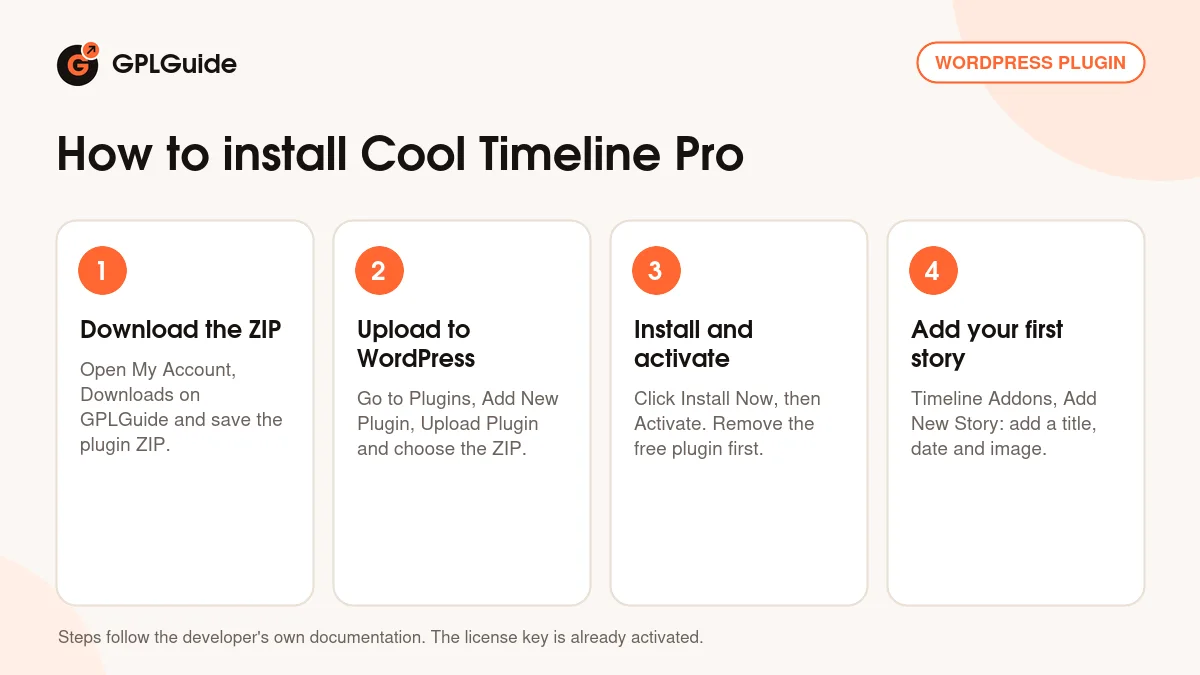
- Sign in to GPLGuide, open My Account, Downloads and save the Cool Timeline Pro ZIP.
- In WordPress go to Plugins, Add New Plugin, Upload Plugin and choose the ZIP file.
- Click Install Now, then Activate. If the free Cool Timeline plugin is installed, deactivate and delete it first. The developer says your settings and data stay.
- The license key is already activated, so go straight to Timeline Addons, Add New Story and create your first story.
For a good first setup in Cool Timeline Pro, create three or four stories in one category: your founding, your first hire, your biggest launch. Add the Story Timeline Shortcode block to a test page, pick that category, choose the Vertical layout and the Modern design, and turn on Scroll Fill. Preview it on your phone too. Then try One Side and see which suits your theme.
Keeping it up to date
Updates from GPLGuide are manual. When a newer Cool Timeline Pro is listed here, download it from your account and upload it under Plugins, Add New Plugin, Upload Plugin. WordPress offers to replace the installed copy, and your stories stay put because they live in the database, not the plugin folder. Check one timeline page after any major version. If you spot a version we haven't added, tell us on the Request Item/Update page.
Questions about Cool Timeline Pro
Which version does this page cover? Version 8.0.2, released on October 14, 2026. The developer has since released 8.0.1, and you can ask for it on the Request Item/Update page.
Do I need the free Cool Timeline plugin as well? No. Cool Timeline Pro runs on its own. Delete the free plugin before you activate Pro, and the developer says your settings and data stay.
Do I have to enter a license key? No. The file comes with the license key already activated, so the horizontal layout, the designs and the media options work right away.
Can I show events from before the year 1000? Yes. Set Story Type to Custom Order Based, type a label such as 1302 BC in the Custom label field and use Order Number to place it.
Will Cool Timeline Pro work with Elementor? Yes, through a shortcode. Build the timeline with the shortcode generator, then paste it into Elementor's Shortcode widget.
Can I show my blog posts as a timeline? Yes. Add the Post Timeline Shortcode block, or pick Post Timeline in the Add Timeline pop-up of the Classic Editor, then limit it by post type or category.
Can I move timelines to another site? Yes. Use Tools, Export on the old site and Tools, Import on the new one, with Cool Timeline Pro active on both.
Planning the rest of your site? Browse more WordPress plugins on GPLGuide, or see what a GPLGuide membership includes if you use several premium plugins. Building with Elementor? Elementor Pro is listed too.
Features & capabilities
- Vertical, horizontal, compact and one-sided timeline layouts
- Flat, Classic, Elegant, Clean, Modern and Minimal designs
- Date Based stories or custom labels such as Step 1 or 1302 BC
- Images, YouTube or Vimeo videos and slideshows in each story
- Year navigation, scroll fill, category filters and animations
- AJAX Load More or numbered pagination for long timelines
- Shortcode generator, Cool Timeline Block and post timelines
- Story Timeline element for Bricks Builder with preset styles