Erplayer Radio Player for Elementor
100% Original fileUnmodified copy of the developer's release
DeveloperCode Canyon
Up to dateOriginal released Dec 17, 2024 · File last updated Oct 23, 2026
About this product
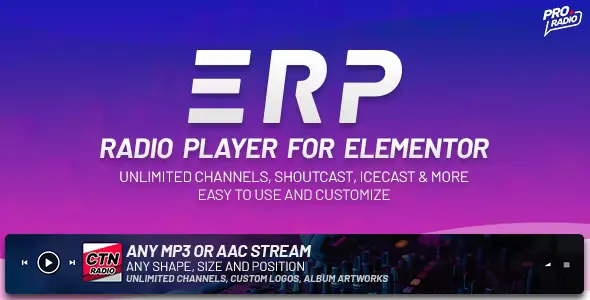
Erplayer Radio Player for Elementor adds a Radio Player widget to Elementor, so you can drop a live web radio player onto any page you build and style it like the rest of your design. It's made for stations, DJs and anyone who already streams in MP3 or AAC and wants listeners to press play on their own website. This page is for Erplayer Radio Player for Elementor 2.0, released on December 17, 2024. On GPLGuide you download the original plugin file to install on your own WordPress websites.
Good for: internet radio stations, community and college radio, DJs who stream live sets, churches and event sites that broadcast audio, and designers who build sites for radio clients in Elementor.
Requirements: the latest WordPress and Elementor, plus PHP 7.3, and the item page lists WordPress 6.3.x to 6.9.x. The free Elementor plugin is enough: the developer's install guide points to it, and nothing asks for Elementor Pro. You also need a working MP3 or AAC stream from your own streaming provider, because Erplayer Radio Player includes no stations and no stream hosting. The file from GPLGuide comes with the license key already activated.
What Erplayer Radio Player does
Erplayer Radio Player is a player, not a broadcaster. It takes a stream URL you already have and plays it inside an Elementor widget called Radio Player. While the stream runs, it reads the current song title and artist from Shoutcast V2, Icecast, Radio.co, Airtime or the stream's own metadata, and shows them in place of the channel's subtitle. Switch on artwork and it looks up the album cover too.
Channels are the core idea. One player can hold as many radio channels as you like, and listeners pick one from the channel list. You can store channels as a Radio Channels post type and reuse them across several players, or type them straight into the widget. The developer recommends the post type, and it's the safer choice. If you ever delete a player or build a second one, your channel archive is still there.
Design happens in Elementor's own panel, with four templates and three locations. On desktop the Popup location keeps the music playing while visitors move between pages, which is why most radio sites want it.
Adding radio channels to Erplayer Radio Player
Go to Radio Channels, Add new channel. The form is short: Radio title, MP3/AAC Stream URL, Subtitle, Logo and Server type, plus two checkboxes called Exclude from playlist and Use proxy. The Subtitle shows until song titles arrive. For the Logo, the developer suggests a square image of about 300x300px.
Server type tells Erplayer Radio Player where to find song titles. The dropdown offers Shoutcast, Icecast, Radio.co, Airtime, Meta information (automatic) and other. Not sure what your stream runs on? Ask your streaming provider. The automatic option reads the standard ICY metadata inside the stream, and the developer says most streams support it, so it's a sensible first try.
Each server type has its own fields. Shoutcast V2 asks for Host, Port, Protocol and Channel, which stays at 1 unless you run a multi-channel server. Shoutcast V1 isn't supported. Icecast wants the Icecast JSON URL (by default /status-json.xsl), a numeric Icecast channel and, for some feeds, a mountpoint. Radio.co only needs your Radio.co ID. For Airtime and Airtime Pro you add #.mp3 to the end of the stream URL, enter your API URL and tick the proxy box.
Use proxy isn't an audio proxy. It makes your own web server fetch the song titles with cURL instead of the visitor's browser, which helps when the streaming server lacks CORS permissions. Your host has to allow connections to the stream's port, such as 8000, or the titles stay blank.
Templates, positions and the design panels
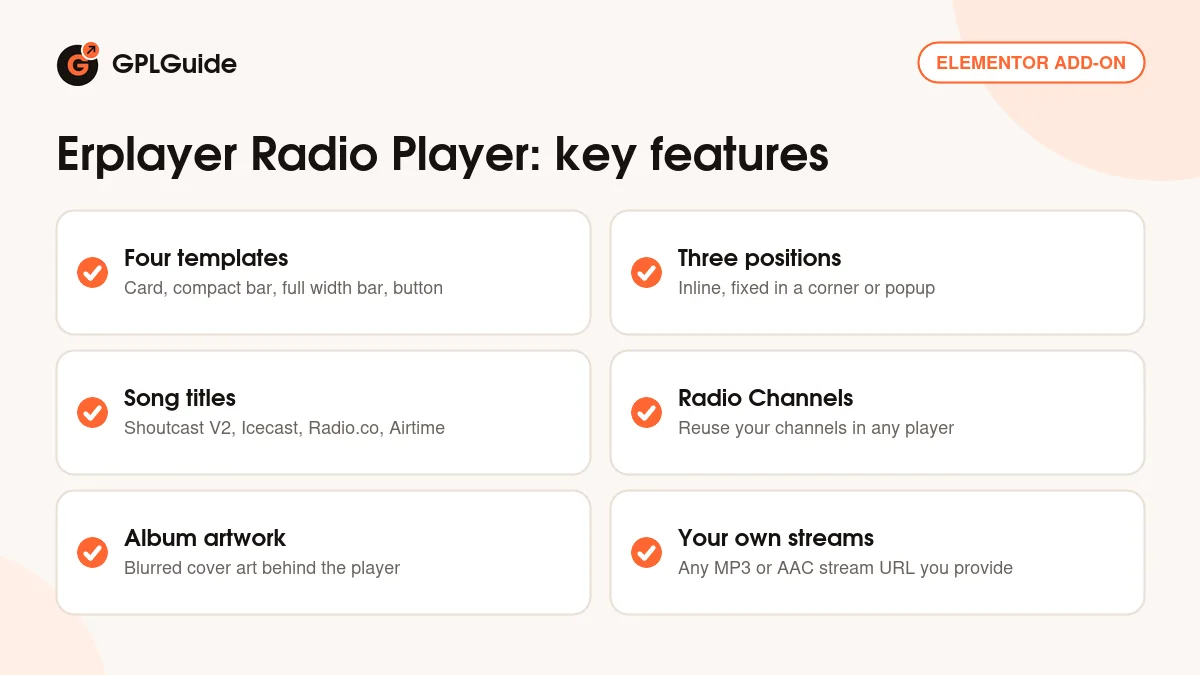
Right-click the player in Elementor and choose Edit, and you get six panels: Functionalities, Design, Typography, Backgrounds, Player Colors and Radio Channels. Design is where you choose the template. Card is a vertical player that suits a column. Bar compact is horizontal with an adjustable maximum width. Full width bar works best fixed to the top or bottom of the screen. Button only drops the channel list and playlist and keeps an optional volume control.
Location is the second choice. Inline puts the player where you dragged it. Fixed parks it in a corner you pick, with a button that shows and hides it. Popup opens the player in its own window from a button, so the music doesn't stop when visitors click through to another page. The developer's item page says the popup is desktop only.
Typography sets the font family and size for each of the three lines of text, with Google fonts available, and long titles scroll when they don't fit. The developer suggests VW units for font sizes. Good advice: a pixel size that looks fine on a laptop can overlap on a phone. Text Colors covers text and hover colors, and Functionalities sets the starting volume and whether the volume control and channel list show.
Backgrounds and album artwork
The background has three layers. The top one holds the album cover or the radio logo, so a fully opaque Album Cover hides everything under it. To show your own color or image, set the Album Cover opacity in the Radio Channels panel below 1, then pick a color in Backgrounds and, if you like, an image with its own opacity.
Album artwork is optional. When it's on, Erplayer Radio Player searches the iTunes database for the cover of the current song. Those images are 100 x 100 px at most, which is why the player blurs them into a background. The iTunes API allows about 20 searches per hour, and after that the player falls back to the channel logo. For a busy station that changes songs every three or four minutes, expect to see the logo for part of each hour.
Erplayer Radio Player setups you can copy
- Sticky station bar: one channel, the Full width bar template and the Fixed location at the bottom. Start with Meta information (automatic) and switch to Shoutcast or Icecast if titles don't appear.
- Network of stations: create each station under Radio Channels, Add new channel, then add one player with Include radio channels archive turned on.
- Listen Live button: Button only with the Popup location, so playback carries on while desktop visitors read your schedule.
- Sidebar card: the Card template in a narrow column with album artwork on and the Album Cover opacity at about 0.6, so your brand color shows through.
- One-off event stream: a separate channel for a live event with Exclude from playlist ticked, so it stays out of the global channel list.
What's new in Erplayer Radio Player 2.0
Version 2.0 came out on December 17, 2024. Its changelog has a single line: an update for Elementor 3.26.0. It's a compatibility release rather than a set of new tools, and at the time of writing it's the newest version in the developer's changelog.
Before it, 1.2.2 (July 23, 2022) stopped the player fetching artwork when it wasn't needed, and 1.2.1 (May 31, 2022) fixed inline images that broke alignment in some themes. 1.1.0 (October 8, 2021) fixed titles changing during scrolling and tidied the code for WordPress 5.8 and PHP 7.4.
Good to know before you buy
You need your own stream. Erplayer Radio Player plays audio from an existing streaming provider. It doesn't come with stations, it doesn't host audio, and it won't turn a folder of MP3 files into a radio station.
HTTPS matters more than anything else here. On an HTTPS website the stream URL has to be HTTPS too, or the browser blocks it as mixed content and you get neither audio nor titles. Browsers also refuse streams with an invalid certificate, so open the stream's HTTPS address in a browser tab before you blame the plugin. Missing titles with the proxy on usually mean the host blocks the stream port.
A few smaller limits. On phones the volume control is hidden and listeners use the device's own buttons. Live365 needs a premium account, is restricted by country and needs the proxy. And this is an Elementor widget only: the item page marks it as not Gutenberg optimized, so there's no block for the block editor.
Erplayer Radio Player from GPLGuide vs the official licence
From GPLGuide you get the original Erplayer Radio Player for Elementor 2.0 plugin file, inside the full download with the developer's manual PDF and the Licensing folder. Every template, location, server type and design panel described here is in the file, and the license key is already activated. Under Envato's licence for this item, its PHP code is licensed under the GPL.
Buying on CodeCanyon gets you what a file can't carry. The Regular License is $104 and includes 6 months of the developer's support through their ticket system, which you can extend to 12 months for $37.13. The Extended License is $365. Support and refunds come only from the developer.
How to install Erplayer Radio Player
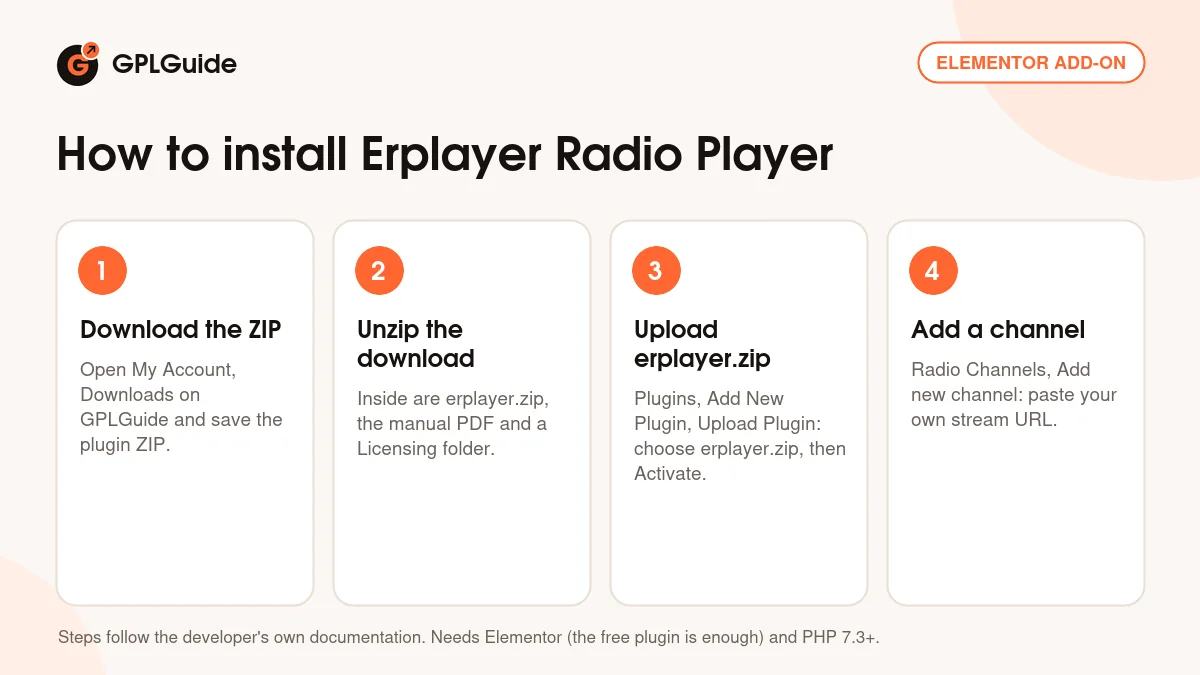
- Sign in to GPLGuide, open My Account, Downloads and save the Erplayer Radio Player for Elementor ZIP.
- Unzip that download on your computer. Inside are erplayer.zip, which is the plugin itself, the developer's "1 - MANUAL.pdf" and a Licensing folder.
- Make sure Elementor is active, then go to Plugins, Add New Plugin, Upload Plugin and choose erplayer.zip, not the whole download. Click Install Now, then Activate Plugin.
- The license key is already activated, so go straight to Radio Channels, Add new channel and paste your own MP3/AAC Stream URL.
For a good first setup, create one channel with Server type set to Meta information (automatic). Edit a test page with Elementor, search for the Radio Player widget and drag it in. It looks empty until it has channels, which is normal. Turn on Include radio channels archive, pick the Card template and press play. Once titles show up, try the Fixed location.
Keeping it up to date
Updates from GPLGuide are manual. When a new version of Erplayer Radio Player is listed here, download it from your account, unzip it as before and upload the new erplayer.zip under Plugins, Add New Plugin, Upload Plugin. WordPress offers to replace the installed copy, and your Radio Channels posts stay in place. Spotted a newer version that we haven't added? Tell us on the Request Item/Update page.
Questions about Erplayer Radio Player
Does Erplayer Radio Player work with the free Elementor? Yes. The developer's install guide asks for the latest Elementor and points to the free plugin. Elementor Pro isn't listed as a requirement.
Does it come with radio stations or a stream? No. You bring your own MP3 or AAC stream from a provider such as Shoutcast, Icecast, Radio.co or Airtime, and the plugin plays it.
Which ZIP do I upload to WordPress? erplayer.zip. Unzip the download first and upload only that file, because the developer's manual warns against uploading the full package.
Why don't my song titles show? Usually it's a connection issue. Check that your HTTPS site uses an HTTPS stream, try Meta information (automatic), then tick Use proxy and ask your host to allow the stream's port.
Can one Erplayer Radio Player hold several stations? Yes, as many as you like. Add them under Radio Channels and turn on Include radio channels archive in the widget.
Will the music keep playing when visitors change pages? On desktop, yes, with the Popup location. It isn't available on phones.
Do I need to enter a license key? No. The Erplayer Radio Player file you download here comes with the license key already activated, so you install it and start adding channels.
Which version is this page about? Erplayer Radio Player for Elementor 2.0, the Elementor 3.26.0 compatibility update from December 17, 2024.
Building a site for a station or a DJ? Browse more WordPress plugins on GPLGuide, or see what a GPLGuide membership includes if you use several premium plugins. Elementor Pro is here too, though this player runs on the free Elementor.
Features & capabilities
- Radio Player widget for Elementor that works with the free Elementor plugin
- Plays any MP3 or AAC stream URL from your own streaming provider
- Song titles from Shoutcast V2, Icecast, Radio.co, Airtime and ICY metadata
- Four templates: Card, Bar compact, Full width bar and Button only
- Inline, Fixed corner and Popup locations, with popup playback on desktop
- Unlimited channels in a reusable Radio Channels post type
- Optional album artwork from iTunes as a blurred background
- Google fonts, text and hover colors, backgrounds, padding and shadows