
GravityView DataTables Extension

100% Original fileUnmodified copy of the developer's release
DeveloperGravityView
Up to dateOriginal released Oct 8, 2026 · File last updated Oct 23, 2026
About this product
GravityView DataTables is the DataTables layout for GravityView that shows your Gravity Forms entries as a fast table on the front end of your site. Visitors can sort, search, filter by column and page through the entries without a page reload, and you can add buttons to copy, export or print the data. This page is for GravityView DataTables 3.14.1. On GPLGuide you download the original plugin file to install on your own websites. The file comes with the license key already activated, so there is no key to enter.
Good for: sites that collect data with Gravity Forms and want to show it as a searchable table, such as member and staff directories, request logs, event sign-up lists, stock lists and internal dashboards.
Requirements: WordPress 6.5 or newer, PHP 7.4 or newer, Gravity Forms and GravityView. The developer lists GravityView 2.57 or newer as the minimum. We sell GravityView core version 3.6.0, which meets that minimum and itself needs Gravity Forms 2.9.4 or newer. Two things in this release work as intended only with GravityView 3.7.0 or newer, as explained further down.
What GravityView DataTables does
GravityView builds Views: pages that display the entries of a Gravity Forms form. GravityView DataTables adds one more View Type, called DataTables Table, which uses the DataTables script to turn those entries into an interactive table. You still pick the columns in the normal drag and drop View editor.
On the front end, a visitor clicks a heading to sort, or holds Shift and clicks more headings to sort by several columns. A search box narrows the rows, and the table pages through results in place.
Most GravityView DataTables setup lives on one screen: the DataTables tab under View Settings. There you switch on export buttons, column filters, Auto-Update, responsive mode, Scroller, row grouping and saved table state. Each setting belongs to its View, so two Views of one form can behave differently.
Ajax or Preloaded: how GravityView DataTables loads entries
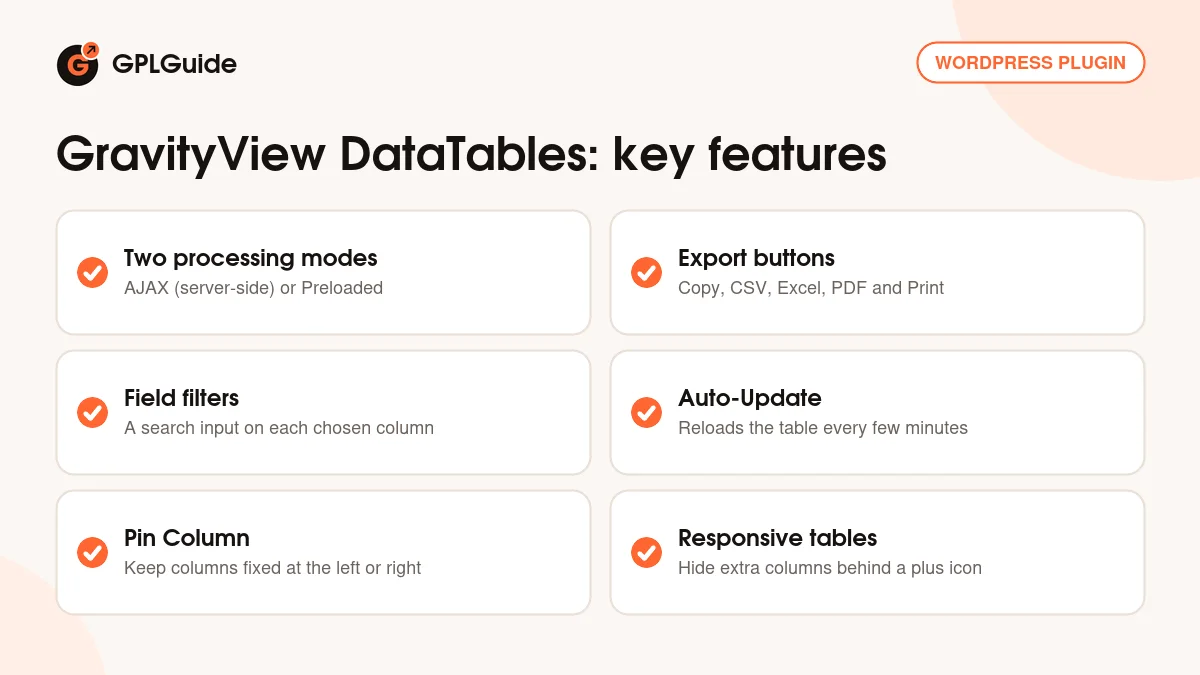
The first GravityView DataTables choice is the processing mode. In AJAX ("server-side") mode the table asks your server for data every time someone searches, sorts or changes page. The developer recommends it for large numbers of entries and for data that must be current, because these requests are not cached. Auto-Update needs this mode. Speed depends on your server, and you cannot filter by Custom Content fields.
In Preloaded ("client-side") mode every entry loads with the page, then searching, sorting and paging happen in the browser almost instantly, and Custom Content fields can be filtered. The first load is slower, and a very large set of entries can overwhelm an older computer. Auto-Update does not work here, and a caching plugin may show old data.
GravityView DataTables exports changed in version 3.12.0. They now include every matching entry rather than only the current page, and they follow the active search, filters and sort order. The changelog also mentions a 1,000-row export cap that a developer can change with a filter.
Column filters, buttons and Auto-Update
Field filters. Tick Enable Field Filters and GravityView DataTables gives each column its own search input, so a visitor can drill down on several columns at once. You choose where the inputs sit (Header, Footer or Both) and use Fields with Filter to pick which columns get one. Since version 3.12.0 a Clear Filters button can empty every filter in one click.
Buttons. The Buttons setting adds Copy, CSV, Excel, PDF and Print buttons, plus Column Visibility, which lets visitors hide columns they don't need. Print opens a copy of the table in a new window. Note that the developer says you cannot exclude a single field from printing.
Auto-Update. Tick Enable Auto-Update and set the Auto-Update Interval (In Minutes); the default is 5. The table then reloads its data on that timer and keeps the current search and filters. Every open copy of the page sends one request per interval, so use a longer interval on busy pages.
Column widths, pinning and mobile tables in GravityView DataTables
Each field has a Percent Width from 1 to 100. Only the ratios matter, and empty widths share the leftover space. If a value needs more room than its column, the Column Widths setting decides what happens: "Widen the table and scroll sideways" (the default) or "Keep the column at its set width", which can let long values overlap the next column.
Pin Column offers "Pin to left edge" or "Pin to right edge". A pinned column must sit at that edge, with any columns between it and the edge also pinned, or the View editor shows a warning.
Enable Responsive Tables hides the columns that don't fit on a small screen behind a plus icon, starting from the right. The Responsive Visibility field setting (Automatic, Hide first, Hide last or Never hide) controls which columns go first. Pinning and responsive mode don't combine: a pinned column is simply kept visible longest.
For long tables, Scroller shows the rows as one continuous scrolling table, but it suits rows of equal height only. RowGroup groups rows that share a value, for example a category, though not together with Scroller, and exports are not grouped. Save Table State remembers the page, rows shown, filters and sort order in the visitor's browser until the browser closes.
Table setups you can copy with GravityView DataTables
These GravityView DataTables setups only use settings named in the developer's docs, so you can rebuild them on your own forms.
- Member directory: Preloaded mode, Enable Field Filters in the Header for City and Membership Level, Responsive Tables on with the Name column set to Never hide.
- Support request log: AJAX mode, Enable Auto-Update with a 2 minute interval, and RowGroup by a Status field.
- Event check-in list: Buttons with CSV and Print for the front desk, a Clear Filters button, and Save Table State off so every volunteer starts fresh.
- Wide data table: Pin the Name column to the left edge, give a long Notes field a larger Percent Width, and keep "Widen the table and scroll sideways".
- Search-first lookup: turn on GravityView's "Hide View data until search is performed" so the table stays empty until someone searches, a setting that version 3.14.1 fixed for DataTables.
What's new in GravityView DataTables 3.14.1
Version 3.14.1 came out on October 8, 2026. It raises the requirements to PHP 7.4 and WordPress 6.5 or newer. For accessibility, screen readers now announce the table's entries as a named region, and the Date Filter Type setting is hidden instead of dimmed in Ajax mode, so keyboard users no longer land on it.
The fixes cover search. Views with "Hide View data until search is performed" showed entries before a search; that now works, in client-side mode too. The Search Bar Clear button restores the page's original values and defaults again, Radio fields go back to "All" and Links fields drop their highlight. A table no longer shows another table's results when the same View is embedded twice on a page, a fix that needs GravityView 3.7.0 or newer. Developers also get two new template actions.
Earlier releases: 3.13.2 (September 3, 2026) stopped searches using up memory on large forms, and 3.13.1 (August 20, 2026) fixed stale cache and sorting issues. 3.13.0 (August 13, 2026) added the Column Widths setting. 3.12.0 (August 6, 2026) added column pinning, responsive collapse order and the Clear Filters button, and made GravityView 2.57 the minimum.
The developer has since released version 3.14.1 (October 15, 2026). This page and our file are version 3.14.1, so those later fixes are not included.
Good to know before you buy
GravityView DataTables is an extension and does nothing on its own. You need Gravity Forms, which is a paid plugin from its own developer, and GravityView. Our GravityView core 3.6.0 file meets the 2.57 minimum, but two things need GravityView 3.7.0 or newer. GravityView 3.7.0 fixed entry links set to open in a lightbox, such as [gv_entry_link lightbox="true"], which opened a full page in DataTables 3.14.1 and later. The fix for the same View embedded twice also needs 3.7.0. If you use either, run GravityView 3.7.0 or newer.
Responsive mode has known limits in the developer's docs. The Approve Entries field does not work while it is on, the built-in search only covers visible columns, and gallery items can repeat when a File Upload column is hidden. Responsive mode with FixedHeader can also misalign headings, so turn one off if that happens.
Version 3.12.0 removed the Page Links, Pagination Info and Page Size widgets from DataTables Views. The table's own page-size menu replaces Page Size. The developer doesn't offer CSS support for restyling the buttons. Its docs describe no part of DataTables that runs on its own servers.
GravityView DataTables from GPLGuide vs the official subscription
From GPLGuide you get the original GravityView DataTables 3.14.1 plugin file, released under the GPL, for your own websites. Everything in the file works the same way: both processing modes, field filters, the export buttons, Auto-Update, pinning, responsive tables and row grouping. The file comes with the license key already activated.
On the developer's pricing page, DataTables is part of GravityView Pro at $199 per year for a single site, and of the All Access Pass at $396 per year. The base GravityView plan at $119 per year does not include it. A subscription adds what only the developer gives: their support team (email, plus live chat priority on All Access) and their 30-day money-back guarantee. GPLGuide does not offer their support.
How to install GravityView DataTables
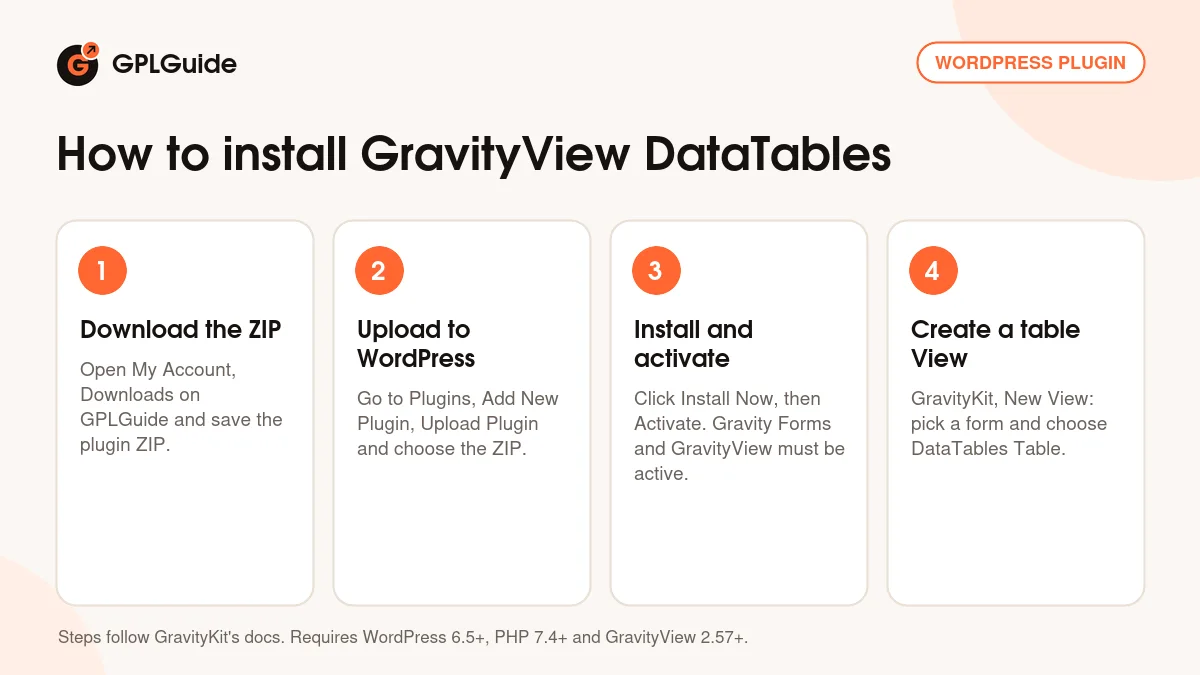
- Sign in to GPLGuide, open My Account, Downloads and save the GravityView DataTables ZIP.
- Make sure Gravity Forms and GravityView are installed and active, then go to Plugins, Add New Plugin, Upload Plugin and choose the ZIP.
- Click Install Now, then Activate.
- Open New View in the dashboard menu that GravityView adds, pick your form, choose DataTables Table as the View Type, add your fields and open the DataTables tab under View Settings.
For a good first GravityView DataTables setup, build a View with four or five columns from a form that already has entries. Leave the mode on AJAX, tick Enable Field Filters with the inputs in the Header, and add the CSV and Print buttons. Then test a search, a filter and an export on the front end. Once that works, turn on Enable Responsive Tables and check the same View on a phone.
Keeping it up to date
Updates from GPLGuide are manual. When a new version of GravityView DataTables is listed here, download it from your account and upload it under Plugins, Add New Plugin, Upload Plugin. WordPress offers to replace the installed copy, and your Views keep their settings because they are saved in your database. Update GravityView as well when a DataTables release asks for a newer version. If you see a newer version that we haven't added, tell us on the Request Item/Update page.
Questions about GravityView DataTables
Can I use GravityView DataTables without GravityView? No. It is a layout for GravityView, which in turn needs Gravity Forms. Install and activate both before you upload this extension.
Is GravityView 3.6.0 enough? It meets the stated minimum of 2.57. For lightbox entry links and for the same View embedded twice on one page, use GravityView 3.7.0 or newer.
Which export formats does GravityView DataTables offer? The Buttons setting offers Copy, CSV, Excel, PDF and Print, plus a Column Visibility button for visitors.
Can visitors filter single columns? Yes. Enable Field Filters adds an input to each chosen column, in the Header, the Footer or both.
Can the table refresh by itself? Yes, with Enable Auto-Update in AJAX mode. The interval is set in minutes and defaults to 5.
Will GravityView DataTables work on phones? Yes. Enable Responsive Tables hides columns that don't fit behind a plus icon, and Responsive Visibility sets which columns hide first.
Which mode should I use for thousands of entries? The developer recommends AJAX for large numbers of entries, since Preloaded loads everything at once and can slow the browser.
Building more with Gravity Forms and GravityView DataTables? Get GravityView core, browse more WordPress plugins, or see what a GPLGuide membership includes if you need several premium extensions.
Features & capabilities
- DataTables Table View Type for GravityView and Gravity Forms entries
- Two processing modes: AJAX (server-side) and Preloaded (client-side)
- Copy, CSV, Excel, PDF and Print buttons plus Column Visibility
- Per-column field filters in the header, footer or both, with Clear Filters
- Auto-Update that reloads the table on a timer in minutes
- Percent Width, Column Widths and Pin Column to the left or right edge
- Responsive tables with Responsive Visibility, plus Scroller and RowGroup
- Save Table State and Shift-click sorting on several columns