WP SmartPay Paddle checkout for WooCommerce
100% Original fileUnmodified copy of the developer's release
DeveloperWP Smart Pay
Up to dateOriginal released May 21, 2026 · File last updated Oct 28, 2026
About this product
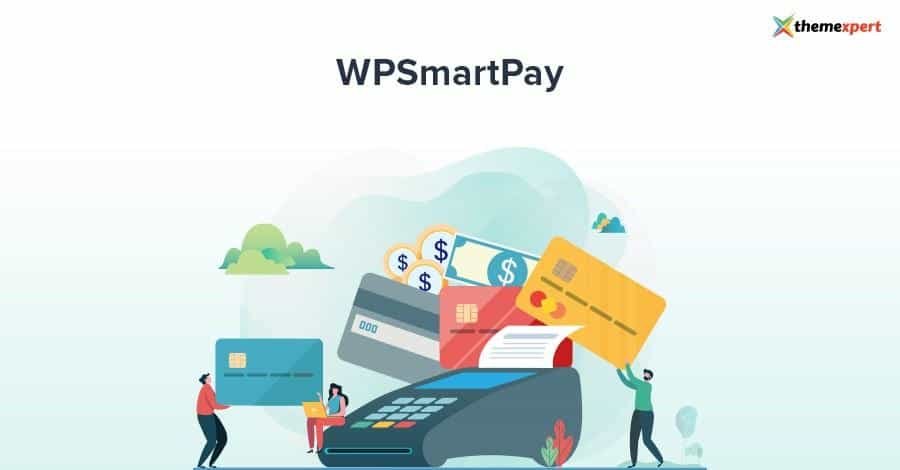
Paddle for WooCommerce 2.7.1 connects your WooCommerce shop to Paddle, so customers pay in a Paddle checkout overlay without leaving your site. It is aimed at shops selling software, plugins, SaaS plans and other digital products that want Paddle to act as merchant of record, which means Paddle handles the sales tax and VAT on each sale instead of you. You need your own Paddle account, on either Paddle Billing or Paddle Classic. Once the plugin is active, Paddle shows up as a payment method under WooCommerce, Settings, Payments, and products and prices are created in Paddle for you on the first checkout, so you keep managing your catalogue in WooCommerce as before.
How to install Paddle for WooCommerce
- Install and activate WooCommerce under Plugins, Add New Plugin if your site doesn't run it yet.
- Sign in to your Paddle account and copy your credentials: for Paddle Billing the Seller ID, API key, client side token and notification secret key; for Paddle Classic the Seller ID, Auth Code and Public Key.
- Log in to GPLGuide, open this product and click Download under Your downloads.
- Go to Plugins, Add New Plugin, Upload Plugin, choose the ZIP, click Install Now, then Activate.
- Open WooCommerce, Settings, Payments, enable the Paddle gateway, click Manage, paste your credentials and click Save changes. For a Classic account, turn off the Paddle Billing option first.
- If your site sits behind Cloudflare and Paddle webhooks return a 403 error, allow the Paddle IP addresses there, as the developer's docs explain.
Features & capabilities
- Overlay checkout that keeps buyers on your own checkout page
- Works with Paddle Billing and Paddle Classic accounts
- One time payments plus subscription payments through a supported WooCommerce subscriptions plugin
- Products and prices synced to Paddle on the first checkout, with no manual product setup in Paddle
- Refunds synced in both directions, including partial refunds
- WooCommerce coupons accepted at the Paddle checkout
- A setting that controls which payment methods appear in the Paddle checkout
- Support for the WooCommerce block checkout and High Performance Order Storage
Frequently asked questions
Is this the original file?
Yes. Every product on GPLGuide is the developer’s own release, unchanged. The license key comes already activated. If a product does ask for a key, the activation steps appear on its page once you have it.
Is it legal to use a GPL plugin or theme from GPLGuide?
Yes. WordPress plugins and themes are released under the GPL, which lets anyone use, share and change the code. The developer’s support desk and the developer’s own update service are not part of the file; those stay with the developer.
How do I install it?
Log in, open the product page and click Download under Your downloads. For a plugin go to Plugins, Add New Plugin, Upload Plugin, choose the ZIP, then Install Now and Activate. For a theme go to Appearance, Themes, Add New Theme, Upload Theme.
How do updates work?
When a newer version is listed on GPLGuide, download it from the product page and upload it over the installed copy; WordPress offers to replace the old version. Updates are manual.
Can I use it on more than one site?
Yes. The GPL lets you use it on as many of your own sites as you like.
What if the file does not work or a newer version is out?
Tell us on the Request Item page or through Support. We check the file and add the newer version when we have it.