Iconic WooCommerce Delivery Slots
100% Original fileUnmodified copy of the developer's release
DeveloperIconic
Up to dateOriginal released Apr 20, 2026 · File last updated Oct 27, 2026
About this product
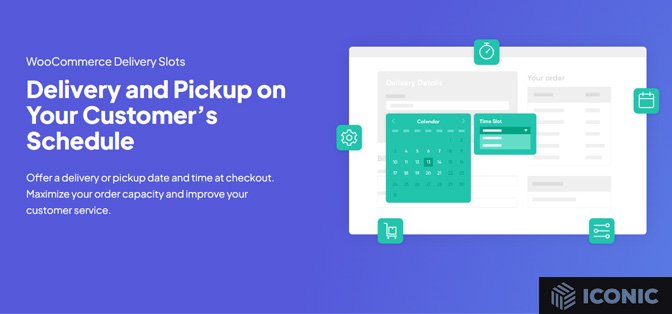
WooCommerce Delivery Slots 2.13.0 lets your customers choose a delivery or collection date, and if you want a time slot as well, while they check out. It fits shops that deliver on their own schedule: grocery and meal delivery, florists, bakeries, butchers and local stores that offer click and collect, where you need to cap how many orders you can handle each day or each hour. Customers pick the date and time on the checkout page, and you plan the work from a Deliveries page in the dashboard that lists upcoming orders with their contents, customer names and status. All settings sit under WooCommerce, Delivery Slots in the WordPress sidebar, split into a Date Settings tab and a Time Settings tab.
How to install WooCommerce Delivery Slots
- Install and activate WooCommerce under Plugins, Add New Plugin if your site doesn't run it, and set up your shipping zones and methods, because slots can be tied to them.
- Log in to GPLGuide, open this product and click Download under Your downloads.
- In your WordPress dashboard go to Plugins, Add New Plugin, Upload Plugin, choose the ZIP, click Install Now, then Activate.
- Go to WooCommerce, Delivery Slots, open the Date Settings tab and tick the Delivery Days you offer, then add any holidays.
- Open the Time Settings tab, tick Enable Time Slots, add slots with From and To times, choose their shipping methods and days, then click Save Changes.
- Check upcoming orders under WooCommerce, Deliveries, where each order shows its slot, its contents, the customer name and the order status.
Features & capabilities
- Delivery Days setting for the weekdays you deliver or offer collection
- Optional time slots, either one From and To range or many slots generated from a Slot Duration and Slot Frequency
- Maximum orders per day and Maximum Orders per Time Slot, so you never take more than your team can handle
- A cut-off per slot with Allow Bookings Up To (x) Minutes Before Slot
- Extra fees for chosen dates, days or busy time slots, such as a charge for peak hours
- Same day and next day cut-off times, plus general holidays and holidays per shipping method
- Different slots per shipping method or shipping zone, so postcodes and regions get their own schedule
- Collection wording in place of delivery, or both options side by side at checkout
- Works with the classic checkout and the block checkout
- A reservation table of available slots and time slot editing from the order screen
Frequently asked questions
Is this the original file?
Yes. Every product on GPLGuide is the developer’s own release, unchanged. The license key comes already activated. If a product does ask for a key, the activation steps appear on its page once you have it.
Is it legal to use a GPL plugin or theme from GPLGuide?
Yes. WordPress plugins and themes are released under the GPL, which lets anyone use, share and change the code. The developer’s support desk and the developer’s own update service are not part of the file; those stay with the developer.
How do I install it?
Log in, open the product page and click Download under Your downloads. For a plugin go to Plugins, Add New Plugin, Upload Plugin, choose the ZIP, then Install Now and Activate. For a theme go to Appearance, Themes, Add New Theme, Upload Theme.
How do updates work?
When a newer version is listed on GPLGuide, download it from the product page and upload it over the installed copy; WordPress offers to replace the old version. Updates are manual.
Can I use it on more than one site?
Yes. The GPL lets you use it on as many of your own sites as you like.
What if the file does not work or a newer version is out?
Tell us on the Request Item page or through Support. We check the file and add the newer version when we have it.