YITH WooCommerce Uploads Premium
100% Original fileUnmodified copy of the developer's release
DeveloperYITH
Up to dateOriginal released Feb 20, 2024 · File last updated Oct 25, 2026
About this product
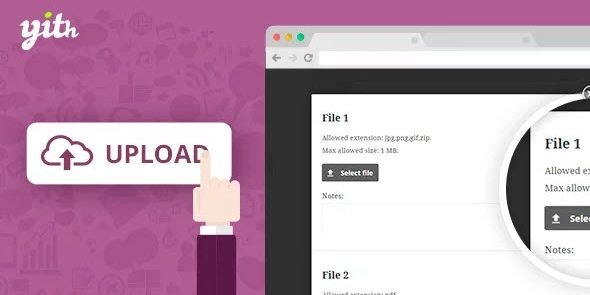
YITH WooCommerce Uploads Premium 1.32.0 lets customers attach files, such as PDFs, images or signed documents, to their WooCommerce orders and products. It suits stores that sell customised goods like printed T-shirts, or items that need a document before you can ship them, and it keeps each file with its order. You create upload rules in the plugin's settings. Customers then see an upload button on the cart, checkout, Thank You and My Account pages, but not on the product page, and you review every file on the order page.
How to install YITH WooCommerce Uploads Premium
- Install and activate WooCommerce first under Plugins, Add New Plugin. The developer's changelog lists support for WooCommerce 8.6 in this release.
- Log in to GPLGuide, open this product and click Download under Your downloads.
- In WordPress, go to Plugins, Add New Plugin, Upload Plugin, choose the ZIP you downloaded and click Install Now.
- Click Activate on the Plugins screen once the upload has finished.
- Open Uploads in the developer's menu in the WordPress sidebar, then the General tab. Switch on uploads for products or orders, choose the pages that show the button and click Add new rule. Without a rule, no button shows.
Features & capabilities
- Upload rules with a label, allowed file extensions, a maximum file size and an optional customer note. Each rule adds one upload field, so two rules ask for two files.
- General rules for the whole shop, which you can replace with rules on a single product or switch off for it.
- Uploads for each product, for each variation, for the whole order, or for any mix of them.
- The upload button can be turned on or off separately for the Cart, Checkout, Thank You and My Account pages.
- Customers can add or change files from an order in My Account with an Upload file button, and delete them only in the order statuses you allow.
- You accept or reject each file on the order page with a preview, and the customer gets an email every time. Orders waiting for review carry an icon in the orders list.
- A Split Products on cart option gives each copy of a product its own cart line, so each copy can have its own file.
- Options to accept files automatically for products, for orders, or for both.
- Thumbnail width, height and quality settings, plus a custom upload directory and a choice of how files are sorted into it.
Frequently asked questions
Is this the original file?
Yes. Every product on GPLGuide is the developer’s own release, unchanged. The license key comes already activated. If a product does ask for a key, the activation steps appear on its page once you have it.
Is it legal to use a GPL plugin or theme from GPLGuide?
Yes. WordPress plugins and themes are released under the GPL, which lets anyone use, share and change the code. The developer’s support desk and the developer’s own update service are not part of the file; those stay with the developer.
How do I install it?
Log in, open the product page and click Download under Your downloads. For a plugin go to Plugins, Add New Plugin, Upload Plugin, choose the ZIP, then Install Now and Activate. For a theme go to Appearance, Themes, Add New Theme, Upload Theme.
How do updates work?
When a newer version is listed on GPLGuide, download it from the product page and upload it over the installed copy; WordPress offers to replace the old version. Updates are manual.
Can I use it on more than one site?
Yes. The GPL lets you use it on as many of your own sites as you like.
What if the file does not work or a newer version is out?
Tell us on the Request Item page or through Support. We check the file and add the newer version when we have it.