GravityView Calendar Extension
Note
Note: The developer renamed this product to GravityCalendar. New versions continue under GravityCalendar.
100% Original fileUnmodified copy of the developer's release
DeveloperGravityView
Up to dateOriginal released Jan 16, 2025 · File last updated Oct 23, 2026
About this product
GravityView Calendar is an add-on that turns Gravity Forms entries into a calendar on your WordPress site, so the dates people send through a form show up as events. The developer renamed it GravityCalendar in version 2.1, but many site owners still look for it as GravityView Calendar. It works for events, schedules, appointments, class timetables and staff leave. This page is for GravityView Calendar 2.10.0. On GPLGuide you download the original plugin file to install on your own websites. The file comes with the license key already activated, so there is no key to enter.
Good for: anyone who already collects dates with Gravity Forms and wants to show them on a calendar. Think of event organisers, clubs and schools, teams that log vacation requests, and agencies building event registration pages for clients. It also suits GravityView users who want a calendar inside their Views.
Requirements: WordPress 5.3 or newer and PHP 7.4 or newer, the minimum the developer set in version 2.0. Gravity Forms must be installed and active, with a form that has at least one Date field or an Event field. GravityView is optional and only needed to place the calendar inside a View. Recurring events need the developer's separate Gravity Forms Event Field add-on.
What GravityView Calendar does
Every calendar is a feed attached to one form. You tell the feed which field holds the start date, which holds the end date and how to build the event title, and GravityView Calendar draws an event for each entry. Because the events come straight from your form entries, there is no separate event list to maintain.
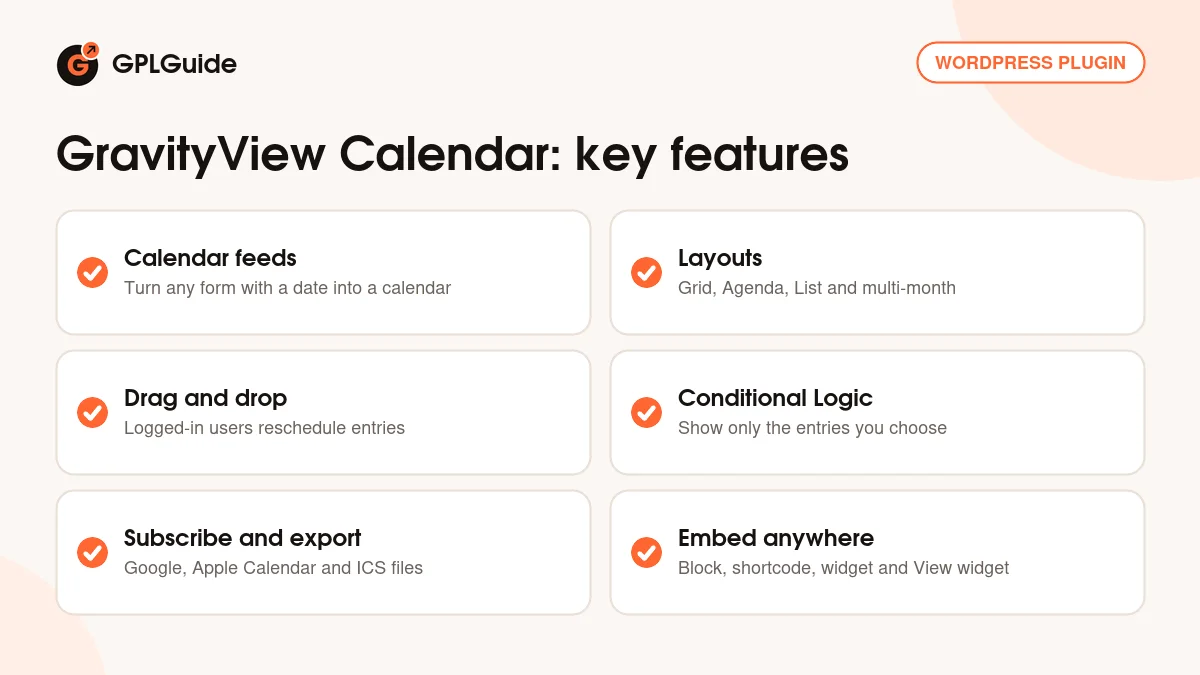
The calendar runs on the FullCalendar script, which version 2.8.0 moved up to FullCalendar 6. The developer describes Grid, Agenda and List layouts that cover month, week and day displays, and visitors switch views and move between dates with the toolbar. Events load by AJAX for the dates on screen only, which helps when a form holds a large number of entries.
You can share a GravityView Calendar as an ICS download or a subscription for Google Calendar and Apple Calendar, and you can show events from other public feeds next to your own. You place it with a block, a shortcode, a classic widget or a GravityView widget.
Setting up a GravityView Calendar feed
Go to Forms, hover over the form, open Settings, choose GravityCalendar and click Add New. Since version 2.9.0 there is also an All Calendars screen in the developer's dashboard menu that lists every calendar feed on the site. Three fields are required: Feed Name, which only you see, Start Date and Event Title. The title can be plain text or merge tags such as {Name (First):1.3}.
The optional fields fill in the details. End Date covers multi-day events and falls back to the Start Date when left empty. Start Time and End Time set the hours, and without a start time an event shows as all-day. Event Description appears when a visitor hovers over or focuses on the event, and Event Location says where it takes place. Both accept merge tags. Event Color offers nine colors.
Default Layout can be Grid, Agenda or List, and version 2.8.0 added multi-month grid and stack layouts that show several months at once. Calendar Controls lets you drag the toolbar buttons into six positions. Allow Event Editing lets logged-in users reschedule an entry by dragging it. Sizing is either Automatic or a fixed height in pixels.
Under Additional Options sit three switches. Allow HTML Content controls whether titles and descriptions may use HTML. Dynamically Load Events fetches only the events for the dates on screen. Enable Subscription URL creates the subscribe link. Click Save Settings and the feed table shows the shortcode for that GravityView Calendar, ready to copy with one click.
Choosing which entries appear in GravityView Calendar
Not every entry belongs on a public calendar. The Conditional Logic setting in each feed decides which entries become events, based on their field values. You can join rules with AND or OR, nest groups of rules and filter by user role. Nesting and user role filters arrived in version 2.7, together with instant event filtering.
In 2.8.2 the is empty and is not empty operators started working on fields with fixed choices, such as checkboxes and drop-downs, and the contains operator accepted a custom value on those fields. Version 2.10.0 goes further. The has ANY of and has ALL of operators now accept your own filter values, and merge tags work in filters that take several values.
A typical rule checks a Status field for Approved. Since each form can have several feeds, you can build one calendar per category, each with its own color and rules, all from the same form.
Sharing events: subscriptions, ICS files and outside feeds
With Enable Subscription URL switched on, visitors get a link they can add to Google Calendar or Apple Calendar. It is a one-way sync: their app follows the feed from your site, but changes made in the app do not come back. ICS downloads import into Outlook and most other calendar apps, and since version 2.4 you can attach an ICS file to a Gravity Forms notification.
The Calendar Feed URL setting, added in 2.3, shows events from another public calendar feed beside your own entries, and since 2.5 you can enter several URLs separated by commas. Those outside events are read only and appear in their own color.
To place the calendar, add the GravityCalendar block, use the shortcode [gravitycalendar id="X"] with the feed ID, or add the widget under Appearance, Widgets. Old [gv_calendar] shortcodes from before the rename keep working. With GravityView active, a Calendar widget can sit inside a View and show events for all entries or only those on the current page.
GravityView Calendar setups you can copy
- Event registration: a form with an event name, a Date field and a Time field. Use the name as Event Title and attach the ICS file to the confirmation notification.
- Staff vacation calendar: a request form with a Status field that an admin sets to Approved. Conditional Logic shows only approved requests.
- Room timetable: one feed per room on the same form, each with its own Event Color and a rule on the Room field.
- Team calendar in Google Calendar: switch on Enable Subscription URL and share the link, so new entries reach your team's calendar apps.
- Holidays beside your events: enter a public holiday feed in Calendar Feed URL so closed days show next to your own events.
- Directory with a calendar: add the Calendar widget to a GravityView View so visitors see the same entries as a list and as a calendar.
Keep Allow Event Editing on for internal calendars and off for public ones.
What's new in GravityView Calendar 2.10.0
Version 2.10.0 came out on January 16, 2025, and it is a conditional logic release. Custom filter values now work with the has ANY of and has ALL of operators, merge tags are processed in filters that take several values, and a missing value with those two operators no longer breaks the settings screen. It also removes a deprecation notice seen with Gravity Forms 2.9.1 and newer, and updates the developer's Foundation library to 1.2.22.
Version 2.9.0 (November 28, 2024) added the All Calendars menu. Version 2.8.3 (November 21, 2024) fixed a PHP notice in WordPress 6.7, 2.8.2 (November 8, 2024) improved conditional logic and fixed language selection, and 2.8.1 (November 4, 2024) fixed a JavaScript error that hid calendars when event editing was on. Before that, 2.8.0 (November 1, 2024) brought FullCalendar 6, multi-month layouts and more languages.
Good to know before you buy
GravityView Calendar 2.10.0 is not the newest release. The developer had reached version 2.25.0 by October 15, 2026, and later versions added things this file does not have: event links to a custom URL or a GravityView single entry page and short or full toolbar labels (2.11.0), the has NONE of operator (2.17.0), and an Elementor widget plus a height setting in the shortcode and block (2.22.0).
In 2.10.0 only administrators reach the calendar settings by default. Other roles need the gravityview_calendar capability, which you can grant with the free Members plugin under GF Add-Ons, GravityCalendar: Form Settings. From 2.22.0 any role that can edit forms gets access, but that change is not in this version.
Gravity Forms is a paid plugin that you buy separately. Recurring events need the Gravity Forms Event Field add-on, another product from the same developer. Subscriptions sync one way only, and events from outside feeds are read only. The developer lists no minimum Gravity Forms version for 2.10.0.
GravityView Calendar from GPLGuide vs the official subscription
From GPLGuide you get the original GravityView Calendar 2.10.0 plugin file. Everything in the file works the same way: feeds, layouts, conditional logic, drag and drop editing, subscriptions, ICS files, the block, the shortcode and both widgets. The file comes with the license key already activated, so there is nothing to enter before you start.
Only the developer's own license gives you help from their support team, their 30-day money-back guarantee and updates through an account with them. On their pricing page GravityCalendar costs $99 per year for a single site, and it is also part of the All Access Pass at $396 per year. If vendor support matters to you, buy it there. If you need the plugin itself, GPLGuide has the same file on its own or with a membership.
How to install GravityView Calendar
- Sign in to GPLGuide, open My Account, Downloads and save the GravityView Calendar ZIP.
- In WordPress go to Plugins, Add New Plugin, Upload Plugin and choose the ZIP.
- Click Install Now, then Activate. Gravity Forms must already be active.
- Go to Forms, open your form's Settings, choose GravityCalendar and click Add New to create the first calendar feed.

A good first calendar uses a small test form with a Single Line Text field for the event name, a Date field and a Time field. Create a feed with those as Event Title, Start Date and Start Time, keep the Grid layout and save. Add the GravityCalendar block to a draft page, submit a few test entries and check how GravityView Calendar shows them. Then try Conditional Logic and the subscription link before you go live.
Keeping it up to date
Updates from GPLGuide are manual. When a new version of GravityView Calendar appears in your account, download it and upload it under Plugins, Add New Plugin, Upload Plugin. WordPress offers to replace the installed copy, and your calendar feeds stay in place because they are saved in your database. If the developer has released a version we have not added yet, tell us on the Request Item/Update page.
Questions about GravityView Calendar
Do I need GravityView to use GravityView Calendar? No. Despite the old name it only needs Gravity Forms. GravityView adds one option, a Calendar widget inside a View, and you can get GravityView core here if you want it.
Is GravityCalendar the same plugin as GravityView Calendar? Yes. The developer renamed it in version 2.1 in September 2022. Menus and the block use the new name, and old [gv_calendar] shortcodes still work.
Can visitors add events themselves? Yes, through your form. Entries from a public form can appear on the calendar, and Conditional Logic can hold them back until a Status field says they are approved.
Can I move events by dragging them? Yes. With Allow Event Editing switched on, logged-in users can drag an entry to a new date or time.
Does it support recurring events? Yes, with the developer's separate Gravity Forms Event Field add-on, which bundles start and end dates, times, timezone and repeat options in one field.
Can people subscribe in Google Calendar or Apple Calendar? Yes. Turn on Enable Subscription URL and share the link. The sync runs one way, from your site to their app.
Can one form power more than one GravityView Calendar? Yes. Each feed is its own calendar with its own fields, color and rules, and its own shortcode.
Is there an Elementor widget in 2.10.0? No. The developer added it in version 2.22.0. In this version you can use the shortcode wherever your page builder accepts shortcodes.
Building with Gravity Forms? Browse more WordPress plugins on GPLGuide, including GravityView DataTables for GravityView users, or see what a GPLGuide membership includes if you need several premium add-ons.
Features & capabilities
- GravityView Calendar feeds built from any Gravity Forms Date field or Event field
- Grid, Agenda and List layouts, plus multi-month grid and stack layouts
- Drag and drop rescheduling for logged-in users with Allow Event Editing
- Conditional Logic with AND or OR rules, nested groups and has ANY of filters
- Subscription links for Google Calendar and Apple Calendar
- ICS downloads, plus ICS files attached to form notifications
- Events from outside calendar feeds shown beside your own entries
- GravityCalendar block, [gravitycalendar] shortcode, widget and GravityView Calendar widget