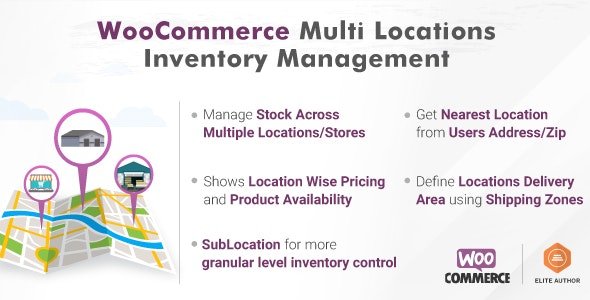
WooCommerce Multi Locations Inventory Management
100% Original fileUnmodified copy of the developer's release
DeveloperCodecanyon
Up to dateFile last updated Nov 21, 2026
About this product
WooCommerce Multi Locations Inventory Management 4.3.1 gives a WooCommerce shop separate stock for each physical location instead of one global count. It suits retailers with several stores, warehouses or pickup points, and shops that want customers to see which location has an item in stock. Each product carries its own quantity per location, and orders can be routed to a location by rules such as highest stock, closest location or location priority. You manage locations from the plugin's own section in the WordPress sidebar, and shoppers see availability, a store finder and a location choice on the shop pages.
How to install WooCommerce Multi Locations Inventory Management
- Install and activate WooCommerce under Plugins, Add New Plugin if your site doesn't run it yet. The plugin builds on WooCommerce stock, so it needs WooCommerce active.
- Log in to GPLGuide, open this product and click Download under Your downloads.
- Go to Plugins, Add New Plugin, Upload Plugin, choose the ZIP, click Install Now, then Activate.
- Open the plugin's section in the WordPress sidebar, then Manage Location, and add each store, warehouse or pickup point with its contact details. Then edit a product and enter the stock quantity for every location that carries it.
- For everything else, stay in that same section. It holds the Location Setting, General Setting and Shop Page Setting pages, plus settings for shipping and payment methods per location and for order fulfillment.
Features & capabilities
- Separate stock quantity and stock status (in stock, out of stock, backorder) for each location, with stock taken from the right location when an order comes in
- Unlimited locations with contact details and business hours, which you can hide and show again whenever you like
- A location choice before add to cart, with the cart quantity checked against that location's stock
- A store locator map using Google Maps or OpenStreetMap, with nearest-location detection, distance sorting and radius search
- Prices, shipping zones and methods, payment gateways and tax rules that can differ from one location to the next
- Order fulfillment rules based on highest or lowest stock, closest location or location priority
- Location manager roles that limit a store manager to their own location, with new order emails sent per location
- Product Central, a single screen for editing stock across all locations in bulk
- Local pickup selection, split order packages by location, and a REST API for locations and stock
Frequently asked questions
Is this the original file?
Yes. Every product on GPLGuide is the developer’s own release, unchanged. The license key comes already activated. If a product does ask for a key, the activation steps appear on its page once you have it.
Is it legal to use a GPL plugin or theme from GPLGuide?
Yes. WordPress plugins and themes are released under the GPL, which lets anyone use, share and change the code. The developer’s support desk and the developer’s own update service are not part of the file; those stay with the developer.
How do I install it?
Log in, open the product page and click Download under Your downloads. For a plugin go to Plugins, Add New Plugin, Upload Plugin, choose the ZIP, then Install Now and Activate. For a theme go to Appearance, Themes, Add New Theme, Upload Theme.
How do updates work?
When a newer version is listed on GPLGuide, download it from the product page and upload it over the installed copy; WordPress offers to replace the old version. Updates are manual.
Can I use it on more than one site?
Yes. The GPL lets you use it on as many of your own sites as you like.
What if the file does not work or a newer version is out?
Tell us on the Request Item page or through Support. We check the file and add the newer version when we have it.